Manage Chrome camera, microphone, and location permissions per site
Grant only the permissions a web app needs, review them after use, and distinguish browser permissions from device settings.
Published · Updated · FaultNote editorial policy
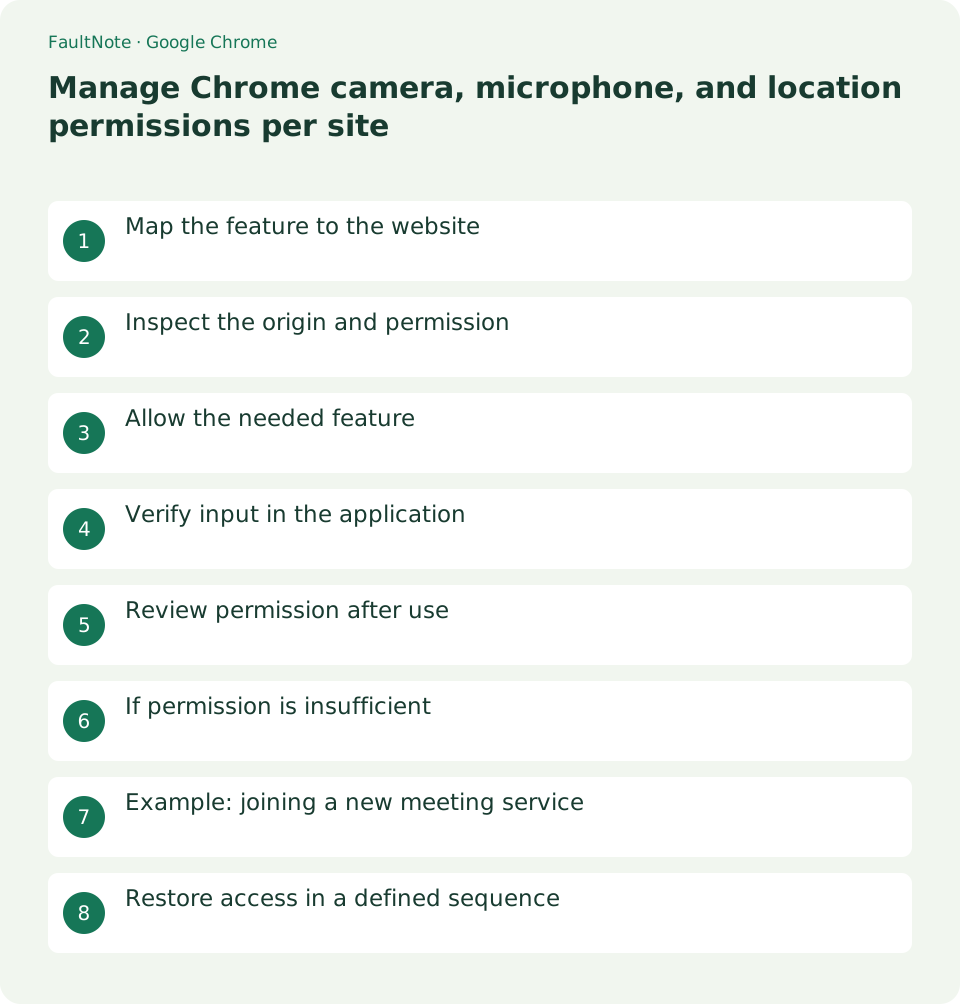
Who this guide is for and what to prepare
- People granting device access for a meeting or web recording
What you need
- Verify the official web-app URL and required devices, and preserve unfinished input.
Map the feature to the website
List the features your task requires: microphone for speech, camera for video, or location for a local result. A permission prompt is a request, not an instruction. Decide whether the requested feature has a clear role in the current task.
For several meeting services, note which devices each task needs. Decide separately whether screen sharing is required; camera permission alone does not define the information you intend to share.
If your role is only reading shared material, transmitting video may be unnecessary. Check the organizer instructions and your role before granting access. Limiting devices also helps you control background visibility and unnecessary location sharing.
Scroll horizontally to see the full table →
| Goal | Control | Check |
|---|---|---|
| Audio-only meeting | Microphone | Selected input device |
| Video meeting | Camera and microphone | Framing and preview |
| Nearby search | Assess location need | Whether manual input is sufficient |
Inspect the origin and permission
Navigate directly to the intended URL and open the site information control beside the address bar. Inspect Site settings and the relevant permission. Check the full domain rather than relying on the page logo or title.
If sign-in redirects elsewhere, inspect the destination address too. Grant permission only after confirming that the requesting origin belongs to the workflow you intended to use.
Connection indicators alone do not establish who operates a service. Compare the address with the meeting invitation or official entry point. Inspect redirects before responding to a request from an unexpected website.
- Open the official app and its site-information control.
- Inspect camera, microphone, and location in Site settings.
- Allow only the features the current task requires.
- Preserve input before any requested reload.
- Verify the named device and preview.
- Review saved permissions after ending the task.
Allow the needed feature
Use a one-time permission when the browser offers it and it suits the session. If you choose an ongoing permission, note the origin for review afterward. Available choices differ by feature and browser version, so read the actual prompt.
If the feature offers no one-time choice, record the saved setting and review it after use. There is no need to change experimental options to force a different prompt.
Read the requested feature before accepting. If you need only audio but the application also requests video, inspect its join options and camera settings. Use the pre-join preview to limit what you intend to transmit.
Verify input in the application
Follow a reload request only after preserving unfinished work. In the meeting application, check the selected input device and its activity indicator. Use a camera preview to inspect framing before joining other participants.
Distinguish microphone access from speaker output. Changing an input permission will not fix an output device selected incorrectly in the meeting application.
Permission does not choose the correct device on a multi-device computer. Select the named USB or built-in microphone and inspect its activity indicator. If the app offers a recording test, review a short sample before joining.
Review permission after use
After finishing, revisit the same origin permission and choose Ask or Block if continued access is unnecessary. Closing the tab ends that page session, but reviewing the saved permission determines what happens on a future visit.
During a periodic review, compare permissions with recently used services. If you later return to a retired service, decide again whether its requested access is appropriate for that task.
On a shared device, follow the session-ending procedure so your account and device configuration do not affect the next user. After leaving the web app, inspect permissions and any recordings or exported files saved locally.
If permission is insufficient
If access still fails, inspect operating system privacy controls and any physical device switch. Confirm that the intended device is connected. On a managed computer, provide the administrator with the app URL and required feature rather than changing unrelated security settings.
Before enabling a physical camera switch, inspect your surroundings and meeting connection state. Use the application preview to understand what could be transmitted before continuing.
Separate a device-recognition problem from one website permission problem. If an approved familiar application can access the device, note that comparison. Retain the error wording and selected device name for support.
Example: joining a new meeting service
Before a first meeting, open the official join page, allow the microphone, and inspect input activity. Add camera access only if needed, then inspect framing. After leaving, decide whether future access is useful and review the saved origin permissions, especially for a one-off event.
For a connection check, ask whether the other participant hears you and sees only the intended framing. Local input activity does not establish remote quality. Recording requires separate attention to destination and participant arrangements; device permission alone does not settle those questions.
Restore access in a defined sequence
Restore the relevant origin to Ask or Allow and reopen the page after saving unfinished input. Select the device and perform a short test. If access still fails, inspect OS permissions, connection, and physical switches in sequence without changing unrelated site settings.
After recovery, review temporary device selections and permissions. Restore your usual device and run a short test. If hardware is not recognized, describe that connection problem to support instead of repeatedly granting website permissions.
Limitations and requirements
- Note the current setting and verify the exact site or file before changing a destination or permission.
Frequently asked questions
Does closing the tab revoke permission?
It depends on the permission duration. Inspect the saved site setting afterward.
Will microphone permission fix speaker output?
Input permission and speaker output are separate. Inspect the app or OS output selection.
Why can I not change this on a work PC?
Management policy may restrict it. Provide the administrator with the site URL, required feature, and purpose.
Why is video absent after I allow the camera?
Inspect the selected device, physical shutter, and OS access. Distinguish a site-specific problem from a device-wide one.
Sources and verification date
Sources checked: . These sources support the specifications, procedures or prices discussed here. Check each source for applicable conditions and current information.
Related practical guides
- Organize Chrome download folders, history, and actual files
- Stop unwanted Chrome website notifications by origin
- Clear one Chrome website storage before retrying sign-in
- Incognito shopping: retained records and checks before closing
- Review Chrome address and payment autofill on a shared PC
- Organize digital purchase accounts, receipts, and recovery access