Organize Chrome download folders, history, and actual files
Set a predictable download destination, locate completed files, and distinguish removing history from deleting files.
Published · Updated · FaultNote editorial policy
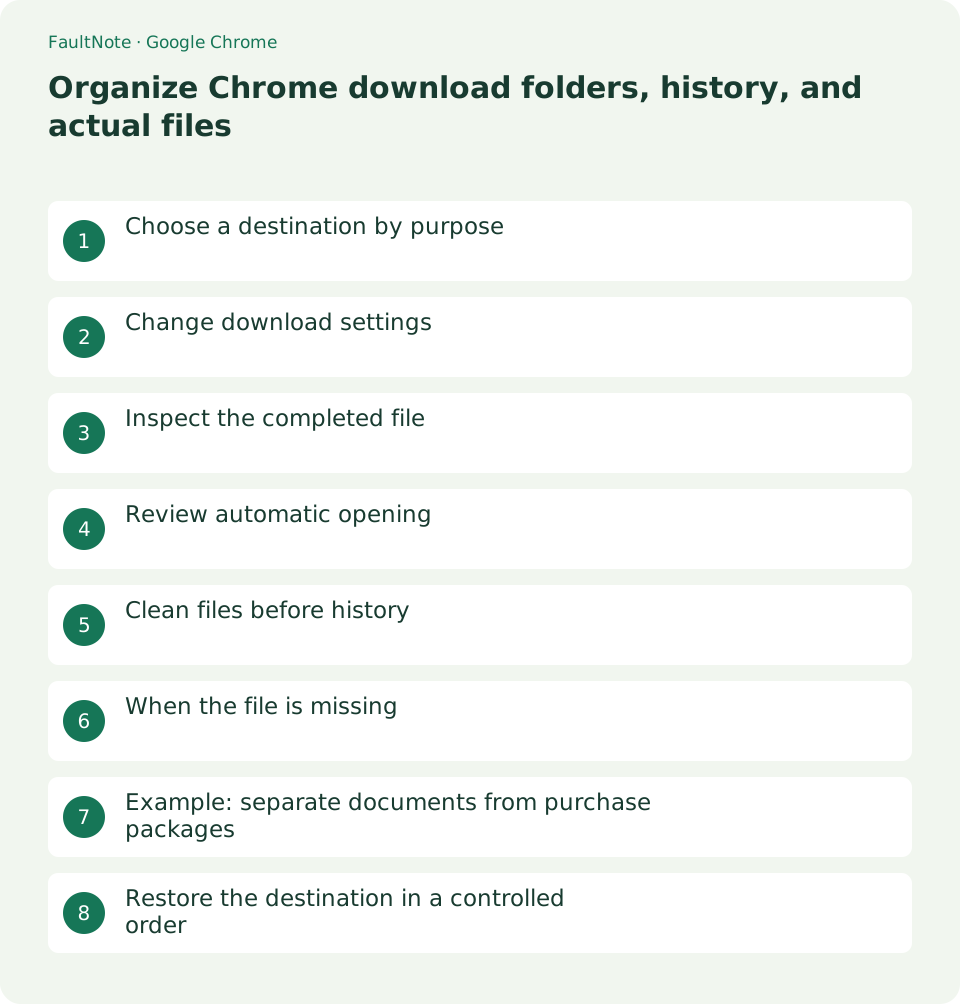
Who this guide is for and what to prepare
- Windows users whose purchase packages and work documents share one download folder
What you need
- Open the official document page and inspect the current destination and available storage.
Choose a destination by purpose
Keep retained installers separate from disposable reading material. A folder named with the product and acquisition date makes later cleanup easier; include a short note describing why the file is retained.
For example, group retained packages by product and add the acquisition date to updated versions. Decide whether an older version is useful only after confirming the replacement meets your needs.
For a cloud-synced destination, inspect which devices receive files and how much storage is available. Moving a large package may create copies elsewhere. Keep personal purchase files outside company shared storage and define who needs access.
Scroll horizontally to see the full table →
| Goal | Control | Check |
|---|---|---|
| Change future destinations | Download settings | Existing files stay where they are |
| Reclaim storage | Inspect actual files | History removal alone is insufficient |
| Simplify the list | Clean download history | Retain purchase records separately |
Change download settings
Open Chrome Settings, then Downloads, and choose a destination. Enable the option to ask where to save each file if projects need separate locations. Use a writable local folder with sufficient free space.
After changing the destination, save one small public document and inspect its location. A destination change affects future downloads; organize previously saved files separately in the old folder.
An ask-before-saving dialog can offer a previous folder that is unsuitable for the new task. Read the displayed destination each time. If you rename a file, preserve its extension so applications can still identify the intended format.
- Open Settings from the Chrome menu.
- Select Downloads and note the existing destination.
- Choose Change and select a writable folder.
- Enable destination confirmation if tasks need different folders.
- Save a small official document and locate it in its actual folder.
Inspect the completed file
Open Downloads from the menu and locate the item in its folder. Compare the modification time and size when duplicate names exist. Record the final filename in your project notes so a later version cannot silently replace it.
Inspect the extension before opening. If a supposed document is an executable, compare it with the publisher description and intended package rather than launching it immediately.
For a multi-file package, compare installers and documentation with the official download list. Similar filenames may represent different versions or languages. Verify their role before moving the entire collection into a retained archive.
Review automatic opening
If a supported file type opens immediately after downloading, right-click a recent item and review Always open files of this type. Turning that option off lets you inspect the destination before opening a file in its associated application.
Follow an established work policy when one exists. Changing the default application is separate from controlling automatic opening, so identify which behavior you need to change.
Changing automatic opening does not close documents already open in another application. Save a harmless reference document to inspect the new behavior, then open it manually if needed. Verify a restored setting using the same file type.
Clean files before history
Removing an item from Chrome download history leaves the saved file on the computer. To reclaim space, inspect the actual folder and remove only files you no longer need. Retain an independent copy of anything required for reinstalling or documenting a purchase.
A size-sorted list helps prioritize inspection, but size alone does not justify deletion. If an application relies on a stored package or asset, check its documented file-management process.
Download history is a useful clue but does not replace retailer order records. Before cleaning purchased packages, retain the order identifier and archive location separately. Avoid relying on a file alone as proof of how you acquired it.
When the file is missing
If an entry exists but its file cannot open, check whether the file was moved or its drive disconnected. Before downloading again, inspect the official purchase library and access conditions. A security warning calls for checking the publisher, rather than running the file to see what happens.
For files retained on removable storage, note the drive label and physical location. A broken history link can reflect a changed path rather than damaged file contents.
When downloading again, save under a new name before overwriting an old package. Compare version and size, and read supported-environment details. A newer release is not automatically suitable for the older environment you need to maintain.
Example: separate documents from purchase packages
Suppose you receive three meeting documents and one purchased software archive. Save the documents under the work date and the archive under its product name. Locate all four completed files from Downloads. If you accidentally saved a document twice, compare its contents and timestamp before deleting the redundant copy.
Completion means the retained archive exists in its designated location and required documents remain accessible. Comparing file counts before and after cleanup helps detect mistakes. Check any organizational retention period before deleting expired work material.
Restore the destination in a controlled order
If the new destination fails, check that its folder and drive exist. Restore a previously usable destination and verify it with one document. Distinguish incomplete files from completed originals before cleanup. Restoring the setting does not relocate earlier files; move retained files separately through the file manager.
When restarting a failed download, distinguish the new file from the earlier attempt. Do not distribute a partial file as the official package. Verify completion in both the list and folder, and record repeated failures with destination, capacity, time, and file details.
Limitations and requirements
- Note the current setting and verify the exact site or file before changing a destination or permission.
Frequently asked questions
Does clearing history delete the files?
No. Manage the files separately in their actual destination.
Does changing the destination move old downloads?
No. Inspect the old destination and move retained completed files separately.
Does an unavailable history entry mean corruption?
No. A move or disconnected drive can also break the path. Locate the actual file first.
Can I remove duplicates by filename alone?
Versions or contents may differ. Compare timestamps, sizes, and publisher version details before removing a retained copy.
Sources and verification date
Sources checked: . These sources support the specifications, procedures or prices discussed here. Check each source for applicable conditions and current information.
Related practical guides
- Stop unwanted Chrome website notifications by origin
- Manage Chrome camera, microphone, and location permissions per site
- Clear one Chrome website storage before retrying sign-in
- Incognito shopping: retained records and checks before closing
- Review Chrome address and payment autofill on a shared PC
- Organize digital purchase accounts, receipts, and recovery access