Stop unwanted Chrome website notifications by origin
Identify the website behind an alert and block its notification permission while retaining useful alerts.
Published · Updated · FaultNote editorial policy
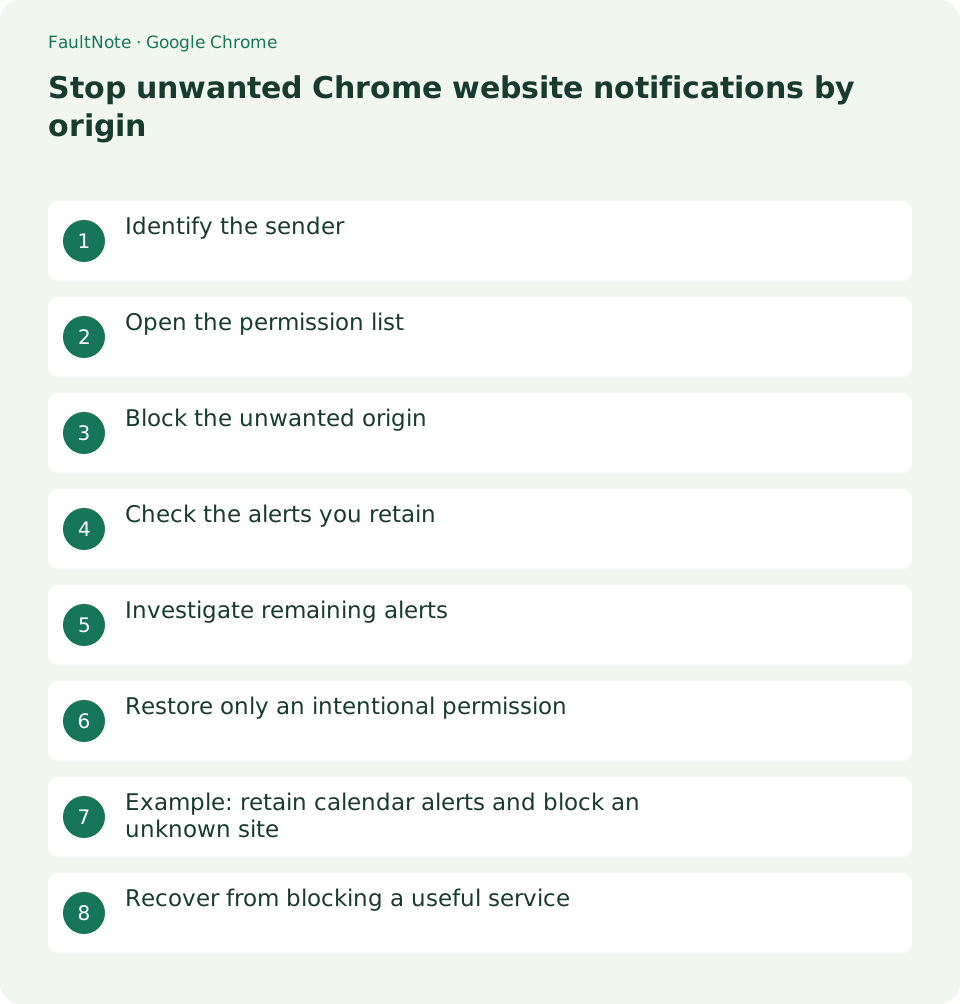
Who this guide is for and what to prepare
- People who need to stop individual unwanted Chrome website alerts
What you need
- Note the origin, application, and alert time, then identify the Chrome profile in use.
Identify the sender
Before acting on an alarming message, note its displayed website and browser. A website controls its notification text; that text is not evidence of a computer diagnosis. Inspect permissions through browser settings instead of following the alert.
If you retain a screenshot, keep personal information private. The useful diagnostic details are chiefly the origin, application, and time of the alert.
Do not purchase a repair or respond to payment demands solely because an alert insists. Open the official service separately to inspect its status. Permission cleanup controls alerts; it is not a diagnostic test of the computer's security state.
Scroll horizontally to see the full table →
| Goal | Control | Check |
|---|---|---|
| Unknown origin | Block that site | Retain other permissions individually |
| Useful service is noisy | Adjust service categories | Separate this from browser permission |
| Alerts continue | Compare origin and time | Inspect other profiles |
Open the permission list
In Chrome Settings, open Privacy and security, Site settings, then Notifications. Review allowed origins and distinguish unknown domains from services you recognize but no longer use. Check exact spelling, including subdomains.
An empty allowed list does not settle the issue if you are inspecting a different profile. Compare the notification source with the browser environment you actually use.
The list can retain sites you allowed long ago. For work alerts, compare origins with the services you actually use and note required entries. If a managed-device setting cannot be changed, explain the needed outcome to its administrator.
- Open Chrome Settings and Privacy and security.
- Open Site settings, then Notifications.
- Find the origin displayed on the unwanted alert.
- Use its action menu to change permission to Block.
- Record the time and compare the origin of subsequent alerts.
Block the unwanted origin
Change the unwanted origin to Block. Removing an exception returns it to the default permission behavior, which may allow another prompt. Explicitly blocking an origin expresses that you do not want further notifications from it.
Inspect each domain before changing similarly named entries. Change one unwanted origin and observe the result before proceeding, preserving a clear record of which setting mattered.
After blocking, return to normal work and inspect the source of any new alerts instead of following notification links. A different subdomain may have its own permission. Similar spelling alone does not establish that two origins belong to the same service.
Check the alerts you retain
For a calendar or messaging service, confirm the signed-in account and the purpose of its alerts. Browser permission and the service notification preferences are separate controls. Retain only the categories that support your daily work.
If a useful service is too noisy, inspect its category or sound options. Retaining browser permission does not require accepting every notification the service can generate.
A useful-alert test also depends on service conditions such as event timing or unread status. If permission exists but no alert appears, inspect operating system focus controls and app preferences one at a time.
Investigate remaining alerts
If alerts continue, inspect other Chrome profiles and browsers. The operating system notification list can help identify the application involved. Keep a note of the displayed origin and time to determine whether it is a new alert or an already queued one.
A banner inside a page is different from an operating system notification. If it appears only within a tab, changing notification permission may not affect that page content.
Distinguish previously queued notifications from new arrivals after the setting change. Record when you changed permission so you can compare timestamps. Do not reopen an old alert and return to an unwanted website unnecessarily.
Restore only an intentional permission
To restore a useful service, navigate directly to its official website and update that origin permission. Use a built-in test notification if available. Verify the sender, then record why this particular website is allowed.
Note the reason and date when restoring permission. That record helps you review the allowed list later and retire permissions for services you have stopped using.
After restoring a site, inspect its entry in the allowed list. For a temporary project, set a review date in your notes. Restore only the service you need rather than resetting the entire permission list.
Example: retain calendar alerts and block an unknown site
If the allowed list contains a calendar and an unknown alert site, verify and retain the calendar origin, then block the unknown one. Test the calendar using its notification feature or an event you control. If alarming alerts continue, record their origin and time and inspect other browser profiles.
For an approaching deadline, inspect the calendar directly and retain another reminder until browser alerts are verified. When an expected notification arrives, confirm its origin so you do not mistake the useful calendar service for the unwanted sender.
Recover from blocking a useful service
Open the official service and restore its notification permission. If alerts remain absent, inspect service categories and then operating system settings. For a critical deadline, use another reminder until verification is complete. Do not re-allow unrelated origins while restoring one useful service.
A concise record can contain origin, previous and new permission, and observed result. Avoid sharing personal notification content. Explaining the source and change outcome helps distinguish a website alert from another application without exposing meeting details.
Limitations and requirements
- Note the current setting and verify the exact site or file before changing a destination or permission.
Frequently asked questions
Does blocking notifications delete my account?
Notification permission is separate from account deletion or cancellation.
Must I stop every Chrome notification?
No. Site permissions can address one origin. Blocking Chrome at operating system level also affects useful web alerts.
Are Remove and Block equivalent?
Removing an exception restores default behavior. Explicitly block an origin when you do not want future notifications from it.
Is a virus warning in a notification a diagnosis?
The website controls the message wording. Inspect its origin without following the alert; the text alone is not diagnostic evidence.
Sources and verification date
Sources checked: . These sources support the specifications, procedures or prices discussed here. Check each source for applicable conditions and current information.
Related practical guides
- Organize Chrome download folders, history, and actual files
- Manage Chrome camera, microphone, and location permissions per site
- Clear one Chrome website storage before retrying sign-in
- Incognito shopping: retained records and checks before closing
- Review Chrome address and payment autofill on a shared PC
- Organize digital purchase accounts, receipts, and recovery access