Clear one Chrome website storage before retrying sign-in
Inspect one affected origin, preserve unfinished work, and retry sign-in without clearing every website storage.
Published · Updated · FaultNote editorial policy
Who this guide is for and what to prepare
- People investigating display or sign-in problems on one website
What you need
- Preserve drafts and cart details, and verify the affected domain and sign-in method.
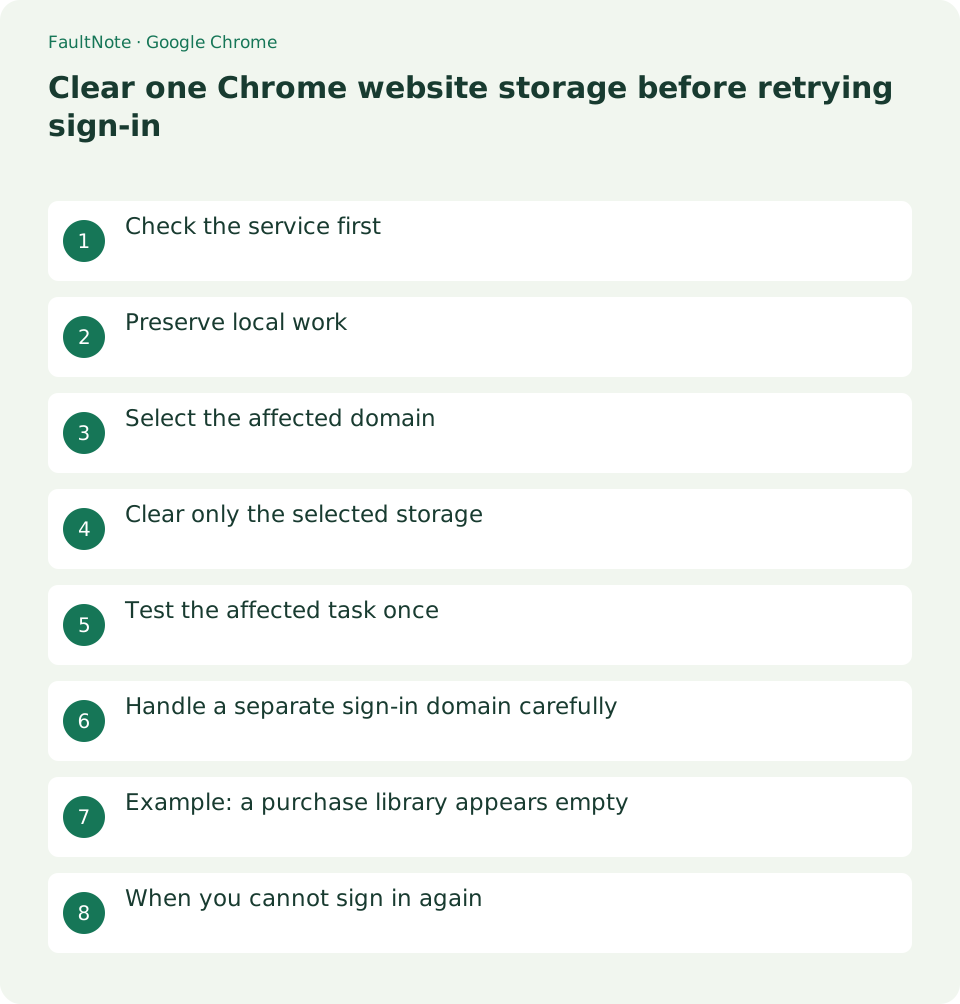
Check the service first
Check the account name, official service notices, and device time before changing storage. If the failure followed a purchase or submission, inspect its recorded status first. Avoid repeating a completed transaction while investigating a display problem.
A second device can provide context, but avoid saving credentials casually on a shared computer. If an official incident notice explains the failure, waiting for service recovery may be more useful than repeatedly deleting browser data.
Scroll horizontally to see the full table →
| Situation | Action | Check |
|---|---|---|
| Documented service incident | Follow recovery updates | Avoid repeated clearing |
| Wrong account | Switch to the intended identity | Compare history and receipt recipient |
| One origin has stale state | Consider targeted removal | Preserve drafts and access |
Preserve local work
Save unfinished drafts and note important settings before clearing storage. Confirm that you can sign in again. If the service does not explain whether a draft is stored remotely or locally, preserve an export or copy before proceeding.
When recording a cart, retain product names and quantities without copying payment secrets. Preserve unfinished forms in storage you control, taking care with personal details. Keep only the information needed to recover your work.
- Find site data using Chrome settings search.
- Search the list for the affected domain.
- Compare the entry with the actual URL.
- Preserve required input and confirm sign-in access.
- Remove only the selected site storage.
- Reopen the official URL and test the intended account once.
Select the affected domain
Find stored site data through Chrome settings and search for the affected domain. Compare it with the actual service URL before selecting an entry. Settings search can help when menu labels move between versions.
If the origin is absent from the list, inspect the current page URL. A service brand and its storage domain may differ. Use the displayed address and official documentation rather than guessing and removing several unrelated entries.
Clear only the selected storage
Remove the selected site storage and reopen the official URL. For a purchase library, use a trusted bookmark or manually verified address. Do not switch to an unfamiliar sign-in link merely because a message claims it will repair access.
Read the selected scope before confirming deletion. If you have moved into a browser-wide data-clearing dialog, return and verify the site-specific operation. Check once more that no unique unfinished draft will be lost.
Test the affected task once
Sign in and open the affected screen once. Confirm both the content and account identity. If the problem remains, record the error wording, URL, and time for support rather than repeatedly deleting wider sets of data.
Success means the expected account content appears, not merely that the sign-in page disappears. Compare order identifiers in a purchase library or your document list in a work app to rule out signing into the wrong account.
Handle a separate sign-in domain carefully
A service may authenticate on another domain, so clearing its main origin alone may not change the result. Verify the authentication provider in official help before considering additional storage. Keep the change limited to the domains involved in the documented flow.
Clearing a shared identity provider can affect other services using it. Expand the scope only when official guidance supports it, and save work in those services first. Record changed domains so support can understand the sequence.
Example: a purchase library appears empty
If a familiar store library appears empty, compare the account email with the receipt recipient first. Switch accounts if needed. Only after ruling out an identity mismatch and documented incident should you preserve local work and consider targeted storage removal. After signing in, compare product and order identifiers before contemplating another purchase.
If switching to the correct account restores the library, no storage clearing is needed. Follow any pending-order guidance without resubmitting. Retain the relevant error wording privately, and judge success by the expected records appearing under the correct identity.
When you cannot sign in again
If sign-in fails after clearing storage, stop repeated password attempts and use official recovery guidance. Inspect any recent authentication change notices. A new account will not necessarily recover an old purchase library. Provide support with order identifiers and error text, but do not include passwords or verification codes.
After recovery, inspect the cart and drafts. Before restoring recorded input, check whether it was already submitted and compare official history with your notes. This avoids duplicate orders or forms. Keep a record of the removed origin even if its effect remains unclear.
Do not expect a universal undo for storage removal. Separate preferences that can be re-entered from local drafts that may not be recoverable. For important ongoing work, find the official preservation method before clearing anything.
Limitations and requirements
- Verify transaction records or migration outcomes before repeating an order or retiring an old environment.
Frequently asked questions
Will this delete purchases?
Browser storage and a service purchase record are separate. Confirm account access and the service storage behavior first.
Are cache and cookies the same?
No. Cookies and site storage can support authentication or preferences; cache retains fetched content. Read the dialog scope and follow the relevant official procedure.
Is repeated clearing a safety measure?
It is not a universal diagnostic or protection. Check incidents and account identity first, and preserve unfinished input.
Why did another service also sign out?
Services can share an authentication domain. Record what you removed and sign in through official URLs again.
Sources and verification date
Sources checked: . These sources support the specifications, procedures or prices discussed here. Check each source for applicable conditions and current information.
Related practical guides
- Organize Chrome download folders, history, and actual files
- Stop unwanted Chrome website notifications by origin
- Manage Chrome camera, microphone, and location permissions per site
- Incognito shopping: retained records and checks before closing
- Review Chrome address and payment autofill on a shared PC
- Organize digital purchase accounts, receipts, and recovery access