Review Chrome address and payment autofill on a shared PC
Inspect saved autofill entries and their storage context, then remove unnecessary address or payment details on shared devices.
Published · Updated · FaultNote editorial policy
Who this guide is for and what to prepare
- People reviewing address and payment autofill on a shared device
What you need
- Identify the Chrome profile and your own entries, and retain required delivery details.
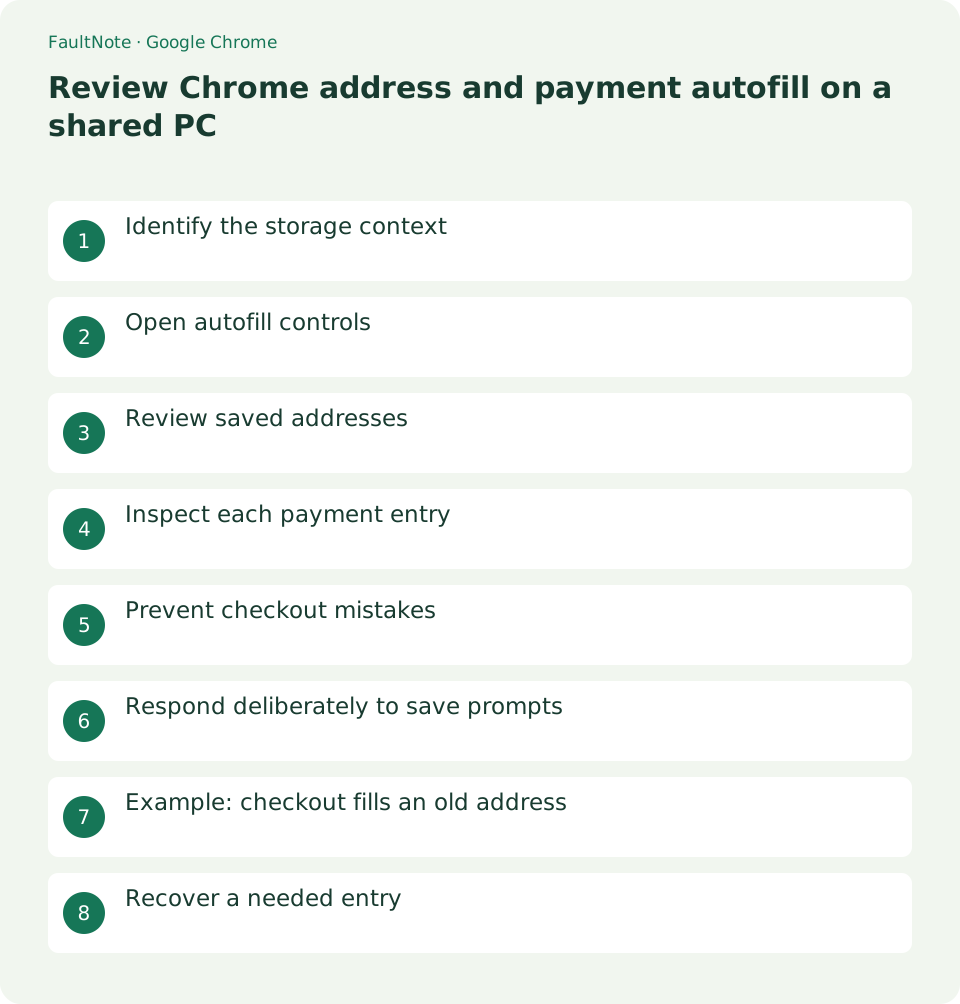
Identify the storage context
When a shared PC offers an address or payment entry, first identify the Chrome profile in use. Inspect whether settings direct you to local management or an account service. Do not edit another person's entries without their agreement.
Even a household computer can mix entries within a shared profile. Confirm whose address is offered and coordinate with the owner of someone else's entry. Limit cleanup to your own unnecessary data rather than changing another user's records.
Scroll horizontally to see the full table →
| Situation | Action | Check |
|---|---|---|
| Remove an old address | Saved address entries | Inspect retailer address book separately |
| Reduce card suggestions | Payment management | Separate from subscription cancellation |
| Avoid future storage | Saving and filling controls | Review existing entries individually |
Open autofill controls
Open the address and payment controls under Chrome autofill settings. Review each independently: an option controlling future saving is different from an existing saved entry. Note whether any entry opens an external account-management page.
Use settings search if menu labels have changed. If an edit control opens an account page, verify its identity again before altering data. Read the destination and actual entry rather than choosing the first search result mechanically.
- Open the autofill controls in Chrome Settings.
- Inspect addresses and payment methods separately.
- Compare identifying details and ownership.
- Preserve needed details and remove only your unused entries.
- Adjust future saving for the shared-device arrangement.
- Inspect checkout suggestions without confirming payment.
Review saved addresses
Inspect obsolete addresses before deleting your own unused entries. Keep required delivery details in a private location first. Consider whether the shared computer needs to retain any address after this task ends.
Compare postal code and street details when entries share a name. Both home and work addresses may be needed. Removing browser autofill does not establish that an address saved separately by a retailer was also changed.
Inspect each payment entry
Use the displayed identifier, such as the last four digits, to identify a payment entry. Removing browser autofill is separate from cancelling a card or ending a retailer subscription. Handle those actions through the relevant provider account.
When a payment entry is managed by an account service, read that page scope. Separate removing a future autofill suggestion from changing an account payment method. Neither action should be assumed to reverse a completed transaction.
Prevent checkout mistakes
Before submitting checkout, inspect the recipient, address, email, and selected payment method. Autofill can choose an entry you did not intend. If an order has already been placed, use its official details and support process instead of submitting a replacement immediately.
A digital item may still require billing identity or receipt details even without shipping. Inspect the completed fields and retailer requirements before confirming. Do not submit inaccurate information on the assumption that it will be easy to correct later.
Respond deliberately to save prompts
On a shared device, decide whether a save prompt serves a future need before accepting it. Review entries again after checkout. Sign out of the relevant website and follow the device policy for ending browser account access.
Assess convenience separately from the need to retain information on a shared profile. Declining storage increases manual entry but limits persistent personal details there. Choose an arrangement suitable for how the device is shared.
Example: checkout fills an old address
If checkout fills an old address, correct it before submitting and inspect the Chrome address list. Retain current details privately and remove the obsolete entry. On the next check, inspect suggestions without completing payment. Update any separate retailer address book through its own account controls.
A signed-in retailer can supply an address even when Chrome no longer suggests it. Inspect the form and account to identify where the data comes from. Distinguishing the source avoids repeated browser cleanup, and you should also review the receipt identity before submission.
Recover a needed entry
If you remove a needed address, enter verified details from your private record. Decide again whether this device should retain it. For a removed payment suggestion, select your own method through the official checkout flow. Do not copy someone else's entry or store full card details in an ordinary note.
For an order submitted with wrong details, inspect that order in the official account. Correction options and deadlines vary by retailer. Editing autofill does not automatically change an existing order. Determine how to handle it before creating another one.
Define a small repeatable routine: avoid retaining your address, decline unnecessary save prompts, and verify account identity. On an administered shared PC, follow its policy rather than deleting other users entries or shared settings wholesale.
Limitations and requirements
- Verify transaction records or migration outcomes before repeating an order or retiring an old environment.
Frequently asked questions
Does removing an autofill card stop subscriptions?
No. Manage subscriptions through the retailer or service that holds the contract.
Does deleting autofill also remove a retailer address book?
It can be managed separately. Inspect shipping and billing entries in the retailer account.
Must I make a purchase to verify suggestions?
No. Inspect suggestions in the form and leave without submitting payment.
What if a family member's card appears?
Confirm ownership and the profile. Do not use or delete it without agreement; coordinate the shared-device arrangement.
Sources and verification date
Sources checked: . These sources support the specifications, procedures or prices discussed here. Check each source for applicable conditions and current information.
Related practical guides
- Organize Chrome download folders, history, and actual files
- Stop unwanted Chrome website notifications by origin
- Manage Chrome camera, microphone, and location permissions per site
- Clear one Chrome website storage before retrying sign-in
- Incognito shopping: retained records and checks before closing
- Organize digital purchase accounts, receipts, and recovery access