Isolate GPU-related Chrome crashes, freezes, or startup failures
What to do first
Test extensions and GPU acceleration in sequence. If only one site fails, also investigate the site and network.
This is a general troubleshooting guide, not an announcement of a current outage.
Affected products and symptoms
- Product
- Google Chrome
- Versions and conditions
- Chrome for computer (general Google support procedure; no specific version)
Symptoms
- Chrome crashes
- Chrome freezes
- Chrome does not start
Causes and conditions
Google identifies a possible problem between the computer's hardware and Chrome and recommends disabling hardware acceleration. It does not attribute this to a particular GPU or driver version.
Before you start
- Check Chrome Sync and preserve important tabs
- Record whether the error affects every site or one site
- Record the original settings
Precautions
- Deleting browsing data affects sign-in state and site settings
- Disabling acceleration may reduce video or 3D-rendering performance
Tools and official pages used in this guide
Review Chrome's official crash-isolation procedure and settings path.
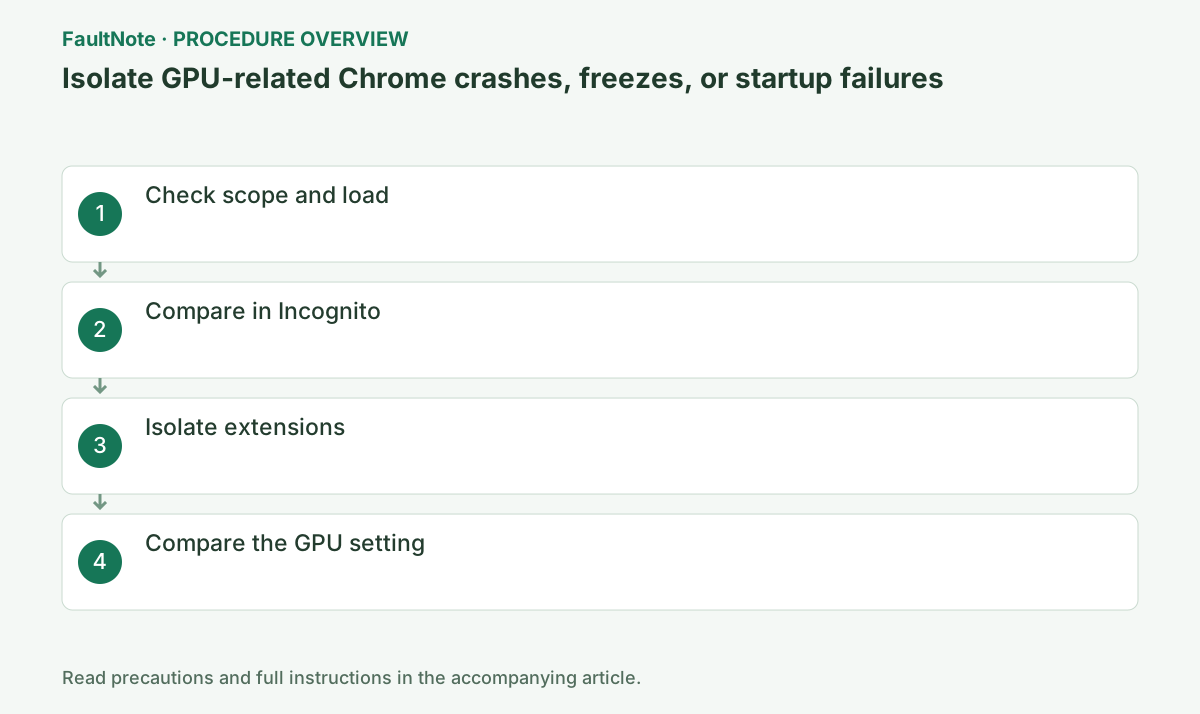
Step-by-step instructions
Distinguish one tab showing Aw, Snap!, all Chrome windows disappearing, and a window becoming unresponsive. Record the URL, profile, tab count, and whether video or a web meeting was active.
Test a single tab separately from your usual multi-tab workload. A single-tab success suggests a load-related condition, but does not distinguish memory pressure from a graphics issue.
Check before continuingTest a single tab separately from your usual multi-tab workload. A single-tab success suggests a load-related condition, but does not distinguish memory pressure from a graphics issue.
Close all tabs except the failing one, stop downloads and unnecessary apps, and reload. Open the same URL in another browser to distinguish a Chrome problem from a site or connection problem.
Continue if only Chrome fails. If another browser also fails, investigate the site or network.
Use the three-dot menu at the upper right to open the stated pages. Reproduce with the same URL, Chrome profile, zoom level, and video position. Keep the effect of closing tabs and apps separate from the effect of changing settings.
When Chrome cannot launch, page reload is unavailable. Check for Google Chrome or chrome.exe in Task Manager, saving editable work first if possible. Confirm the process before ending it, then launch once normally. Success may indicate a retained process but does not establish the cause. If launch still fails, consider restarting Windows or the next official step; do not claim to have tested an inaccessible settings page.
Open Menu > New Incognito window and repeat the page and action. If only a normal window fails, an extension or stored site data may be involved.
Only if needed, open Menu > Delete browsing data and select cookies and cache. Confirm that this may sign you out of sites before proceeding.
Improvement in Incognito points to extensions or stored data. Because deleting cookies signs you out, limit deletion to the affected site and confirm that you can sign in again first.
Incognito can run explicitly permitted extensions, and also changes cookies, login, and page content. Match permissions and actions when testing an account dashboard. If the same session is unavailable, treat Incognito as supporting information and compare extension states in the regular window. Before clearing cache or cookies, preserve forms and ensure that you can sign in again.
Compare Incognito only when you can perform the same signed-in action. A public home page and a resource-heavy account dashboard are different workloads. Note any extensions explicitly allowed in Incognito.
Incognito success is not a reason to delete the whole profile. Test extensions in the regular profile and, if necessary, investigate only the affected site data. Save forms and confirm sign-in access before clearing data.
If one disabled extension fixes the problem, restore unrelated extensions individually and check login and page features. Disabling a password manager need not delete saved information; use another legitimate authentication method. Reports should include the tested URL and action, not just the extension name.
Check before continuingIncognito success is not a reason to delete the whole profile. Test extensions in the regular profile and, if necessary, investigate only the affected site data. Save forms and confirm sign-in access before clearing data.
Open Menu > Extensions > Manage extensions, temporarily disable every extension, and open the same page. If it improves, enable one extension at a time and reload after each change to find the cause.
Re-enable extensions that are not responsible. If there is no improvement, restore the original enabled state and proceed to the GPU check.
Use the switches on Manage extensions rather than editing chrome://extensions directly. Test one at a time, restore unrelated items, and record each name and result.
Record the time, extension name, and URL for each comparison. If disabling a group helps, restore members individually, then disable a triggering item again to confirm improvement returns. If none helps, restore unrelated items before the GPU test. Check whether disabled ad-blocking or password features changed page content or sign-in conditions.
Open Menu > Settings > System, turn off Use graphics acceleration when available, and select Relaunch when it appears.
Retest with the same video, scrolling action, and page. If it does not improve, turn the switch back on and relaunch. If it improves, install an official GPU-vendor driver update and test again with acceleration enabled.
After changing the GPU switch under Settings > System, select Relaunch. Restore the original value if the same page does not improve; if it does, retest with the switch on after updating the official GPU driver.
For meeting-only freezes, distinguish ordinary browsing from recovered meeting operation. Use non-sensitive video or sharing comparisons. Record quality or load changes when acceleration is disabled. If another browser also fails on the work service, give the administrator its URL and time. Alternative-browser participation is a workaround; restore unsuccessful Chrome changes and identify the working path.
Complete the relaunch after changing acceleration; changing its visible switch alone is not a new rendering test. Check the original action and everyday video, WebGL, or meeting functions because they can be affected differently. If another browser also fails on the same site, provide its operator with the URL and action rather than repeatedly reinstalling Chrome. Failures across sites and applications call for a wider device investigation.
Official links for this step
- Fix Chrome crashes
Review Chrome's official crash-isolation procedure and settings path.
Check before continuingDecision: turn off Use graphics acceleration when available under Menu > Settings > System and select Relaunch. Retest the same content; restore the switch if it does not help, or update the official GPU driver and retest with acceleration enabled if it does.
- Fix Chrome crashes
Save editable work and note downloads before quitting. If Chrome will not open but chrome.exe remains in Task Manager, confirm the process belongs to Chrome, end it, and try launching once.
If disabling acceleration helps, record that setting and the Chrome version. Verify the same action after reopening; otherwise restore the setting. A URL that fails in another browser belongs in the site or network investigation.
Check before continuingIf disabling acceleration helps, record that setting and the Chrome version. Verify the same action after reopening; otherwise restore the setting. A URL that fails in another browser belongs in the site or network investigation.
Check the result
- Results were compared between another browser and Chrome
- Reproduction differs before and after changing an extension or GPU setting
If the problem continues
- Undo changes that did not help
- If another browser also fails, contact the site owner or network administrator
Scope of this guide
Troubleshooting guide — This is Google's general crash-diagnostic procedure, not a resolved incident affecting a specific release.
Frequently asked questions
Does only one site crash?
If the site also fails in another browser, the problem may not be specific to Chrome. Check the site and connection.
Does reinstalling guarantee a repaired profile?
No. Keeping or removing profile data changes the outcome, and removal can lose needed information. Check sync and backups first and retain extension and acceleration comparison results.
Official sources and dates
Source publication or resolution date: Not specified. Sources checked: 2026-10-13. The check date is not the date the problem first occurred. Interface labels can vary between versions and display languages.
Related troubleshooting guides
Google Chrome errors and troubleshooting →
- Isolate Chrome “Aw, Snap! / Out of Memory” errors by testing load and extensions
- Chrome download blocked? Review the warning and fix the cause
- Troubleshoot Chrome ERR_CONNECTION_RESET
- Troubleshoot Chrome ERR_NAME_NOT_RESOLVED