Incognito shopping: retained records and checks before closing
Understand what Incognito changes and verify orders, downloads, and account identity before ending a shopping session.
Published · Updated · FaultNote editorial policy
Who this guide is for and what to prepare
- People checking purchases on a shared PC or separate browsing session
What you need
- Prepare the official store URL, intended account, and receipt and file destinations.
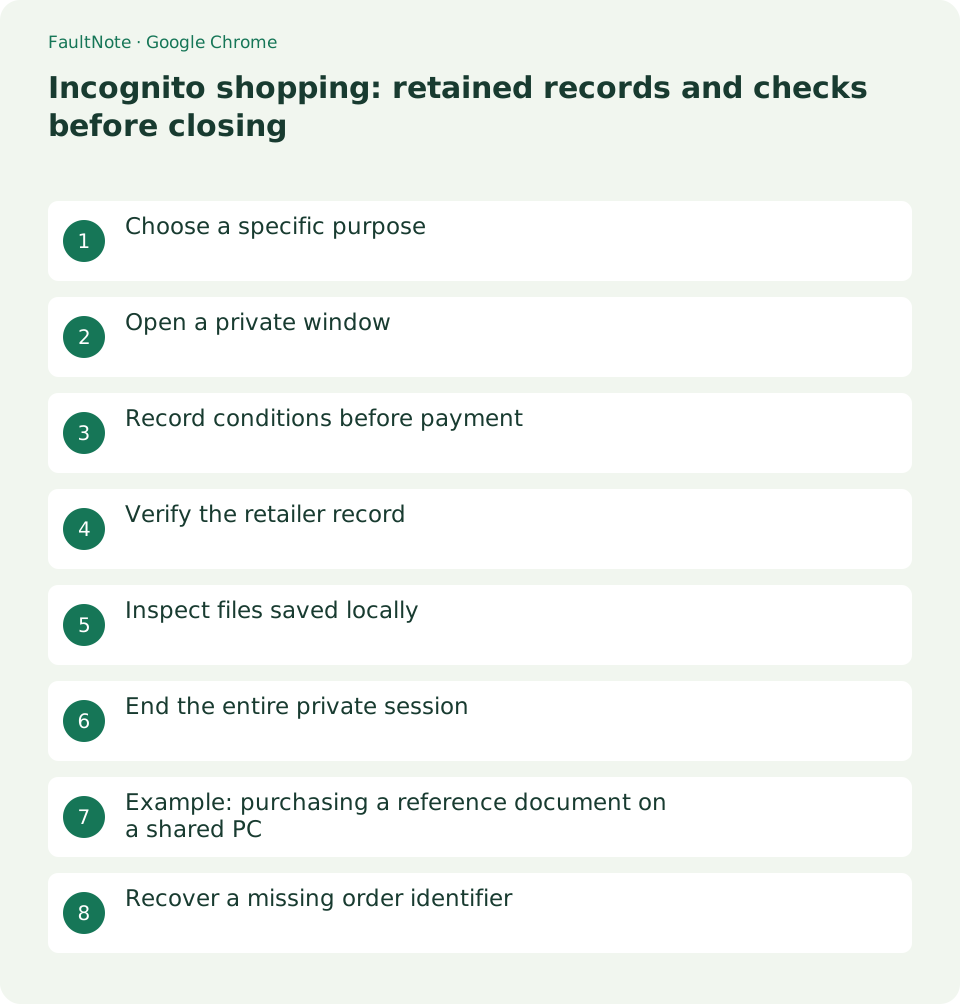
Choose a specific purpose
Use a private session when you need to keep its website sign-in separate from an existing browsing session. Treat an order as a transaction with the retailer, even when the local browser session is private. Plan how you will access its receipt later.
Define why you need separation. If you are inspecting a different account, note its email to reduce mistakes. For personal versus work purchases, verify the retailer account and billing identity rather than relying on the browser window appearance.
Scroll horizontally to see the full table →
| Situation | Action | Check |
|---|---|---|
| Separate website sessions | Use a private window | Verify retailer identity |
| Retain purchase proof | Save order ID and receipt | Compare retailer history |
| Leave a shared device | Close all private windows | Handle saved files separately |
Open a private window
Open a new Incognito window from the Chrome menu and confirm its private-session indicator. Navigate to the official store and verify the account shown there. Do not assume it matches the account in a regular window.
You may have several private windows in the same session. When finishing, review all of them rather than closing only the checkout tab. On a shared computer, check for remaining authenticated pages before leaving your seat.
- Choose New Incognito window from the Chrome menu.
- Verify its indicator and open the official store URL.
- Check the email in the store account screen.
- Review the product and terms before checkout.
- Verify order history, identifier, and retained files.
- Sign out and close every Incognito window.
Record conditions before payment
Review the product, license, supported environment, refund terms, and download access before payment. If you retain a price or offer screenshot, include its date. An old screenshot documents a past display rather than guaranteeing current terms.
Immediately before paying, inspect quantity, currency, tax presentation, and edition. Make sure you did not switch to a comparison tab for another product or language version. Resolve unclear usage conditions through official support before purchase.
Verify the retailer record
Inspect the store purchase history or library after checkout, and retain the order identifier. Save the receipt to a location you can find later. Losing a browser tab is not a reason to place the same order again.
If checkout closes unexpectedly, inspect the order before paying again. A card or bank notice alone may not establish the retailer's final state. Check official history and follow its guidance when processing remains pending.
Inspect files saved locally
Downloaded files remain on the device after a private session ends. On a shared PC, inspect the destination and transfer retained files to your own storage. Remove unwanted local copies from their actual folder after verifying the transfer.
If you transfer a file to cloud storage, inspect its sharing scope. Verify the retained copy before removing a shared-device copy. Ending the private window is not evidence that local files have been cleaned up.
End the entire private session
Close every Incognito window after preserving the necessary records. Private browsing does not erase observations made by websites, the network operator, or the retailer. Follow the shared-device policy and inspect any downloaded files separately.
After saving records, use the store sign-out action when available. Inspect any regular window separately if it also holds an authenticated session. Closing a browser session is separate from ending a store contract or subscription.
Example: purchasing a reference document on a shared PC
On a shared PC, open the official store in Incognito and verify your account. Review conditions before paying and record the order afterward. Transfer the receipt and document to your storage and inspect the retained copy. Sign out, close every private window, and clean unnecessary local copies separately.
If you must leave the shared computer, inspect active checkout and downloads and follow its session policy. Either finish the download or stop and retrieve it on your device later. A partial file is not evidence of a successful transfer.
Recover a missing order identifier
After losing an order identifier, sign in to the official store from your own device. Compare purchase history with the confirmation email recipient and search by date and product. If absent, inspect payment state and identity before contacting support. Missing local browsing history does not prove a failed order.
When checking recovered history, compare edition, order identifier, and date rather than product name alone. Refunds or cancellation belong to the retailer official process; restoring a private browsing history is not the route to resolving a transaction.
Inspect retained content as well as filename: readable document pages or an archive matching the official package description. Do not treat immediate execution as a substitute for checking a transfer. On a shared PC, keep saving separate from any installation requiring permission.
Limitations and requirements
- Verify transaction records or migration outcomes before repeating an order or retiring an old environment.
Frequently asked questions
Does Incognito hide my purchase history?
It does not remove orders recorded in the retailer account.
Are downloads removed when the session ends?
No. Inspect actual saved files and verify retained copies before removing unwanted local ones.
Does this make a purchase anonymous?
No. Information provided through sign-in and payment remains subject to the retailer and payment provider practices.
Should I buy again if the checkout tab disappears?
First inspect order history and payment state. If unclear, collect the order clues and contact official support.
Sources and verification date
Sources checked: . These sources support the specifications, procedures or prices discussed here. Check each source for applicable conditions and current information.
Related practical guides
- Organize Chrome download folders, history, and actual files
- Stop unwanted Chrome website notifications by origin
- Manage Chrome camera, microphone, and location permissions per site
- Clear one Chrome website storage before retrying sign-in
- Review Chrome address and payment autofill on a shared PC
- Organize digital purchase accounts, receipts, and recovery access