Troubleshoot Chrome ERR_NAME_NOT_RESOLVED
What to do first
Diagnose the name-resolution error in order across URL, site, device, and network.
This is a general troubleshooting guide, not an announcement of a current outage.
Affected products and symptoms
- Product
- Google Chrome
- Versions and conditions
- Chrome for computer
- Error codes and identifiers
- ERR_NAME_NOT_RESOLVED
Symptoms
- The site cannot be reached
- The host name cannot be found
Causes and conditions
The host may not exist, its IP address may have changed, the URL may be wrong, or DNS may be failing.
Before you start
- Record the complete URL, error code, and time
- Check whether a VPN or internal DNS is in use
Precautions
- Do not change organization-specified DNS without authorization
- Do not visit a suspicious domain with similar spelling
Tools and official pages used in this guide
Check the official page for exact setting names, limitations, and updated decision paths.
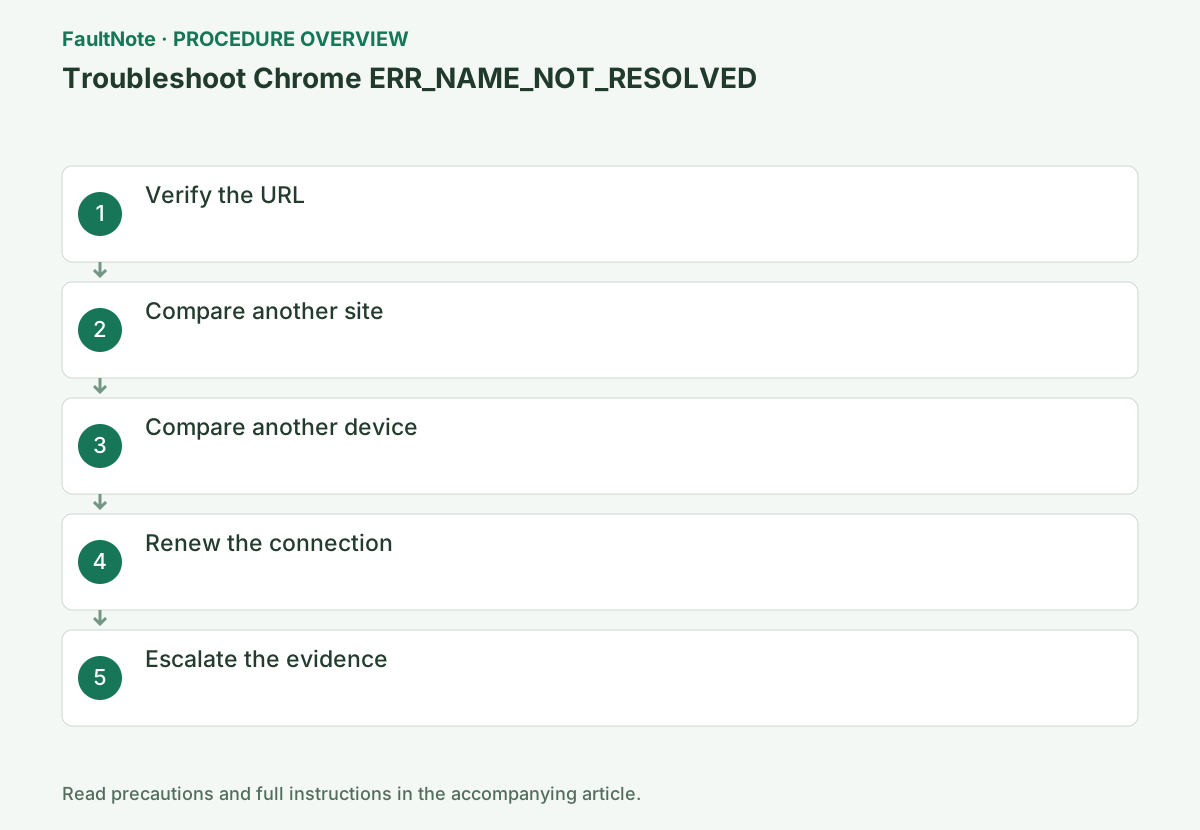
Step-by-step instructions
Check the domain spelling in the address bar. A search term, email address, or URL path is not the hostname. An internal-only name may require organization DNS or VPN access, unlike a public site.
Follow the service link from its official home page to compare it with an old bookmark. If the hostname changed, update to the official URL and avoid submitting information to a similarly spelled domain.
For a failing internal portal with working public sites, check the required company VPN and network. Absence from internet search does not prove removal. Internal names may not resolve through public DNS. Give the administrator the hostname, VPN state, and another organization-device result and retest under required conditions.
Check before continuingFollow the service link from its official home page to compare it with an old bookmark. If the hostname changed, update to the official URL and avoid submitting information to a similarly spelled domain.
Check the domain spelling and navigate from the official home page rather than a link in email.
Confirm that the error page says ERR_NAME_NOT_RESOLVED. Distinguish text entered as a search from a URL, and check a copied URL for extra spaces or missing characters.
Select Advanced on the error page only to record the code. Select only the hostname in the address bar and check spelling and extra spaces. Do not move to a suspicious look-alike domain from search results.
For https://portal.example.com/help, the hostname is portal.example.com, not /help. Check spelling and punctuation copied from mail. Do not authenticate on a similarly named search result. Verify any changed hostname through the provider's official home page, recording old-bookmark and new-official-link results separately.
Open another known site in the same Chrome session and determine whether only the target or all sites fail.
A hostname used only inside a company may not resolve from an outside network. If only an internal site fails, do not infer that the network is healthy merely because public sites open; confirm the internal connection requirements.
Check a couple of ordinary HTTPS sites to distinguish general access failure from the target hostname. Other sites working narrows scope but does not validate target DNS. Wi-Fi signal alone does not establish completed access authentication. Follow legitimate public-Wi-Fi portal guidance and do not enter the target service password into an unfamiliar portal.
Open the same hostname on another device using the same Wi-Fi. Failure on both points toward shared network or hostname conditions; failure on one prioritizes that device. Compare another network only through an approved connection.
Changing browser, VPN, and network together hides the useful variable. Organize results by device, network, and VPN state; do not disconnect a required work VPN to test an internal name.
Check before continuingChanging browser, VPN, and network together hides the useful variable. Organize results by device, network, and VPN state; do not disconnect a required work VPN to test an internal name.
Open the target URL on another device connected to the same Wi-Fi to distinguish a device problem from a network-wide problem.
Record whether the same URL fails or opens on the other device. Change only one of device, network, and site at a time so the reproduction conditions given to an administrator are clear.
Ensure a phone really uses the same Wi-Fi rather than mobile data. Record device, connection, URL, and code together. Test internal names under the required organization network or VPN; failure from an external network may be expected. If another browser also fails, investigate hostname and network before deleting Chrome profile data.
Restart Chrome and the PC, then reconnect Wi-Fi. Reconnect a VPN only through the administrator-approved method.
For home Wi-Fi, confirm the network in the taskbar list, disconnect once, and reconnect to the same network. Do not delete corporate VPN or proxy settings based on guesswork; ask the responsible person whether the site requires that connection.
Check active downloads, calls, and remote sessions before reconnecting. Return to the intended Wi-Fi and retry the original URL. Coordinate shared-router restarts and follow administrator guidance for managed VPN or DNS. Record which connection improved; moving to another network does not mean the original network was repaired.
Official links for this step
- Official Google Chrome troubleshooting
Check the official page for exact setting names, limitations, and updated decision paths.
- Official Google Chrome troubleshooting
If only another network works, report it to the DNS administrator. If it fails on multiple networks, give the URL and time to the site operator.
Include the target domain, occurrence time, Chrome version, and results from another site and device. Do not share a URL containing a password or authentication token unchanged; use the method specified by the site administrator.
Report the hostname, working public sites, another same-network device, and approved alternative-network results. Verify an official replacement URL before updating bookmarks. After a DNS correction, retest on the original network and check any separate login subdomain. For recurrence, add the new time and code and compare with the prior working conditions.
For one affected site, retain the hostname and time; for several, list both working and failing sites. On a managed device, provide the comparison to the administrator instead of replacing DNS with a public resolver.
After recovery, open the original URL in a regular window and reach the required page. A working home page with a failing subdomain is incomplete recovery; report that failing hostname separately.
Check before continuingAfter recovery, open the original URL in a regular window and reach the required page. A working home page with a failing subdomain is incomplete recovery; report that failing hostname separately.
Check the result
- The page opens at the correct URL
- You can explain the scope of the failure
If the problem continues
- For an internal site, ask the administrator about internal DNS requirements
- If other browsers also fail, defer resetting Chrome
Scope of this guide
Troubleshooting guide — A general diagnostic and recovery procedure based on official support; it does not indicate a current specific incident.
Frequently asked questions
Is reinstallation required?
If another device also fails, investigate DNS or the site first.
Can I enter the IP address directly?
The certificate will not match, so prefer the official URL and a DNS correction.
Will changing DNS always fix it?
No. Missing or internal names and managed configurations may require another approach. Compare spelling, devices, and networks first and follow administrator DNS instructions.
Official sources and dates
Source publication or resolution date: Not specified. Sources checked: 2026-10-13. The check date is not the date the problem first occurred. Interface labels can vary between versions and display languages.