Troubleshoot Chrome ERR_CONNECTION_RESET
What to do first
Compare the site, browser, network, and VPN or security layer.
This is a general troubleshooting guide, not an announcement of a current outage.
Affected products and symptoms
- Product
- Google Chrome
- Versions and conditions
- Chrome for computer
- Error codes and identifiers
- ERR_CONNECTION_RESET
Symptoms
- The connection resets while loading
- Communication ends before completion
Causes and conditions
Possible causes include an unstable connection, outdated Chrome, a VPN, a proxy, or security software.
Before you start
- Record the URL, time, and frequency
- Identify the VPN, proxy, and security product
Precautions
- Do not permanently disable the firewall or antivirus protection
- Do not use a public network for business authentication
Tools and official pages used in this guide
Check the official page for exact setting names, limitations, and updated decision paths.
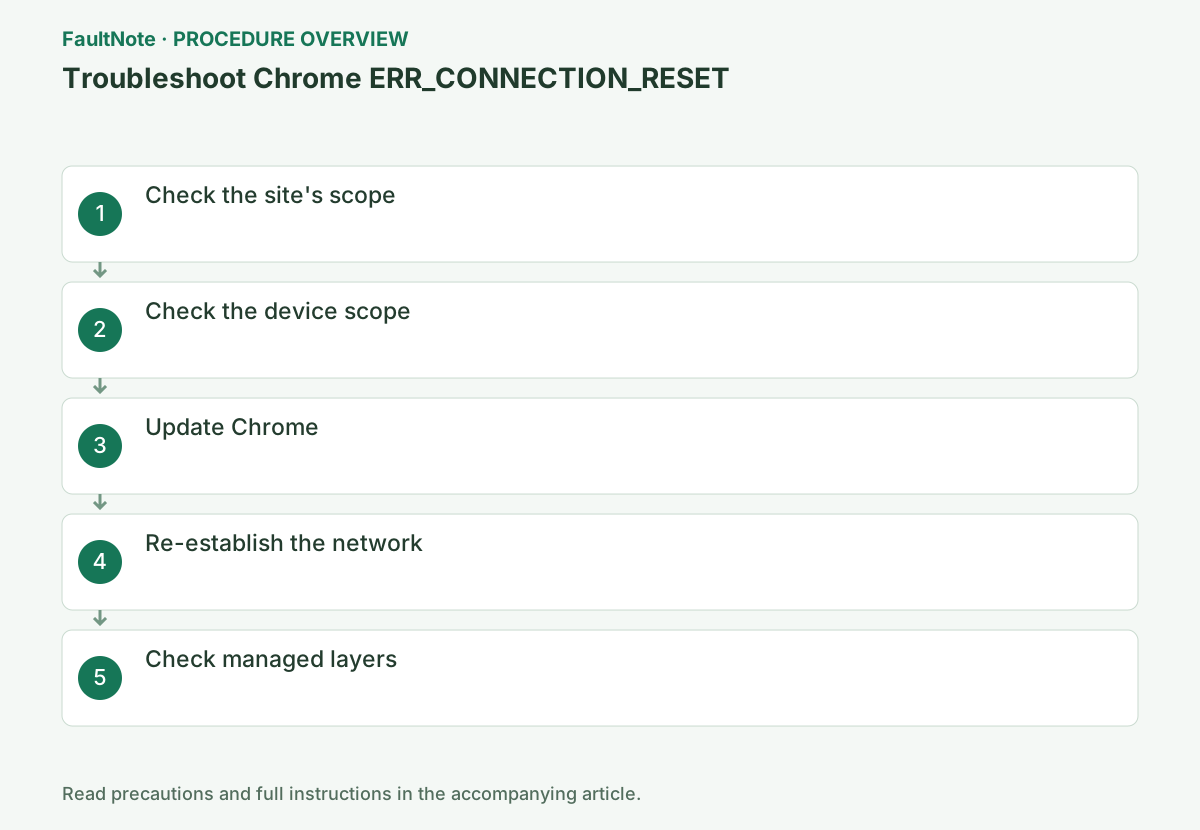
Step-by-step instructions
Record whether the reset happens on initial load, after sign-in, or during upload. For upload-only failures, include file size and elapsed time and compare the same operation.
Retrying after an interrupted submission can duplicate an operation. For purchases, forms, or file registration, check history and completion notices before retrying instead of repeatedly reloading.
Treat alternate-network success as a workaround with original-network investigation still open. Use approved work connections. For timed disconnections, record time to reset and whether it occurs while idle. Browsing success is insufficient for upload-only failures. Give the operator the smallest failing action alongside the working conditions.
Even on a working connection, complete the original submission and check its registered result or completion notice.
Check before continuingRetrying after an interrupted submission can duplicate an operation. For purchases, forms, or file registration, check history and completion notices before retrying instead of repeatedly reloading.
Reload the target and open another trusted site.
Reloading may discard page input. Save it first, and record whether the connection ended immediately after sign-in, during file upload, or during ordinary browsing.
Open a new Incognito window with ⋮ > New Incognito window and paste the same URL. Failure only in a normal window narrows the cause to an extension or stored site data.
Separate ERR_CONNECTION_RESET from a nonexistent-hostname error. Record the full message, URL, and whether it occurs during loading, authentication, or upload, including any redirect hostname. Narrow Google's possible causes through comparison instead of assuming an update is the cause. Check order or payment history before resubmitting an interrupted transaction.
Open the target URL on another device on the same network. If every device fails, prioritize the network.
If another device also fails only on the same site, investigate the site or communication path before reinstalling Chrome. Also test another trusted site and record the comparison.
Compare the same URL and action on another same-network device, recording mobile data as a different network. A single-device failure prioritizes its Chrome, VPN, and security state; target-only failure across devices points toward the site or shared path. Many failing sites call for wider network checks. Note account-permission differences that prevent equivalent actions.
Google lists unstable connectivity, an outdated browser, VPN issues, and security software among possible causes. This does not identify one product; compare update timing with the start of the failures.
On a managed device, provide block notifications and VPN status to the administrator. On a personal PC, inspect product logs and official guidance before disabling protection. Record and restore any setting changed for comparison.
Check before continuingOn a managed device, provide block notifications and VPN status to the administrator. On a personal PC, inspect product logs and official guidance before disabling protection. Record and restore any setting changed for comparison.
Open ⋮ > Help > About Google Chrome, update, and restart.
After updating, use Relaunch and access the affected URL again. If Chrome reports that updates are managed by the organization, do not change update settings; ask the administrator.
Check Help > About Google Chrome and complete any relaunch. Test on the same network afterward and record version and result. Updating and changing network together obscures the useful variable. Match sign-in actions for Incognito comparisons. Do not replace a managed installation independently; if an updated browser still fails, proceed to the next comparison.
Official links for this step
- Official Google Chrome troubleshooting
Check the official page for exact setting names, limitations, and updated decision paths.
- Official Google Chrome troubleshooting
Reconnect the PC and Wi-Fi. If all devices are affected, restart the router through the proper procedure.
Restarting the router affects other users. Even at home, confirm that no meeting or transmission is active and follow the manual's power-cycle procedure. Do not confuse this with factory reset using the Reset button.
Check meetings, uploads, and remote work before reconnecting. Return to the original network and open a new tab. Coordinate a shared-router restart and distinguish device reconnection success from router-wide recovery. Verify the original sign-in or submission, checking transaction history before any resubmission.
Give VPN and security-product logs and timestamps to the administrator, and compare an approved alternate network.
If the security product has a block history, match it to the time and site. Do not disable the product to establish access; ask the authorized administrator or vendor to review a false positive or organization rule.
Provide VPN product and status, block notices, last working time, and URL. Any protection comparison should follow scoped official instructions and restore the original state afterward, not leave all protection disabled. Share only necessary log content. For site escalation, include working-site and other-device results without declaring the PC faulty.
After reconnecting, open the same URL in a new tab and verify the original sign-in or submission, not just a public page. Check the effect on other users and active transfers before restarting a shared router.
If recovery is temporary, provide failure times, connection type, and other-device results to the ISP or site operator. One short successful attempt does not establish a permanent fix for an intermittent reset.
Check before continuingIf recovery is temporary, provide failure times, connection type, and other-device results to the ISP or site operator. One short successful attempt does not establish a permanent fix for an intermittent reset.
Check the result
- The page opens without the connection ending
- Device and network comparison identifies the likely layer
If the problem continues
- If only one site fails, contact its operator
- If every device fails, consult the network administrator
Scope of this guide
Troubleshooting guide — A general diagnostic and recovery procedure based on official support; it does not indicate a current specific incident.
Frequently asked questions
How does this differ from NAME_NOT_RESOLVED?
The name was resolved, but communication was interrupted before completion.
Should I delete the VPN?
First use the administrator-specified disconnect and reconnect procedure.
Can retrying an upload create duplicates?
It depends on the service. Processing may finish server-side despite the interruption; check the item list or completion notice before retrying. Apply the same check to purchases and applications.
Official sources and dates
Source publication or resolution date: Not specified. Sources checked: 2026-10-13. The check date is not the date the problem first occurred. Interface labels can vary between versions and display languages.