Back up Chrome bookmarks as HTML and move them to another profile
Export a bookmark backup, import it into the intended profile, and verify important links before removing the old environment.
Published · Updated · FaultNote editorial policy
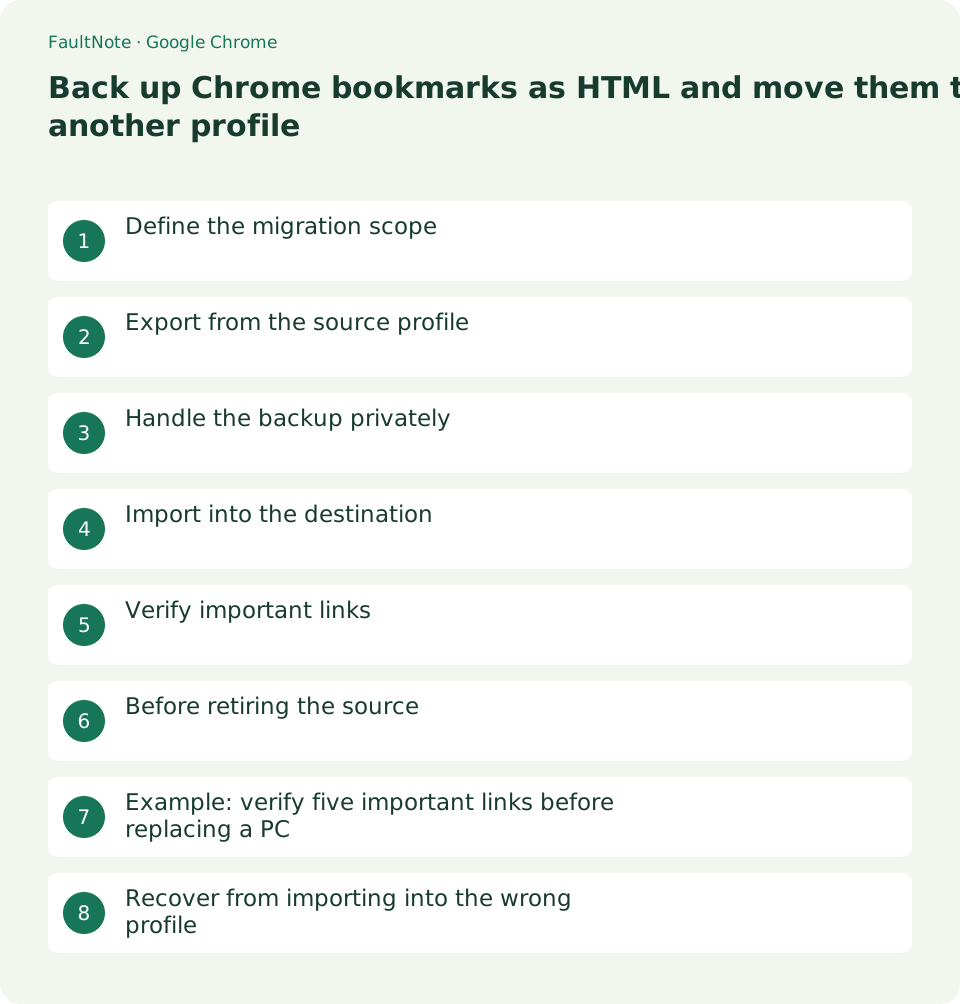
Who this guide is for and what to prepare
- People verifying bookmark backup and migration without relying on sync
What you need
- Identify source and destination profiles and prepare private storage for the HTML backup.
Define the migration scope
Decide whether the task is moving bookmarks or configuring account synchronization. This workflow uses an HTML bookmark file. Completing it does not demonstrate that passwords, website sessions, or every browser preference moved successfully.
If the environment already syncs with an account, changes can affect other devices. Inspect its sync state and define whether this task is only exporting or also reorganizing the destination. Preserve the source before removing entries.
Scroll horizontally to see the full table →
| Situation | Action | Check |
|---|---|---|
| Move bookmarks | HTML export and import | Compare URLs and folders |
| Access signed-in services | Verify site authentication | HTML does not transfer sessions |
| Retire a profile | Verify each data type | Retain the backup |
Export from the source profile
Open the source Chrome profile and export bookmarks from the bookmark manager menu. Name the HTML file with the date and profile label. Retain a backup copy independently of the file you use for importing.
Before export, note important folder names and approximate entry counts. A file existing on disk does not demonstrate that its content meets your migration needs. Prepare a small checklist for comparison after importing.
- Open Bookmark Manager in the source profile.
- Choose export from its menu.
- Save HTML with a descriptive date and purpose.
- Verify the destination profile and open import.
- Select the HTML file.
- Inspect imported folders and important URLs.
Handle the backup privately
Bookmark exports can reveal internal URLs and personal service names. Keep the file in storage you control rather than a public sharing link. If exporting on a shared device, plan to remove the temporary copy after verifying your backup.
For temporary USB storage, consider what exported URLs reveal if the drive is lost. Even authenticated pages can expose internal names and paths. Clean up temporary copies after migration while retaining the backup in controlled storage.
Import into the destination
Verify the destination profile before opening bookmark import and selecting the HTML file. If it already contains bookmarks, inspect where the imported collection appears. Review duplicate folders before deleting any entries.
If the file may already have been imported, inspect the resulting folders first. Repeated imports can complicate cleanup. Investigate the missing content before retrying, and distinguish the imported collection from pre-existing bookmarks when removing duplicates.
Verify important links
Open several important entries: a purchase store, a work portal, and a reference document. A working bookmark does not imply an authenticated session. Sign in separately with the intended account when a service requests it.
Test the actual exported URLs rather than substituting a search result. Inspect expected content after sign-in. If a page moved, record both the old link and official new address. Prioritize links required for your own workflow.
Before retiring the source
Before retiring a profile, review saved passwords, extensions, download locations, and unfinished work separately. Preserve the HTML backup until you are satisfied with the destination. If links are missing, repeat the export from the verified source rather than overwriting your only backup.
For profile retirement, keep a separate checklist for non-bookmark data. Password export is a different task involving secrets and should not be shared as casually as a bookmark file. Judge completion separately for each data type.
Example: verify five important links before replacing a PC
Before replacement, export bookmarks and choose five checks: a store, work portal, cloud document, reference, and support page. Import into the intended new profile and compare folders and URLs. Verify purchase access separately. Five working links are a sample check, not proof of complete data migration; inspect other required folders and data before retiring the old device.
Update relocated links using official guidance, while retaining the original export as a pre-change record. Save an updated export under another name. When reorganizing folders, preserve the mapping to important entries rather than treating repeated exports as verification.
Recover from importing into the wrong profile
If you imported into the wrong profile, identify the added collection without deleting its existing bookmarks. Preserve the original HTML and import into the correct destination, then verify important links. Assess sync effects before cleaning the mistaken import. Give any new export a different filename rather than overwriting your only backup.
For missing entries, verify which source profile produced the export. Importing the wrong file repeatedly cannot recover another profile bookmarks. Export again from the verified source under a new name, and preserve the destination before merging and cleaning duplicates.
Record export date, source and destination labels, verified links, and remaining checks. After verification, clean unnecessary temporary copies according to your retention plan. For disposal, assess personal information on the old device separately from bookmark migration.
Limitations and requirements
- Verify transaction records or migration outcomes before repeating an order or retiring an old environment.
Frequently asked questions
Will importing HTML transfer signed-in sessions?
No. Bookmark migration is separate from authenticating to each website.
Should I use both sync and HTML migration?
It depends on your goal and current sync arrangement. Define the scope first to avoid duplicates or unintended changes elsewhere.
Can I import the HTML repeatedly?
Repeated imports can add duplicates. Inspect the previous imported collection and missing items before retrying.
Can I immediately delete the old profile?
Inspect non-bookmark data first. Preserve important information and verify the destination before deciding to retire it.
Sources and verification date
Sources checked: . These sources support the specifications, procedures or prices discussed here. Check each source for applicable conditions and current information.
Related practical guides
- Organize Chrome download folders, history, and actual files
- Stop unwanted Chrome website notifications by origin
- Manage Chrome camera, microphone, and location permissions per site
- Clear one Chrome website storage before retrying sign-in
- Incognito shopping: retained records and checks before closing
- Review Chrome address and payment autofill on a shared PC