Ethernet connects at 100 Mbps: isolate a low-rate cable or port link
Read negotiated Ethernet link speed and isolate a cable, port or dock with controlled substitutions. Compare the observed outcomes to choose the next investigation and preserve the original configuration.
Published · Updated · FaultNote editorial policy
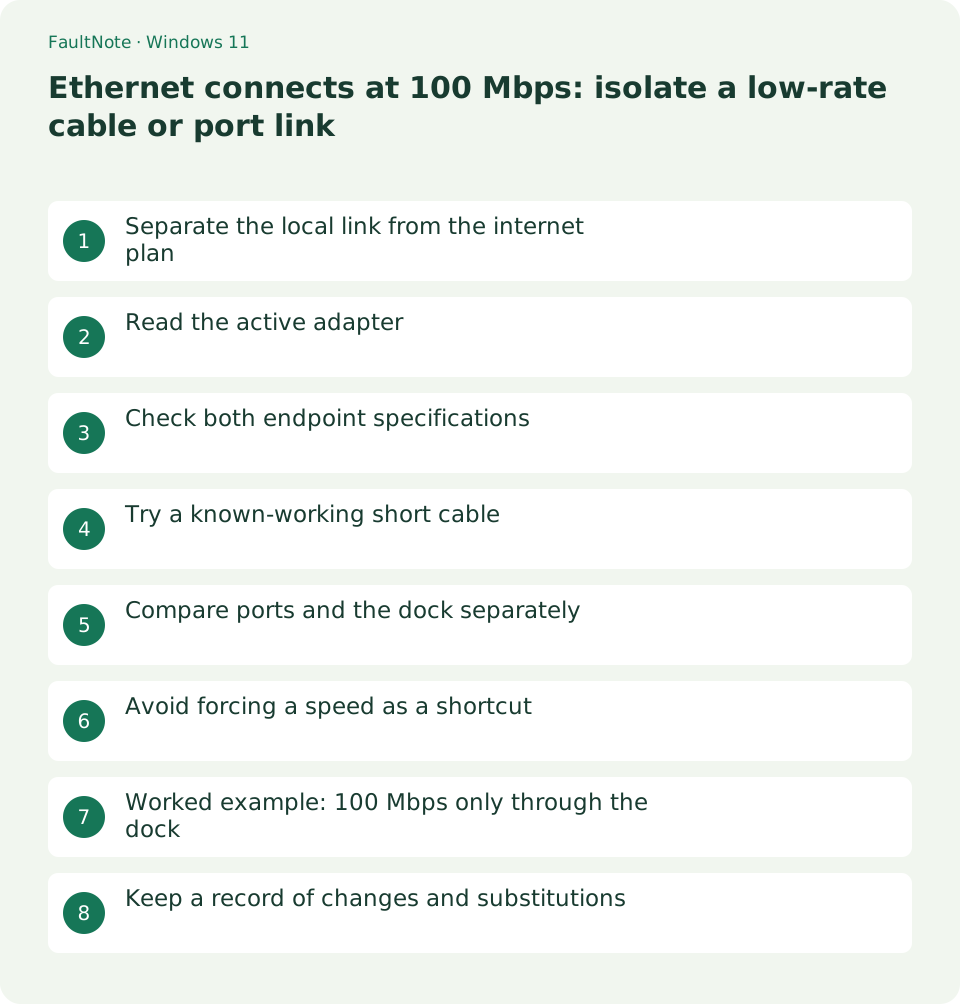
Who this guide is for and what to prepare
- PC users seeing Ethernet negotiate below supported capability
What you need
- Save work and record the time and destination of the symptom
- Record the PC and router models and Windows version
Separate the local link from the internet plan
A fast internet subscription does not change a 100 Mbps local link. That link can limit a transfer, but the reading alone does not prove a cable defect. Port capabilities and the adapter configuration also matter.
This guide targets a link negotiated down to 100 Mbps. For 2.5GbE equipment limited to 1 Gbps, use the separate guide addressing capability throughout the path.
Read the active adapter
Run the command in normal PowerShell. Identify the active Ethernet adapter and its description, including whether it belongs to a USB dock. Do not attribute a Wi-Fi or virtual adapter reading to the cable connection.
Get-NetAdapter | Select-Object Name, InterfaceDescription, Status, LinkSpeedCheck both endpoint specifications
Look up the PC, dock and exact switch or router port by model. Treat 100 Mbps as unexpected only when both ends support more. A router may have different WAN and LAN capabilities, so identify the actual port.
- Match the current connection with the adapter name and actual connector, especially with both built-in and USB Ethernet.
- Wait for Up after replacement before reading again. A blank value while Down describes disconnection, not slower negotiation.
- Compare equivalent ports with the same cable, recording each combination. Read labels to avoid WAN or special-purpose ports.
- Repeat the same-file transfer afterward. Improved negotiation without improved throughput warrants checking peer connectivity and storage.
Try a known-working short cable
Pause downloads and substitute a short cable that negotiates correctly elsewhere. Reconnect to the same port and read the result again. A changed result points toward the original cable path; an unchanged result warrants a port comparison.
Compare ports and the dock separately
Keep the cable fixed while trying another capable port. Next, compare built-in Ethernet with the dock if available. Replacing everything at once hides the useful finding; keep a simple connection diagram and the result of each trial.
A wall socket adds the in-wall run and the patch cable at the router to the connection. Where practical, compare a direct router connection and record exactly which segment was bypassed when negotiation changed. This helps avoid replacing a good PC adapter prematurely.
Avoid forcing a speed as a shortcut
Restore any previously changed Speed & Duplex value for comparison. Follow vendor guidance rather than forcing a faster setting blindly. After negotiation improves, verify an actual transfer; the displayed link rate is not measured application throughput.
Scroll horizontally to see the full table →
| Observation | Next action |
|---|---|
| Known cable restores negotiation | Compare the old patch cable and in-wall segment separately. |
| Only one port negotiates slowly | Check port capability and configuration against another equivalent port. |
| Only the dock negotiates slowly | Check dock model, driver and behavior on another capable PC. |
Worked example: 100 Mbps only through the dock
If both built-in Ethernet and the dock support 1 Gbps, compare them with the same cable and router port. A gigabit built-in link and a 100 Mbps dock link focus investigation on the dock path, driver or configuration. Repeat with another capable PC or known cable before declaring a hardware defect.
USB capabilities can affect throughput, but Ethernet LinkSpeed describes negotiation on the Ethernet side. Investigate USB constraints using the dock specification and a separate transfer comparison. A slow gigabit-negotiated link and a 100 Mbps negotiation issue require different evidence.
Keep a record of changes and substitutions
Before configuration changes, open the intended adapter in Device Manager and record its driver and original advanced values. End meetings and transfers before disruptive operations. Obtain drivers for the exact PC or dock model instead of using a package from a similar product.
Keep one row per combination, such as cable A, port 1, built-in Ethernet, 1 Gbps. Restore a worsened setting and retest the original connection. Even after a replacement cable helps, confirm the reproducible segment before discarding a dock or condemning in-wall wiring.
Limitations and requirements
- These procedures target home PCs; follow administrator policy on managed devices.
Frequently asked questions
Does a 1 Gbps link guarantee 125 MB/s copies?
No. Protocol overhead, storage, CPU and the peer affect copying; the displayed value is the negotiated link rate.
Will a higher cable category fix negotiation?
Connectors, wiring and both ports matter. Compare a known-working cable under the same conditions rather than relying on its category label.
What should I save before reinstalling a driver?
Keep adapter name, version, original advanced settings and comparison results. Arrange a way to obtain the official package if this connection stops working.
Sources and verification date
Sources checked: . These sources support the specifications, procedures or prices discussed here. Check each source for applicable conditions and current information.
Related practical guides
- Read a Windows Wi-Fi report to correlate intermittent disconnections
- A single site will not open: compare DNS answers with nslookup
- A 169.254 address on Windows: inspect DHCP and the default gateway
- Ping fails but websites work: test TCP 443 separately
- How to read pathping loss without blaming a silent intermediate router
- Test a read-only Windows home-network share and separate access from permissions