A single site will not open: compare DNS answers with nslookup
Distinguish a lookup timeout from a missing name and compare another hostname before changing DNS settings. Compare the observed outcomes to choose the next investigation and preserve the original configuration.
Published · Updated · FaultNote editorial policy
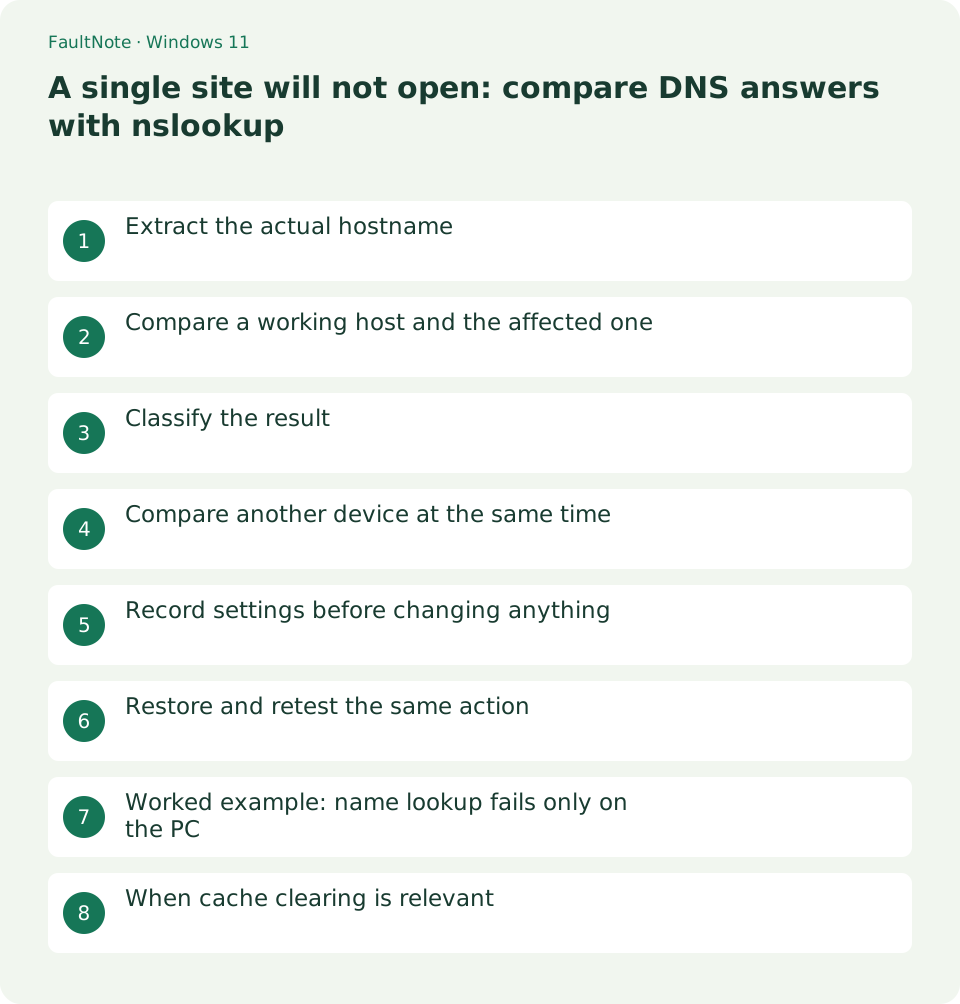
Who this guide is for and what to prepare
- PC users isolating a public-hostname lookup failure
What you need
- Save work and record the time and destination of the symptom
- Record the PC and router models and Windows version
Extract the actual hostname
Extract the hostname from the failing URL, without the scheme or path. Login and download services may use separate hosts; a working homepage does not test the failing host. Keep the exact error text and time.
Compare a working host and the affected one
Replace example.com with the affected hostname. Server identifies the resolver; Name and Addresses identify the answer. A non-authoritative response is not itself a failure. Compare whether both queries receive usable answers.
nslookup www.microsoft.com
nslookup example.comClassify the result
Separate an address answer, timeout and nonexistent-name response. For a timeout investigate the resolver path; for a missing name check spelling and service registration. If an address arrives, move on to HTTPS or application configuration.
- Extract only the hostname and check input errors. Do not include page paths or authentication tokens in the query.
- Keep resolver and answer, then query a control. Record both failing, target-only failure or successful answers separately.
- Check the second device Wi-Fi name. Label a cellular fallback as a different connection rather than a same-network control.
- After a change check lookup and browser behavior, restore ineffective settings and preserve the changed value and time.
Compare another device at the same time
Test the same site on another home device at roughly the same time. A PC-only failure suggests investigating its VPN or browser-specific DNS settings. Browser secure DNS can use a different resolver path from this command.
Record settings before changing anything
Record whether the active adapter uses automatic or manual DNS. If testing another resolver, preserve the previous values and consult the administrator for managed or special internal-name networks. Do not change unrelated adapters together.
Use the exact intended service domain, not a similar domain found in an advertisement. For a link from email, compare access through the official service homepage. Do not paste signed download URLs or personal tokens into a diagnostic record; the hostname is usually sufficient.
Restore and retest the same action
If a resolver change does not help, restore the previous setting and repeat the exact URL action. Record the outcome without claiming a faster internet connection: lookup response and file-transfer throughput are different measurements.
Scroll horizontally to see the full table →
| Observation | Next action |
|---|---|
| Target and control both time out | Check the resolver path and another device on the same network. |
| Only target reports a missing name | Verify spelling and the official service URL. |
| Answers arrive but the browser fails | Compare browser DNS path, proxy and the actual HTTPS error. |
Worked example: name lookup fails only on the PC
Imagine a phone on the same Wi-Fi opens the official site while the PC times out resolving its host but resolves a control site. Prioritize the affected name and PC resolver path rather than declaring a total outage. Verify the phone did not silently switch to cellular; otherwise it is not a same-network control.
If the browser works while nslookup fails, the browser may use another resolver path. The reverse result suggests browser proxy, cache or site state. Keep browser, command and second-device observations separate rather than treating them as interchangeable tests.
When cache clearing is relevant
If a stale Windows DNS answer is suspected, preserve the previous observation before using ipconfig /flushdns. This does not change the resolver or router. Use an elevated terminal if needed, then retest the actual failing application or browser action. nslookup queries the DNS server directly and is not a useful before-and-after test of the Windows DNS cache.
If the result does not improve, avoid repeatedly clearing the cache and move on with the resolver, answer and browser-error record. Public resolvers may not resolve organizational internal names. Check VPN and internal DNS requirements, and distinguish local device names from public domains. Browsers and applications can have separate caches or resolver paths; clearing the Windows cache does not necessarily clear those.
Limitations and requirements
- These procedures target home PCs; follow administrator policy on managed devices.
Frequently asked questions
Are multiple addresses abnormal?
No. Distribution and IPv4/IPv6 can produce several answers; their count alone is not a fault.
Is an Unknown resolver name necessarily an error?
The resolver display name and lookup success are separate. Check the actual answer rather than changing DNS because of the name alone.
Will changing DNS make a download faster?
It changes the lookup path but does not guarantee transfer improvement. Compare the actual same-file transfer separately.
Sources and verification date
Sources checked: . These sources support the specifications, procedures or prices discussed here. Check each source for applicable conditions and current information.
Related practical guides
- Read a Windows Wi-Fi report to correlate intermittent disconnections
- Ethernet connects at 100 Mbps: isolate a low-rate cable or port link
- A 169.254 address on Windows: inspect DHCP and the default gateway
- Ping fails but websites work: test TCP 443 separately
- How to read pathping loss without blaming a silent intermediate router
- Test a read-only Windows home-network share and separate access from permissions