2.5GbE port links at only 1 Gbps: check the other port, cable, speed setting and driver
What to do first
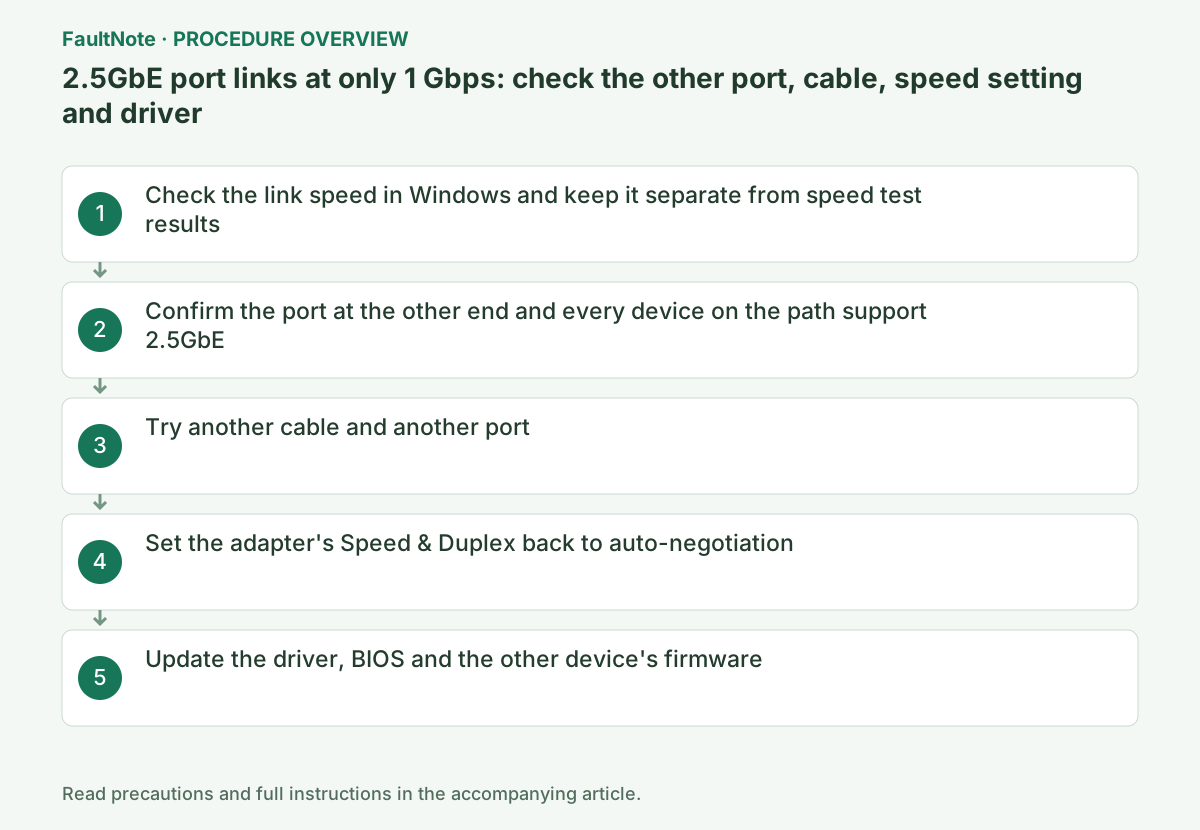
Use the link speed Windows reports, not an internet speed test, to see the state. Then change one thing at a time in this order: the port at the other end and the speeds of devices on the path, the cable and port, the adapter's speed setting, and the driver and firmware, checking whether the link reaches 2.5 Gbps after each change.
This is a general troubleshooting guide, not an announcement of a current outage.
Affected products and symptoms
- Product
- 2.5GbE Ethernet adapter
- Versions and conditions
- Windows 11 / Windows 10. A 2.5GbE onboard LAN port (such as Intel I225 or I226) or network adapter where Windows shows a link speed of 1 Gbps (1000 Mbps)
Symptoms
- The motherboard or network adapter supports 2.5GbE, but Windows shows Link speed (Receive/Transmit) as 1/1 (Gbps) or 1000 Mbps
- After moving to a 2.5GbE router, switch or NAS, the link speed to the PC stays at 1 Gbps
Causes and conditions
The link speed is chosen by auto-negotiation from the speeds both ends support. A 1 Gbps link comes from one of these: the router, switch or ONU port only supports 1GbE, a 1GbE device sits somewhere on the path, a faulty cable or port, a fixed Speed & Duplex value on the adapter, or a driver or firmware problem. An internet speed test result is a different number from the link speed.
Before you start
- The model of the PC's LAN port (the LAN controller named in the motherboard specifications) and the models of the router, switch, NAS or ONU it connects to
- A spare Ethernet cable known to work (with CAT.5e, CAT.6 or similar printed on the jacket) and an administrator account
Precautions
- Forcing Speed & Duplex can stop the link entirely if the other end does not match. Note the original value first, and only force a value when the other end is forced to the same value
- A 2.5 Gbps link does not change internet speed, which depends on the plan, the ONU and congestion. This guide did not measure transfer speeds
Tools and official pages used in this guide
Step-by-step instructions
Open Settings > Network & internet > Ethernet and read Link speed (Receive/Transmit) in the properties shown. Intel's support article (000058667, last reviewed July 13, 2022) also starts speed problems by checking this value in the network properties. A 2.5GbE link shows 2.5 Gbps; a 1GbE link shows 1 Gbps.
In PowerShell, Get-NetAdapter with -Physical lists only physical network adapters, and the LinkSpeed column shows the same value. Internet speed test sites are affected by the line and congestion, so this guide uses only the reported link speed to decide.
Get-NetAdapter -Name * -PhysicalThe link can only use a speed both ends support. For speed problems, Intel asks you to make sure the router, access point, switch or other device at the other end fully supports the intended speed. Buffalo's explanation of LAN ports likewise says that connecting ports of different standards runs at the speed of the slower standard. Put the model of the PC's port (for example, the Intel I226-V has a 2.5G data rate) next to the supported speed of the port it is plugged into, using the product specifications.
Some routers and switches mix 2.5GbE and 1GbE ports on the same unit, so check the per-port speeds in the specification table and confirm the port you are using is a 2.5GbE port. If a switch sits between the PC and a NAS, it must also support 2.5GbE or the link will be 1 Gbps. If the device's management page can show per-port link speed, confirm it reports the same value from the other side.
Intel's support article (000088564, last reviewed August 8, 2022) says to use a known working cable or try different cables (Cat5/Cat5e or higher) and to try different router ports. NETGEAR's support article (updated July 7, 2025) recommends Cat6 or better for 2.5G, 5G and 10G Multi-Gig and gives variation in cable quality as the reason. Swap old cables with no printed category, or cables crushed in a door gap, for a short different cable and compare.
If the run goes through in-wall wiring or a wall socket, connect the PC and the device at the other end directly with a short cable and check the link speed, to see whether the wiring run is the problem. The Ethernet cable category guide covers which category to use for each speed and distance.
In Device Manager, open Network adapters, open the adapter's properties and check the Speed & Duplex value on the Advanced tab (the display name varies by driver). Intel's Ethernet adapter user guide says copper connections use auto-negotiation by default, and that forcing a value is only needed with an older switch that does not support auto-negotiation or one forced to a specific setting, in which case both ends must use the identical setting. If the value is fixed, such as 1.0 Gbps Full Duplex, set it back to Auto Negotiation.
Get-NetAdapterAdvancedProperty in PowerShell lists the property names and values shown on the Advanced tab. Note the list before changing anything so you can restore the original state. If the switch at the other end has a forced port speed, set the switch back to automatic as well.
Get-NetAdapterAdvancedProperty -Name "*"Intel says to update the driver to the latest version and, for controllers built into a PC or motherboard maker's product, to check with that manufacturer because the drivers on Intel's pages are generic versions. Start with the LAN driver and BIOS updates on the motherboard or PC maker's support page.
Article 000088564 also lists checking with the router manufacturer for firmware updates and power cycling the router by removing and reconnecting its power cable. Article 000058667 includes disabling features such as Energy Efficient Ethernet as items to try for speed problems. If you try them, change one item at a time, check the link speed, and restore the original value if nothing changes.
Check the result
- Settings > Network & internet > Ethernet shows Link speed (Receive/Transmit) as 2.5/2.5 (Gbps)
- The LinkSpeed column of Get-NetAdapter -Name * -Physical shows 2.5 Gbps and stays the same after a restart
If the problem continues
- If another 2.5GbE device on the same cable and port also links at 1 Gbps, suspect the device or port at the other end; if the other device reaches 2.5 Gbps, suspect the original PC's LAN port or driver, and contact the manufacturer with that result
- If the motherboard LAN port does not reach 2.5 Gbps, compare the link speed on the same path with a PCIe or USB 2.5GbE network adapter to tell whether the port itself is the problem
Scope of this guide
Troubleshooting guide — Using the link speed Windows reports as the reference, check the port at the other end and the devices on the path, the cable and port, the Speed & Duplex setting, and the driver and firmware one at a time, and see whether the link reaches 2.5 Gbps.
Frequently asked questions
A speed test site shows only about 900 Mbps. Does that mean the link speed is 1 Gbps?
A speed test result and the link speed are different values. Check Link speed (Receive/Transmit) on the Windows Ethernet page or the LinkSpeed column of Get-NetAdapter. Even with a 2.5 Gbps link, the test result stays below that if the line or ONU is limited to 1 Gbps.
Will forcing Speed & Duplex to 2.5 Gbps fix it?
Intel's user guide makes auto-negotiation the default for copper connections, says forcing is only needed with an older switch without auto-negotiation or a link partner forced to a setting, and requires both ends to use the identical setting. If the other end does not support 2.5GbE, forcing the value will not make it link at that speed.
Official sources and dates
- Intel Ethernet Connection I219-V Unable to Reach Gigabit Speed (applies to I225 and I226 series) ↗
- Intel Support 000088564: Intel Ethernet Controller I225-V Does Not Detect a Working Cable (last reviewed August 8, 2022) ↗
- Intel Ethernet Adapters and Devices User Guide: Setting Speed and Duplex (version 31.2.2) ↗
- Intel Ethernet Controller I226-V product specifications ↗
- Microsoft Learn: Get-NetAdapter ↗
- Microsoft Learn: Get-NetAdapterAdvancedProperty ↗
- Buffalo: What are LAN ports (1000BASE-T / 100BASE-TX / 10BASE-T)? ↗
- NETGEAR support: What kind of network cables should I use to connect to my NETGEAR devices? (KB 206, updated July 7, 2025) ↗
Source publication or resolution date: 2022-07-13. Sources checked: 2026-09-13. The check date is not the date the problem first occurred. Interface labels can vary between versions and display languages.
Related troubleshooting guides
Windows errors and troubleshooting →