A 169.254 address on Windows: inspect DHCP and the default gateway
Read the active adapter in ipconfig /all to separate addressing trouble from a wider internet outage. Compare the observed outcomes to choose the next investigation and preserve the original configuration.
Published · Updated · FaultNote editorial policy
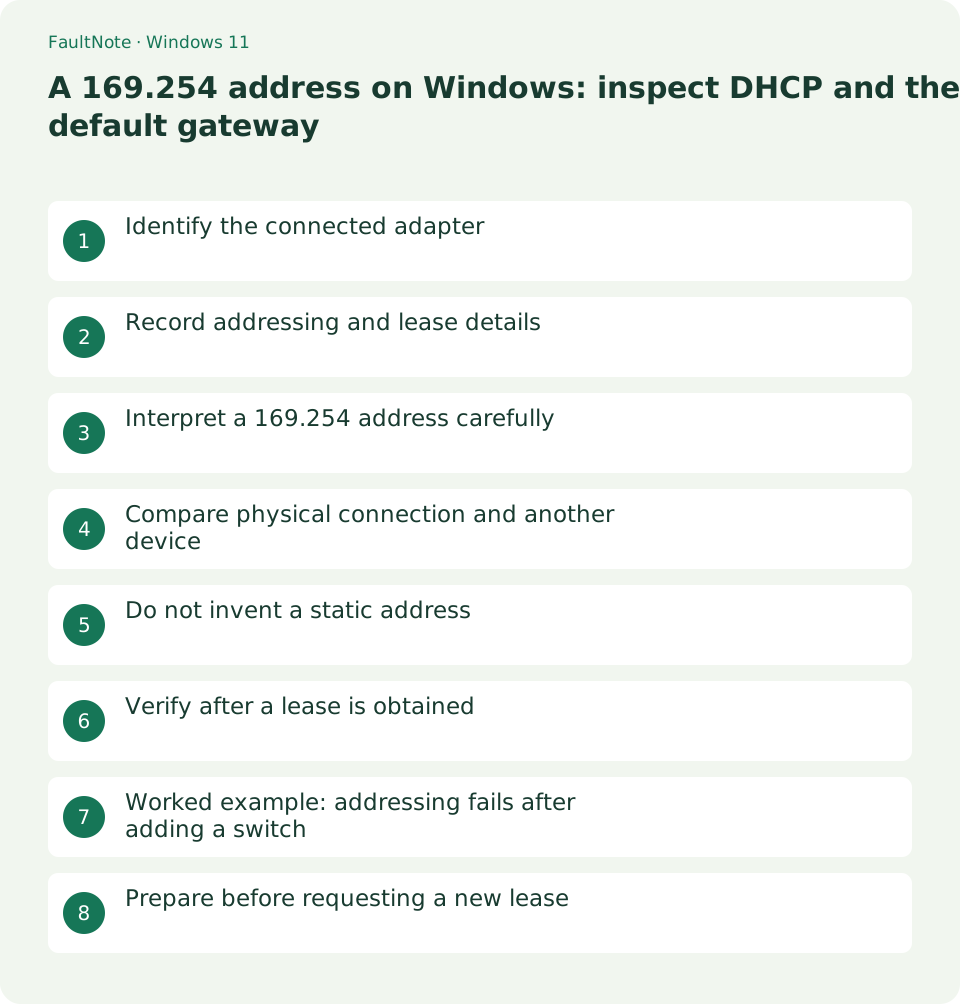
Who this guide is for and what to prepare
- Home PC users investigating IPv4 lease failure after a wiring change
What you need
- Save work and record the time and destination of the symptom
- Record the PC and router models and Windows version
Identify the connected adapter
Identify whether the affected connection uses Ethernet or Wi-Fi. The output may include VPNs, virtual machines and disconnected ports; the first address is not necessarily the route carrying your traffic.
Record addressing and lease details
Record IPv4 Address, DHCP Enabled, Default Gateway, DHCP Server and DNS Servers for that adapter. Share a focused excerpt instead of publishing the entire output with hardware addresses and network topology.
ipconfig /allInterpret a 169.254 address carefully
When DHCP is enabled but the only IPv4 address starts with 169.254, investigate failure to obtain an IPv4 lease. Some communication may still use IPv6, so this does not establish that every connection is down. Inspect the path to the lease provider.
- Identify the connected interface and DHCP state. Do not interpret VPN or virtual-device addressing as home Ethernet.
- Trace wiring from router to PC. A link indicator is physical-connectivity evidence, not evidence of lease success.
- Check whether the control device is on a guest SSID or another router. Different intended subnets are not automatically misconfiguration.
- Recheck address, gateway and DNS after reconnecting. Test local and public destinations and record addressing and internet recovery separately.
Compare physical connection and another device
Check cable seating, link indicators and the selected Wi-Fi network. If other devices also cannot obtain leases, inspect router DHCP; if only one fails, prioritize its adapter and settings. A basic switch normally does not provide addressing.
Do not invent a static address
Guessing a static 192.168 address can cause a conflict. Preserve an intentional static design; repair lease acquisition when the original design was automatic. Address release or changes can disconnect remote access, so arrange local recovery first.
An empty gateway can be intentional for a direct device connection or an internal-only network. It does not mean every listed adapter needs a gateway. Interpret the adapter meant to reach the internet, and preserve intentional separate networks used for equipment or virtual machines.
Verify after a lease is obtained
Once the expected address and gateway appear, repeat the original website action. DNS or upstream trouble can remain after addressing recovers. Before-and-after values plus another device result give support a clearer next step.
Scroll horizontally to see the full table →
| Observation | Next action |
|---|---|
| DHCP enabled with 169.254 | Check the physical path and DHCP provider. |
| Expected IP but no gateway | Distinguish an internal-only design from an intended internet connection. |
| Expected IP and gateway present | Proceed to DNS and upstream connectivity checks. |
Worked example: addressing fails after adding a switch
If a newly added switch precedes a 169.254 address, inspect its uplink before its specifications. The PC can have a physical link to the switch while the switch has no path to the DHCP-providing router. Reconnect the PC to the original router and check whether the normal address returns.
Adding another router differs from adding a switch: it may introduce a second DHCP service or another subnet. Draw the connections and confirm which device is intended to provide addresses before changing static addressing or router operating modes.
Prepare before requesting a new lease
After confirming the physical path and an originally automatic configuration, consider reconnecting to request a lease. If using ipconfig /release or /renew, identify the affected adapter and understand the impact on other connections. Do not do this during remote administration or an active transfer.
Afterward recheck gateway and DNS as well as the address, then test local and public destinations separately. Continued failure warrants checking whether router DHCP is enabled and its pool is available. Factory reset loses configuration; prepare vendor instructions and saved settings before considering it.
Limitations and requirements
- These procedures target home PCs; follow administrator policy on managed devices.
Frequently asked questions
Will deleting the 169.254 address fix it?
Investigate whether the PC can reach its lease provider and receive an address rather than merely removing the displayed value.
Will adding a router improve DHCP?
It may introduce another DHCP service or subnet. Identify the lease provider, wiring and intended operating mode first.
The address looks normal but internet access fails.
DNS, upstream access or application issues may remain. Compare a local destination and a public site separately.
Sources and verification date
Sources checked: . These sources support the specifications, procedures or prices discussed here. Check each source for applicable conditions and current information.
Related practical guides
- Read a Windows Wi-Fi report to correlate intermittent disconnections
- Ethernet connects at 100 Mbps: isolate a low-rate cable or port link
- A single site will not open: compare DNS answers with nslookup
- Ping fails but websites work: test TCP 443 separately
- How to read pathping loss without blaming a silent intermediate router
- Test a read-only Windows home-network share and separate access from permissions