Desktop Background Turns Solid Black After KB5120998
What to do first
Microsoft has not published a workaround for the known issue where the background returns to black after KB5120998. Record the target build and background settings and wait for subsequent updates.
Affected products and symptoms
- Product
- Windows 11
- Versions and conditions
- Windows 11 25H2/24H2 (OS build 26100.9278, KB5120998 or later)
- Error codes and identifiers
- KB512099826100.9278
Symptoms
- Custom desktop background does not load and becomes solid black
- Other desktop settings may also be affected, such as slideshows and contrast themes.
- Even if you manually restore the settings, the correct values are not loaded and cannot be restored.
Causes and conditions
After KB5120998 released on 2026-08-27, some Windows desktop settings cannot be loaded correctly. Microsoft has confirmed the issue as of 2026-09-02, but has not disclosed a more detailed cause.
Before you start
- Check for KB5120998 or later in Windows Update > Update history
- Note the source file and theme name of the current background image
- Check with winver if OS build is 26100.9278 or later
Precautions
- Do not edit the registry unless it has been announced as valid.
- Do not independently delete KB5120998 just because of this issue.
Tools and official pages used in this guide
Review the official requirements, screen names, and limitations for this procedure.
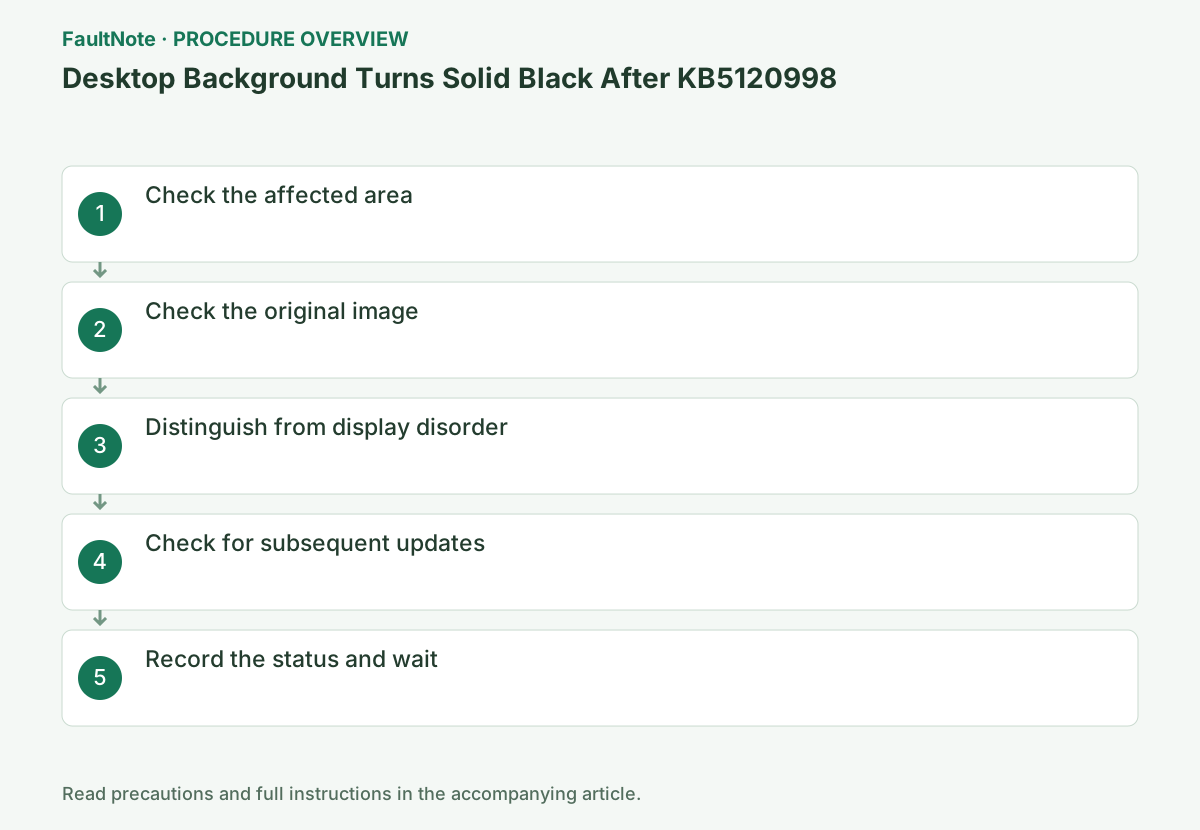
Checks you can make now
These steps collect diagnostic information. They do not constitute a confirmed fix.
Open [Settings] > [Personalization] > [Background] and check whether image, slideshow, or solid color is selected. Also note the impact on contrast themes.
Record 24H2/25H2 build and KB5120998 or later with winver. Also note the time when the background was respecified and the reason it returned to black.
Check before continuingVerdict: Go to Settings > Personalization > Background and check whether Image, Slideshow, or Solid Color is selected. Also note the impact on contrast themes. Record 24H2/25H2 build and KB5120998 or later with winver. Also note the time when the background was respecified and the reason it returned to black.
Check whether the image file you plan to display can be opened from Explorer. If the file itself is missing, treat that as a separate issue.
Open the image in Photos. If it's for OneDrive online only, select [Always keep on this device] and don't confuse missing files with known issues.
Check before continuingVerdict: Check whether the image file to be displayed can be opened from Explorer. If the file itself is missing, treat that as a separate issue. Open the image in Photos. If it's for OneDrive online only, select [Always keep on this device] and don't confuse missing files with known issues.
If the taskbar and windows are not visible, it is a display problem rather than a background-setting problem. Switch to Microsoft's blank screen diagnostics, such as Windows+Ctrl+Shift+B.
Windows+Ctrl+Shift+B is used only to isolate when the entire screen disappears. If only the background is black, do not press repeatedly.
Official links for this step
- Windows 11, version 25H2 known issues and notifications
Review the official requirements, screen names, and limitations for this procedure.
Check before continuingVerdict: If the taskbar and windows are not visible, it is a display problem rather than a background-setting problem. Switch to Microsoft's blank screen diagnostics, such as Windows+Ctrl+Shift+B. Windows+Ctrl+Shift+B is used only to isolate when the entire screen disappears. If only the background is black, do not press repeatedly.
- Windows 11, version 25H2 known issues and notifications
Apply only subsequent updates suggested by Microsoft in Settings > Windows Update and check if the background is retained after rebooting.
Apply only the updates that Microsoft presents to your device, set the image after reboot, and see if it persists after signing out/in.
Check before continuingVerdict: Apply only subsequent updates suggested by Microsoft in Settings > Windows Update and check whether the background remains set after reboot. Apply only the updates that Microsoft presents to your device, set the image after reboot, and see if it persists after signing out/in.
If the background returns to black after you set it again, save the operation time and setting screen. Since there is no official workaround, do not edit the registry or removing updates.
If no official solution has been published, do not edit the registry or remove updates. Save the OS build, background type, and time and wait for the Release Health update.
Even when temporarily selecting a single color or a different image, the location and settings of the original image are recorded. When the official information is updated, check the target KB, resolution status, and target build, and apply it via Windows Update on the device.
Check before continuingJudgment: If the background returns to black after you set it again, save the operation time and setting screen. Since there is no official workaround, do not edit the registry or removing updates. If no official solution has been published, do not edit the registry or remove updates. Save the OS build, background type, and time and wait for the Release Health update.
Check the result
- Background image file can be opened
- Background settings are retained even after signing out/restarting after subsequent updates
If the problem continues
- If you need visibility for work purposes, consult with your administrator and temporarily choose a single color or standard theme. However, it may not be retained
- If the entire screen is black, use the official blank screen diagnostic
Fix status
Investigating — unresolved. Microsoft says it is working on providing a fix in a future Windows update (Updated 2026-09-02 18:30 PT).
Frequently asked questions
Will it be fixed if I change the background?
Microsoft says that even manual reconfiguration may not load the correct values. This is not a permanent solution.
The screen is black and cannot be operated.
This issue is a desktop settings issue. If the taskbar etc. cannot be seen, it will be diagnosed as a blank screen.
Official sources and dates
- Windows 11, version 25H2 known issues and notifications ↗
- Windows release health ↗
- Recovery options in Windows ↗
Source publication or resolution date: 2026-09-02. Sources checked: 2026-09-05. The check date is not the date the problem first occurred. Interface labels can vary between versions and display languages.
Related troubleshooting guides
Windows errors and troubleshooting →
- The screen brightness changes on its own: telling content-based adjustment apart from ambient-light adjustment
- Laptop is slow only on battery: check the power mode, energy saver and the maker's cooling mode in that order
- A driver can't load on this device: what memory integrity is blocking, and the choices that leaves
- Monitor shows "No Signal" after changing OSD overclock or DisplayPort settings: how to get the picture back