Teams and the New Outlook Fail to Start on Windows on ARM
What to do first
If Teams/New Outlook does not start on an ARM device, update to Auto Super Resolution Package 1.0.19.0 or later from Microsoft Store.
Affected products and symptoms
- Product
- Windows 11
- Versions and conditions
- Windows 11 26H1/25H2/24H2 ARM-equipped device (KB5121003 or later; Surface Pro 11, Surface Laptop 7, etc.)
- Error codes and identifiers
- KB512100326100.9168Auto Super Resolution Package 1.0.19.0
Symptoms
- Microsoft Teams doesn't start or closes unexpectedly
- New Outlook for Windows doesn't start or closes unexpectedly
- This problem is likely to occur on a new PC or on a device that has not been updated with the Microsoft Store update immediately after being reimaged.
Causes and conditions
Occurs on ARM devices after applying Windows security updates after 2026-08-11. Microsoft's public information indicates that the workaround is related to an unupdated Auto Super Resolution Package, but does not specify the technical root cause.
Before you start
- Check if the system is ARM-based under [System type] in [Settings] > [System] > [About]
- Record end time, Windows build, and presence of KB5121003 or newer for Teams and new Outlook
- Securing communication that allows you to sign in to Microsoft Store
Precautions
- Do not manually remove packages
- Do not obtain packages from unofficial sites
Tools and official pages used in this guide
Review the official requirements, screen names, and limitations for this procedure.
Step-by-step instructions
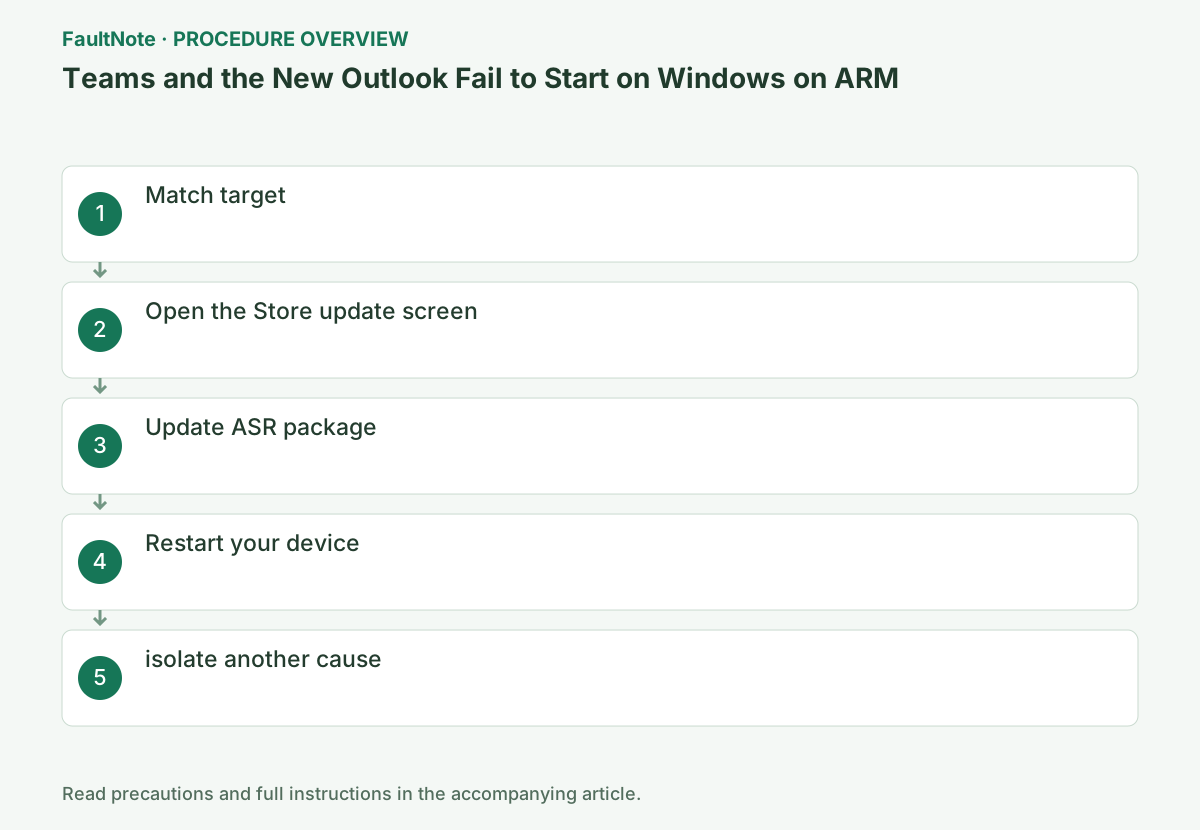
Suspect this issue if Teams or new Outlook closes immediately after starting after KB5121003 on an ARM device such as Surface Pro 11 or Surface Laptop 7.
Check ARM64 in [Settings] > [System] > [About] and record KB5121003 or later in the update history. This issue does not apply to x64 devices.
Check before continuingVerdict: Suspect this issue if Teams or new Outlook closes immediately after starting after KB5121003 on an ARM device such as Surface Pro 11 or Surface Laptop 7. Check ARM64 in [Settings] > [System] > [About] and record KB5121003 or later in the update history. This issue does not apply to x64 devices.
Launch Microsoft Store, open [Downloads] on the left, and select [Check for updates].
Select [Get updates] from [Downloads] or [Library] in the Store. If you can't use it with your work account, ask your administrator.
Check before continuingVerdict: Launch Microsoft Store, open Downloads on the left, and select Check for updates. Select [Get updates] from [Downloads] or [Library] in the Store. If you can't use it with your work account, ask your administrator.
Update the Auto Super Resolution Package listed and make sure it is version 1.0.19.0 or later. Complete any pending Store updates.
Select [Update] for Auto Super Resolution Package, and after completion, check for 1.0.19.0 or later. Do not include third party packages with similar names.
Official links for this step
- Windows 11, version 25H2 known issues and notifications
Review the official requirements, screen names, and limitations for this procedure.
Check before continuingVerdict: Update the Auto Super Resolution Package in the list and confirm that it is version 1.0.19.0 or later. Complete any pending Store updates. Select [Update] for Auto Super Resolution Package, and after completion, check for 1.0.19.0 or later. Do not include third party packages with similar names.
- Windows 11, version 25H2 known issues and notifications
Select Start > Power > Restart, sign in, and then launch Teams and the new Outlook one by one.
Select [Restart] and start Teams and new Outlook one by one. If both apps remain open, the workaround has been applied.
Check before continuingVerdict: Choose Start > Power > Restart, sign in, and then launch Teams and new Outlook one by one. Select [Restart] and start Teams and new Outlook one by one. If both apps remain open, the workaround has been applied.
If only one app fails, or if it is an x64 device, check the app-specific repair/service status and separate it from this issue.
If only one app fails, consider repairing it in the [Advanced options] of the target app. Do not delete ASR or forcefully install the x64 version.
Save the Store update history or package information screen and record the ASR version, Teams version, new Outlook version, and Windows build as a set. If it happens again, pass this set to the administrator.
Check before continuingVerdict: If only one app fails, or if it is an x64 device, check the app-specific repair/service status and treat it as a separate issue. If only one app fails, consider repairing it using the [Advanced options] of the target app. Do not delete ASR or forcefully install the x64 version.
Check the result
- Auto Super Resolution Package is 1.0.19.0 or later
- Teams and new Outlook can be used without quitting after startup
If the problem continues
- If a Store update fails, record the time and error and check with your organization's Store control administrator
- If both fail after updating the package, contact support with the Windows build and app version.
Fix status
Workaround available — Mitigation measures are available, but no permanent fix has been provided on the Windows side. Microsoft says it is working on a solution in a future Windows update (Updated 2026-09-01 19:20 PT).
Frequently asked questions
Where do I update from Microsoft Store?
[Download] > [Check for updates]. Check 1.0.19.0 or higher.
Is it the same for x64 PCs?
This known issue applies to ARM devices. For x64, check another cause.
Official sources and dates
- Windows 11, version 25H2 known issues and notifications ↗
- Windows release health ↗
- Recovery options in Windows ↗
Source publication or resolution date: 2026-09-01. Sources checked: 2026-09-05. The check date is not the date the problem first occurred. Interface labels can vary between versions and display languages.