Read a Windows Wi-Fi report to correlate intermittent disconnections
Generate a Windows wireless report, inspect failed sessions and disconnect reasons, and prepare a focused support record. Compare the observed outcomes to choose the next investigation and preserve the original configuration.
Published · Updated · FaultNote editorial policy
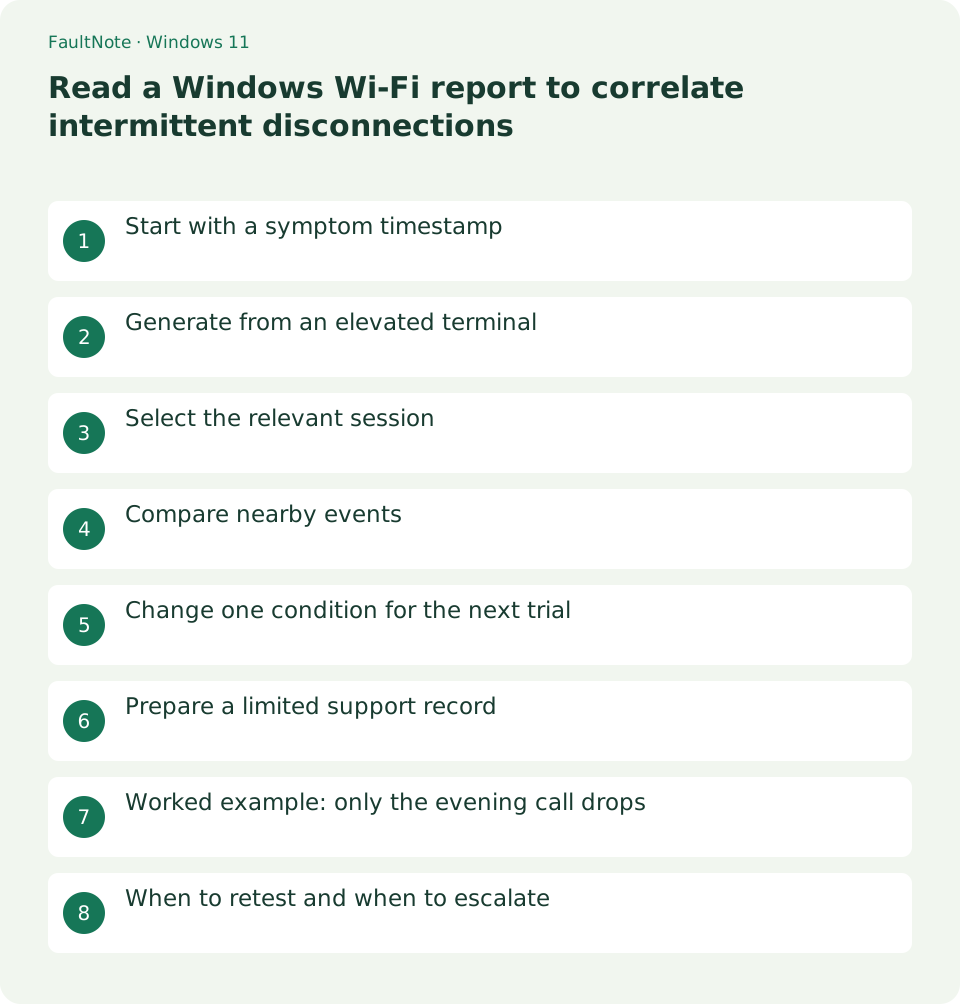
Who this guide is for and what to prepare
- Home PC users documenting intermittent Wi-Fi drops
What you need
- Save work and record the time and destination of the symptom
- Record the PC and router models and Windows version
Start with a symptom timestamp
Record when a call froze or a game disconnected. The useful question is whether wireless association ended at that time or the internet failed while association continued. This report is a timeline, not a throughput benchmark.
Generate from an elevated terminal
Open Terminal as administrator and run the command. Copy the HTML location printed in the result into a browser. Use the actual path shown instead of assuming a location from another PC.
netsh wlan show wlanreportSelect the relevant session
Locate the session near the recorded time in the recent three-day history. Read its start, end, duration and disconnect reason. Normal shutdowns and manual disconnects can also appear, so an event without a matching symptom is weak evidence.
- Record the app, Wi-Fi icon state and recovery time. Distinguish one stalled call from a failure to open other sites.
- Preserve the original HTML and date a comparison copy with the changed condition. Opening it does not change network settings.
- Read the preceding end and following start around the failed session. Reducing the marker count itself is not the goal.
- Retest for the duration that normally fails and compare symptom and events. Include the observation duration even when stable.
Compare nearby events
Note sleep, movement or a router restart at the same time. If another device also disconnected, investigate the access point first; if only this PC did, prioritize its adapter and power state. A reason string alone does not establish causality.
Change one condition for the next trial
Repeat the same workload and change one condition, such as moving near the access point. Compare the next timeline against the new symptom record. A brief quiet interval is insufficient; observe for the duration that normally produces the failure.
Before correlating events, verify the Windows clock and account for any difference from a phone used to record symptoms. Router logs can use another time zone or an incorrect clock. Matching clock digits without checking this can create a false correlation.
Prepare a limited support record
The report contains identifying machine, user and network information. For a public forum, extract only the relevant timestamps, reason and adapter or driver details. Redact a copy and keep the original evidence locally.
Scroll horizontally to see the full table →
| Observation | Next action |
|---|---|
| Session ends at the symptom | Investigate association stability; compare location and power state separately. |
| Session continues and other devices stall | Compare upstream connectivity and service behavior at matching times. |
| Only manual-disconnect times are marked | Separate intended disconnections and observe for the usual failure duration. |
Worked example: only the evening call drops
Suppose call audio stops at 20:10 and returns at 20:11. Inspect wireless sessions spanning that minute. A session ending and reconnecting at 20:10 prioritizes association stability. A continuous 20:00 to 21:00 session instead suggests investigating the service or upstream connectivity. This is an interpretation example, not a measured result.
Ask whether another device stalled or a household backup began at that time. The report is not a breakdown of traffic load and cannot establish congestion alone. Preserve the failed-period HTML before restarting the router so the before-and-after evidence remains available.
When to retest and when to escalate
For a location comparison keep the PC, application and observation duration fixed. For a power-setting trial, keep the location fixed. Reintroducing the previous condition helps distinguish a condition-related change from an unusually quiet interval.
Repeated failures on one adapter while other devices remain healthy justify a PC-vendor escalation with adapter, driver date and timestamps. Simultaneous household failures with router reconnection evidence justify router or provider support. Establish the affected scope before purchasing replacement hardware.
Limitations and requirements
- These procedures target home PCs; follow administrator policy on managed devices.
Frequently asked questions
Does every red marker mean faulty hardware?
No. Correlate it with an observed failure and distinguish normal shutdown or manual disconnection.
Does deleting the HTML change network settings?
No. It removes a saved diagnostic result. Keep a copy if needed for the next comparison.
How do I verify a driver update helped?
Repeat the usual failure conditions and duration and compare the symptom and new timeline. A brief successful connection is insufficient.
Sources and verification date
Sources checked: . These sources support the specifications, procedures or prices discussed here. Check each source for applicable conditions and current information.
Related practical guides
- Ethernet connects at 100 Mbps: isolate a low-rate cable or port link
- A single site will not open: compare DNS answers with nslookup
- A 169.254 address on Windows: inspect DHCP and the default gateway
- Ping fails but websites work: test TCP 443 separately
- How to read pathping loss without blaming a silent intermediate router
- Test a read-only Windows home-network share and separate access from permissions