Test a read-only Windows home-network share and separate access from permissions
Create a small read-only test share, check access from another PC, and revoke access after the trial. Compare the observed outcomes to choose the next investigation and preserve the original configuration.
Published · Updated · FaultNote editorial policy
Who this guide is for and what to prepare
- Users checking intended share permissions between two home PCs
What you need
- Save work and record the time and destination of the symptom
- Record the PC and router models and Windows version
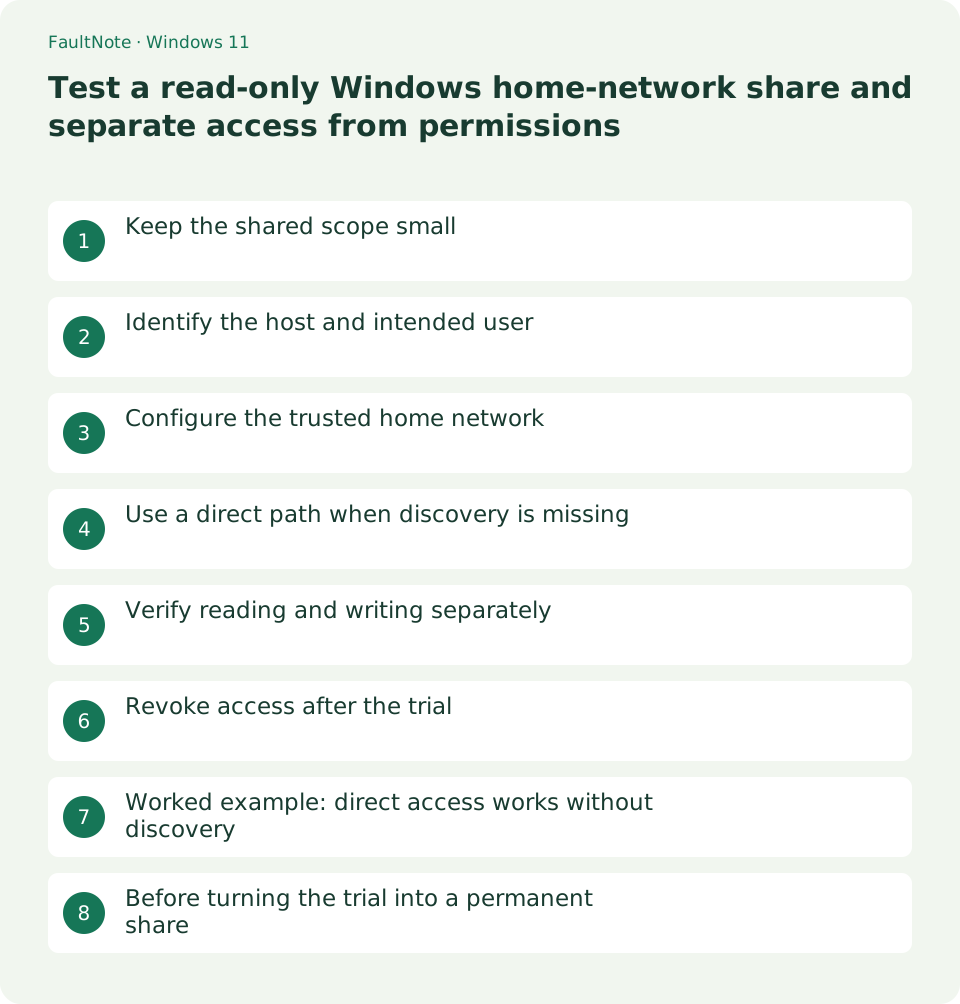
Keep the shared scope small
Create a dedicated folder containing one nonsensitive text file instead of sharing a whole desktop or user folder. Identify the host PC and reading PC. Begin with read access; add editing permission only when the workflow needs it.
Identify the host and intended user
Run hostname on the host. Choose the intended account, then use File Explorer sharing options for specific people on the dedicated folder. Everyone broadens access beyond a single intended person, even within a home network.
In the Specific people dialog, select and add the intended account authorized on the host. In that account row, open the Permission Level arrow and choose Read, then click Share. Record the displayed share path and click Done. If the recipient is prompted, use that authorized host account name and password.
hostnameConfigure the trusted home network
Check discovery and file/printer sharing for the trusted private home network. Do not relabel public cafe Wi-Fi as private to make sharing work. Guest-network isolation can prevent two otherwise connected PCs from reaching each other.
- Set the intended user and read access on the dedicated folder. Record the actual share name for the direct recipient path.
- Inspect Advanced sharing settings under Network & internet and Advanced network settings. Use the trusted private profile.
- Open the direct path and authenticate as the intended account. Test reading and refused writing to verify the intended restriction.
- After revocation close recipient files and attempt a new connection. Previously displayed content does not prove continued authorization.
Use a direct path when discovery is missing
Enter \\PC-NAME\SHARE-NAME in the receiving PC address bar, using the actual configured share name. Absence from the Network list and failure of a direct path are different observations; record them separately.
Verify reading and writing separately
Open the text file, then attempt to save a new file from the receiving PC. For an intended read-only share, refusal is the expected result. Visibility alone does not verify permissions; unexpected writing means the access design needs review.
When prompted, use an account authorized on the host. A prior connection under another account can complicate the observed permissions. Close open shared files before reviewing the connection credentials. Do not turn off password protection throughout the network just to make a test share accessible.
Revoke access after the trial
Remove sharing access on the host when the trial ends and confirm the recipient can no longer open it. Removing a share does not delete the data. For continuing use, plan users and backup; do not expose the home share through router port forwarding.
Scroll horizontally to see the full table →
| Observation | Next action |
|---|---|
| Direct path works, discovery absent | Treat discovery separately from working file access. |
| Read works, writing is refused | For intended read-only access this is the expected outcome. |
| Unexpected writing succeeds | Review share and folder permissions before placing real data. |
Worked example: direct access works without discovery
If the Network list is empty but a direct path opens the text file, share transport and that user read access work. Keep the usable path and treat discovery as a separate issue. Also confirm the host stays awake; a sleeping host cannot provide an ordinary active share.
A credential prompt warrants checking the authorized host account. Access denied differs from share not found. Avoid changing the share name, hostname and permissions together. Verify the entered path, reachability and intended access in that order.
Before turning the trial into a permanent share
Separate readers from users who genuinely need editing. Both sharing permissions and folder security permissions affect access, so one permission screen is insufficient evidence. Repeat the receiving-PC read/write trial before broadly granting full control on the host.
Agree who maintains the host files and how accidental deletion will be restored. A working share does not establish a backup. Changing router guest isolation can affect other devices; consult its documentation and consider another transfer method when appropriate.
Limitations and requirements
- These procedures target home PCs; follow administrator policy on managed devices.
Frequently asked questions
Does read-only sharing remove the need for backup?
No. It does not protect against host failure or deletion on the host. Keep a separate copy and a restore method.
Does removing sharing access delete files?
Unsharing and deletion are separate. Verify the file still exists on the host and is inaccessible from the recipient.
Does the same Wi-Fi guarantee share access?
Guest isolation, sharing settings, credentials and permissions matter. Check the direct path and intended read/write behavior.
Sources and verification date
Sources checked: . These sources support the specifications, procedures or prices discussed here. Check each source for applicable conditions and current information.
Related practical guides
- Read a Windows Wi-Fi report to correlate intermittent disconnections
- Ethernet connects at 100 Mbps: isolate a low-rate cable or port link
- A single site will not open: compare DNS answers with nslookup
- A 169.254 address on Windows: inspect DHCP and the default gateway
- Ping fails but websites work: test TCP 443 separately
- How to read pathping loss without blaming a silent intermediate router