How to read pathping loss without blaming a silent intermediate router
Interpret pathping route and loss output alongside destination behavior and a repeatable symptom record. Compare the observed outcomes to choose the next investigation and preserve the original configuration.
Published · Updated · FaultNote editorial policy
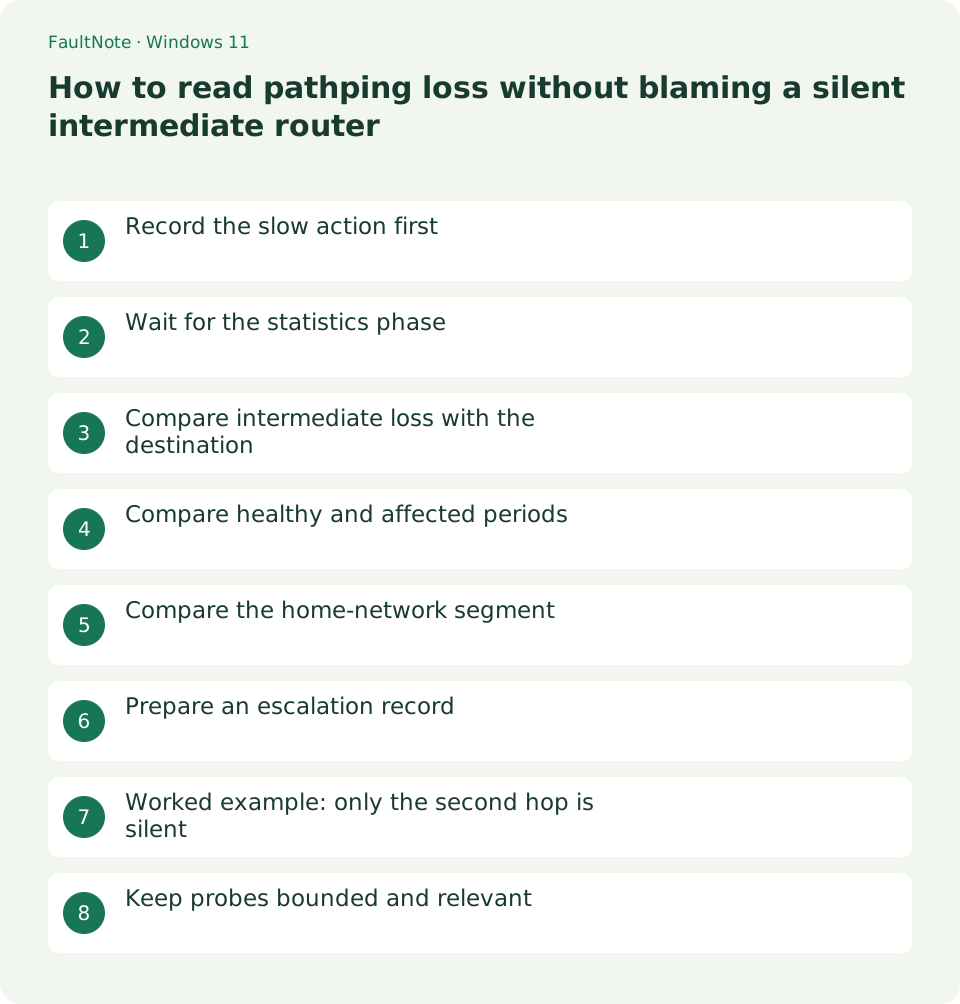
Who this guide is for and what to prepare
- Users preparing evidence for intermittent connectivity escalation
What you need
- Save work and record the time and destination of the symptom
- Record the PC and router models and Windows version
Record the slow action first
Note the actual symptom and time: a stalled stream, disconnected game or failed page. A route diagnostic becomes useful when correlated with that symptom. Some devices remain silent even on a healthy path, so numbers alone do not identify a responsible provider.
Wait for the statistics phase
Run against the affected hostname. Statistics collection continues after the initial route list, so wait for completion. /n skips intermediate name resolution. Use Ctrl+C if needed and mark the output as incomplete.
pathping /n www.microsoft.comCompare intermediate loss with the destination
If a hop does not answer but later hops and the destination do, that is not proof it drops all forwarded traffic. Routers may limit diagnostic replies. Compare whether loss persists downstream and whether the application actually fails.
- Record target, time and connection, including active backup or VPN so changed workload conditions remain visible.
- Wait for final statistics after the route list. Label interrupted results as incomplete rather than equating them with completed captures.
- Save affected and healthy captures separately and compare hop addresses. Row number alone does not identify the same router.
- Add another-device and actual application results. State the limitation when the destination does not answer diagnostic probes.
Compare healthy and affected periods
Use the same PC, connection and destination for healthy and affected observations. When the destination does not answer diagnostic probes, the output may be inconclusive. Add an application or TCP result for the service actually in use.
Compare the home-network segment
For Wi-Fi, compare near the router and, if practical, over Ethernet. Stability only on Ethernet prioritizes the wireless segment. If both fail, check another device at the same time before escalating the upstream investigation.
If a household backup or another large transfer overlapped the capture, record that condition. Compare ordinary usage and a quieter period as separate scenarios rather than presenting the quieter run as the only result. A consistent workload relationship is more useful than one isolated clean trace.
Prepare an escalation record
Summarize the connection type, affected time window, results for more than one destination and the reproducing action. Avoid publishing internal addresses or names. Even for a private provider support channel, exclude unrelated logs and account secrets.
Scroll horizontally to see the full table →
| Observation | Next action |
|---|---|
| Silent intermediate hop, later success | Do not blame that hop alone; correlate with real symptoms. |
| Destination consistently ignores probes | Record the limitation and observe actual service traffic. |
| Downstream failures only during symptoms | Escalate with a healthy capture and another-device comparison. |
Worked example: only the second hop is silent
If hop one answers, hop two shows complete loss and later hops plus the destination answer, consider restricted diagnostic replies at hop two. With a healthy application, that number alone is weak grounds for a repair request. A matching healthy-period trace provides a useful control.
Loss continuing through later hops and the destination while the application stalls warrants further investigation. Routes can change, so the same row number may not identify the same device between runs. Preserve address, destination and timestamp without claiming a physical fault location from the visible path alone.
Keep probes bounded and relevant
Several bounded captures during normal and affected periods are more useful than unnecessary continuous probing. Allow the statistics phase to finish before stacking other tests. Once the destination is known not to answer ICMP, more probes may not help; switch to observing its real service behavior.
Describe whether only Wi-Fi, Ethernet too, or other household devices are affected. Include router restart times when relevant. Keep the failed-period original as well as the healthy comparison, because a post-restart clean trace alone conceals the symptom. Record unchanged settings as factual context.
Limitations and requirements
- These procedures target home PCs; follow administrator policy on managed devices.
Frequently asked questions
Does 100% loss at an intermediate hop prove a fault?
No. Check later hops and destination behavior, distinguishing probe-response restrictions from a forwarding problem.
Can route addresses identify the company at fault?
The visible path and replies have limits. Provide application symptoms and repeat comparisons to the provider for investigation.
Can I share an interrupted capture?
Label it incomplete. Distinguish it from completed statistics and repeat under the same conditions if needed.
Sources and verification date
Sources checked: . These sources support the specifications, procedures or prices discussed here. Check each source for applicable conditions and current information.
Related practical guides
- Read a Windows Wi-Fi report to correlate intermittent disconnections
- Ethernet connects at 100 Mbps: isolate a low-rate cable or port link
- A single site will not open: compare DNS answers with nslookup
- A 169.254 address on Windows: inspect DHCP and the default gateway
- Ping fails but websites work: test TCP 443 separately
- Test a read-only Windows home-network share and separate access from permissions