Windows 11 24H2 Stops or Crashes on Devices Using sprotect.sys
What to do first
For devices with sprotect.sys 1.0.2.372/1.0.3.48903, update the bundled app to the compatible version and do not force the update until the 24H2 safeguard is removed.
Affected products and symptoms
- Product
- Windows 11
- Versions and conditions
- Windows 11 24H2 (device with sprotect.sys 1.0.2.372 or 1.0.3.48903 installed)
- Error codes and identifiers
- sprotect.sys1.0.2.3721.0.3.4890356318982
Symptoms
- Device becomes unresponsive
- I get a blue screen or black screen error
- 24H2 is not presented in Windows Update due to compatibility protection
Causes and conditions
Compatibility issue with Windows 11 24H2 and SenseShield's sprotect.sys driver, which provides cryptographic protection. Target drivers may be bundled with multiple security/business applications.
Before you start
- Record the encryption/security product name and version in [Settings] > [Apps] > [Installed apps]
- Back up business data
- Check the 24H2 compatibility information of the PC/app provider
Precautions
- Do not delete or rename sprotect.sys alone
- Avoid force update by avoiding safeguard ID 56318982
Tools and official pages used in this guide
Review the official requirements, screen names, and limitations for this procedure.
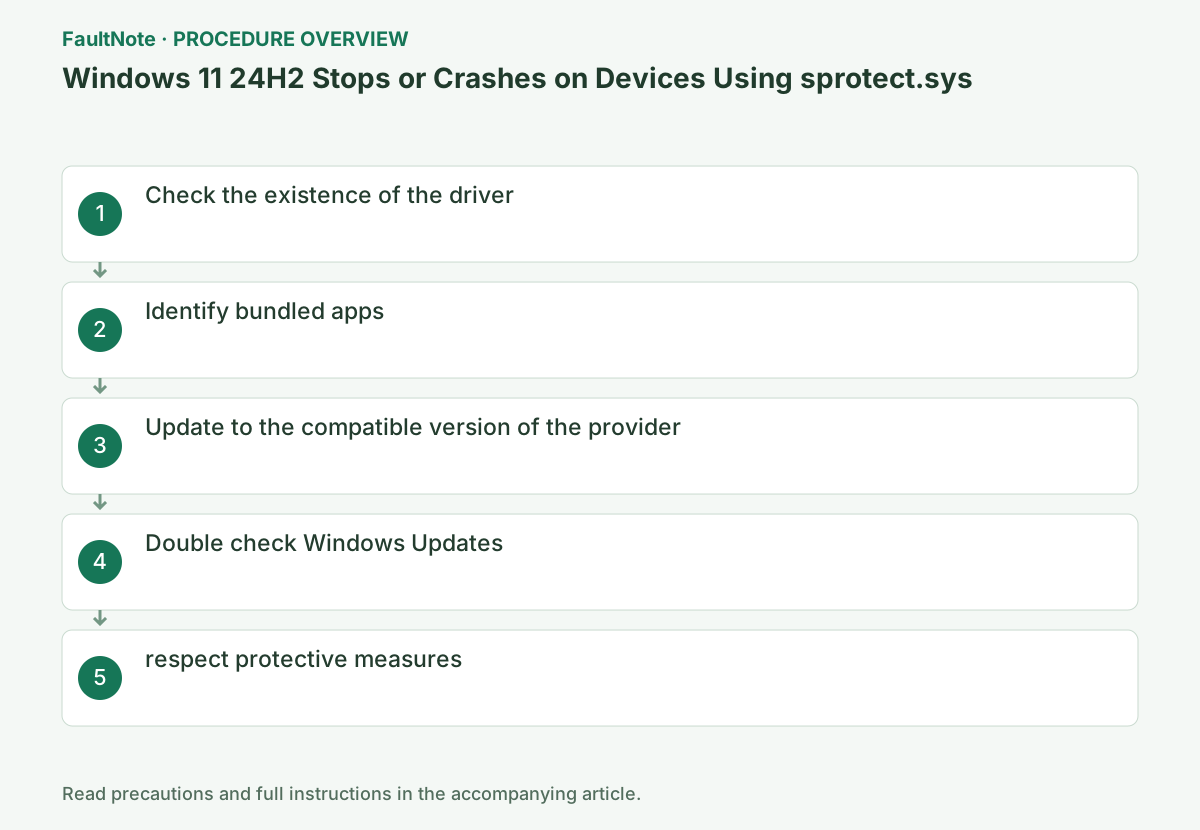
Step-by-step instructions
Right-click C:\Windows\System32\drivers\sprotect.sys in Explorer and check the file version in Properties > Details.
Record the company name, product name, and version in [Details] of the file. Even if access is denied, check the bundled app without changing ownership or deleting it.
Check before continuingVerdict: Right-click C:\Windows\System32\drivers\sprotect.sys in Explorer and check the file version in Properties > Details. Record the company name, product name, and version in [Details] of the file. Even if access is denied, check the bundled app without changing ownership or deleting it.
Check [Settings] > [Apps] > [Installed apps] against internal asset information. Do not delete only the driver files.
Check apps in order of installation date and check security/encryption software, etc. against the management ledger. If you are unsure, contact your IT administrator.
Check before continuingVerdict: Check [Settings] > [Apps] > [Installed apps] against internal asset information. Do not delete only the driver files. Check apps in order of installation date and check security/encryption software, etc. against the management ledger. If you are unsure, contact your IT administrator.
Install Windows 11 24H2 compatible version from the app provider or your organization's software distribution and restart according to the instructions.
Use only 24H2 compatible versions specified by the app provider or internally distributed. Confirm how to restore the app settings, and do not download a replacement from a generic chipset site.
Official links for this step
- Resolved issues in Windows 11, version 24H2
Review the official requirements, screen names, and limitations for this procedure.
Check before continuingVerdict: Install Windows 11 24H2 compatible version from the app provider or your organization's software distribution and reboot according to the instructions. Use only 24H2 compatible versions specified by the app provider or internally distributed. Confirm how to restore the app settings, and do not download a replacement from a generic chipset site.
- Resolved issues in Windows 11, version 24H2
After restarting, double check the version of sprotect.sys and open [Settings] > [Windows Update]. The safeguard may take up to 48 hours to clear.
After restarting, check the version of sprotect.sys and application startup, and then check Windows Update once.
Check before continuingVerdict: After rebooting, double-check the version of sprotect.sys and open Settings > Windows Update. The safeguard may take up to 48 hours to clear. After restarting, check the version of sprotect.sys and application startup, and then check Windows Update once.
Do not force it with the installation assistant or media creation tool unless 24H2 is presented.
If 24H2 does not appear after 48 hours, reconfirm the provider's support status. Do not delete files or force updates using Installation Assistant.
Even after 24H2 is presented, expand the scope of deployment after confirming that license authentication, encryption, and sign-in of business applications are normal. If the problem remains on the first device, send the version details to the software provider.
Check before continuingVerdict: Do not force the upgrade with Installation Assistant or Media Creation Tool unless 24H2 is presented. If 24H2 does not appear after 48 hours, reconfirm the provider's support status. Do not delete files or force updates using Installation Assistant.
Check the result
- The device is operating normally and is compatible with the app provider.
- 24H2 is presented via Windows Update or can be operated normally with the current version
If the problem continues
- If it is not displayed after 48 hours, check with the app provider or PC administrator.
- If the game continues to stop or show a blue/black screen, run the support steps for the bundled app in safe mode.
Fix status
Resolved — The compatibility issue has been resolved with a new version of the compatible app, and the safeguard hold will be lifted on 2025-10-15. According to Microsoft history, resolved on 2025-10-16 19:01 PT.
Frequently asked questions
Can I delete just the driver?
I don't. Use the update instructions provided by the provider, as this may break the functionality or startup of the bundled app.
Can I manually install 24H2?
Avoid during safeguard. After installing the compatible version, wait for Windows Update to be presented.
Official sources and dates
Source publication or resolution date: 2025-10-16. Sources checked: 2026-09-05. The check date is not the date the problem first occurred. Interface labels can vary between versions and display languages.
Related troubleshooting guides
Windows errors and troubleshooting →
- Intel SST Driver Causes a Blue Screen During the Windows 11 24H2 Upgrade
- The screen brightness changes on its own: telling content-based adjustment apart from ambient-light adjustment
- Laptop is slow only on battery: check the power mode, energy saver and the maker's cooling mode in that order
- A driver can't load on this device: what memory integrity is blocking, and the choices that leaves