Export a Thunderbird profile ZIP and check its 2 GB and import boundaries
Save a Thunderbird profile ZIP using Tools > Export, checking the size limit, included settings and import scope. Keep the original environment and avoid forcing a large profile through the ZIP workflow.
Published · Updated · FaultNote editorial policy
Who this guide is for and what to prepare
- People packaging Thunderbird settings and mail for migration
What you need
- Check profile location and size, backup free space, and any existing destination data.
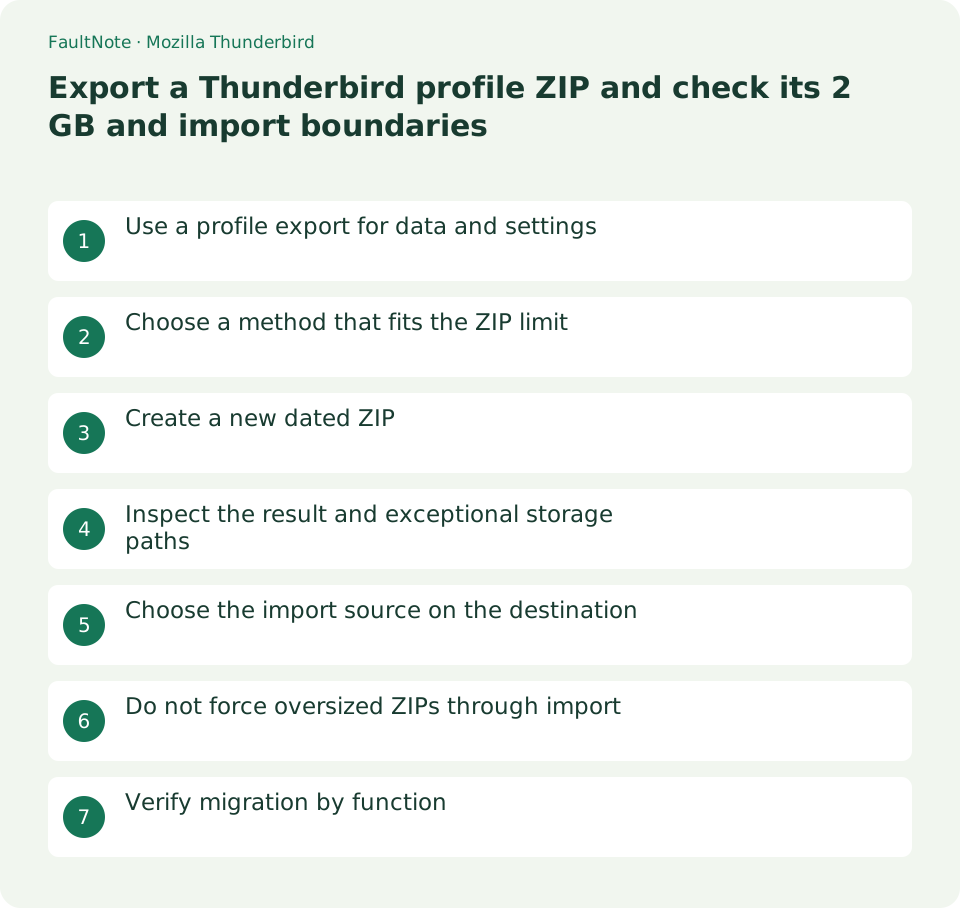
Use a profile export for data and settings
When replacing a home PC, merely adding accounts can leave local folders and address books behind. Profile export packages accounts, messages, address books and settings in the profile. It does not establish that every server-side IMAP message is included; check required local data first.
Choose a method that fits the ZIP limit
Mozilla documents a 2 GB limit for exported ZIP backups and no import support for ZIPs above 2 GB. Find the profile with the export screen link and inspect folder properties. If it is near or beyond the limit, choose a separate closed-profile folder backup procedure instead of deleting mail to force a smaller ZIP.
Create a new dated ZIP
Open the menu > Tools > Export, select Export and save a new dated file such as Thunderbird-home-2026-10-13.zip. Do not overwrite a previously successful backup. Avoid concurrent mail or settings changes, and wait for completion and file creation before moving on.
Inspect the result and exceptional storage paths
Check that the ZIP can be opened and is not unexpectedly tiny. Extract only into a separate inspection folder, never the live profile. If account storage was relocated to another drive, assess data outside the profile separately. File existence alone does not verify messages, attachments or custom storage locations.
Choose the import source on the destination
On the destination, open menu > Tools > Import and select the file/profile ZIP source presented by the wizard. Review source and selected items in the confirmation screen. Importing a home profile into an existing work setup can introduce unwanted accounts or duplicates; preserve the destination state first.
Do not force oversized ZIPs through import
For a large profile, consider the documented import from another Thunderbird installation with a chosen profile folder. Splitting a ZIP does not mean Thunderbird can directly import multipart archives. Use a separate folder backup/restore procedure; this page does not instruct replacing existing profiles.
Scroll horizontally to see the full table →
| State | Appropriate next step |
|---|---|
| ZIP created below 2 GB | Keep source and verify import |
| Above or near 2 GB | Consider folder backup and import |
| Destination already has data | Preserve destination and review scope |
Verify migration by function
Compare representative local messages, older attachments, address books and required settings. If server authentication is requested again, use the provider-approved sign-in flow instead of re-exporting repeatedly. Keep the old PC and original ZIP until checks are complete; launching the destination app is insufficient.
Limitations and requirements
- Profile ZIPs can include private mail and credentials. Do not upload them to public shares or unrelated converter sites.
Frequently asked questions
Should I delete old mail to fit 2 GB?
Choose another preservation method first; do not make deleting required mail a prerequisite.
Does the ZIP guarantee all server mail?
Local profile contents and server coverage differ; inspect the needed records.
Does import overwrite my current setup?
Effects depend on source and selected items. Read the confirmation and preserve the destination beforehand.
Sources and verification date
Sources checked: . These sources support the specifications, procedures or prices discussed here. Check each source for applicable conditions and current information.
Related practical guides
- Back up a closed Thunderbird profile and check local-mail restoration
- Choose Thunderbird archive storage: IMAP versus local folders
- Thunderbird: Manage Multiple Email Accounts in One App
- Add an email account to Thunderbird
- ZIP vs 7z: Compatibility, Compression, and Encryption
- Windows 11: Create and Safely Extract ZIP Files with Built-in Tools