Windows 11: Create and Safely Extract ZIP Files with Built-in Tools
Create a ZIP file using built-in tools and safely extract it. Select the files you want to combine in Explorer, then right-click > [Compress to ZIP file] or select [See more options] > [Send to] > [Compress (zip format) folder]. Open the ZIP and check that the necessary files are available and that the extracted file can be opened with a standard app.
Published · Updated · FaultNote editorial policy
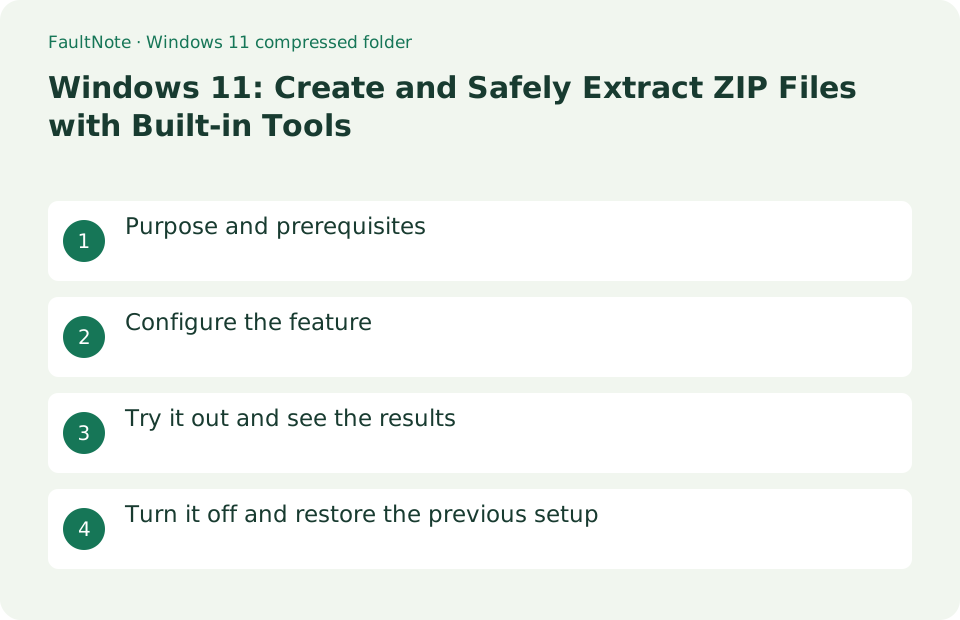
Who this guide is for and what to prepare
- Users who want to streamline daily operations with Windows 11
- Users who want to try out the feature in a way that allows them to restore the settings.
What you need
- Save the file you are working on and try it with test data that does not include personal information.
- Encrypted archives may not be handled by built-in tools. Don't open executable files with disguised extensions; check content and confidentiality before and after sending
Choose a practical workflow
Package a document, image and readme. Copying them into a dedicated folder makes unwanted inclusions easier to inspect. Preserve original data and extract into a new location as a recipient would. Successful compression alone does not establish readiness; verify both completeness and readability.
Configure the feature
- Select the files you want to combine in Explorer and right-click > [Compress to ZIP file] or [See more options] > [Send to] > [Compress (zip format) folder].
Worked example: send three documents as one ZIP
- Create a distribution folder and copy the three files. Inspect extensions and check for unexpected executables or obsolete versions.
- Select the folder or required files and choose the right-click ZIP compression operation. Give the resulting archive a descriptive name.
- Right-click the ZIP and choose Extract all. Select a new empty destination that does not overlap the originals.
- Open all three extracted files and check names, count and versions. Confirm the recipient has the required applications, then share the archive.
Try it out and see the results
Give the created ZIP a meaningful name. Right-click the received ZIP > [Extract all], select the destination, and press [Extract]. Open the ZIP and check that the necessary files are available and that the extracted file can be opened with a standard app.
If you want to combine multiple files into one ZIP, hold down Ctrl and click on them, or combine them into a single folder first. After creation, open the ZIP and check the recorded file name. Instead of directly editing the ZIP you receive, right-click and select "Extract all" to specify the save location, and then open the document from the extracted folder to find the save location.
Prepare distribution contents and an empty destination
Copy only the files to share into a dedicated folder and check for private notes or unfinished work before creating the ZIP. Inspect the archive listing, extract it into a different folder and open representative files.
Destination choice prevents overwrites. Extracting directly into Downloads can mix older files and versions. Use a new project-and-date folder, verify contents and then move required files. Retain the ZIP until verification finishes. Keeping both uses space, but removing the source too soon can prevent a fresh extraction.
Distinguish compression size and filename encoding
Images, videos and already-compressed formats may shrink very little. ZIP is still useful for collecting several files into one package. If an attachment limit is exceeded, change the sharing route or included files instead of repeatedly compressing the archive.
Garbled filenames do not necessarily indicate damaged contents. Check archive text encoding and extractor compatibility. Before renaming, obtain the correct listing from the provider. Software or games can depend on names and folder structure, so do not bulk-rename merely to improve appearance.
Check overwriting, corruption and executables
If the destination has matching names, extract into a new empty folder and compare. Successful extraction does not establish that a downloaded archive is safe. Check the sender and expected contents. If an expected document package contains an executable, confirm with the provider before running it.
For an incomplete download, inspect size and completion and reacquire from the provider if necessary. Repeated failure at the same point also warrants checking free space and destination access. For passwords, follow provider guidance and use compatible software. Inspect listings and documentation before running unfamiliar contents.
Turn extraction errors into the next action
Scroll horizontally to see the full table →
| Observed result | First check | Next action |
|---|---|---|
| A password is requested | Ask the provider about the archive format | Some encryption formats are unsupported by built-in tools; check a compatible application. |
| A matching-name prompt appears | Extract into another empty folder | Compare before overwriting. The overwritten original may not be recoverable from Recycle Bin. |
| Only some files open | Compare source data and a fresh extraction | Separate missing files, corruption and application requirements; obtain another copy if needed. |
Turn it off and restore the previous setup
Delete only unnecessary ZIP files. The original file is not automatically deleted. If overwriting occurs, check the recycle bin or backup.
Limitations and requirements
- Encrypted archives may not be handled by built-in tools. Don't open executable files with disguised extensions; check content and confidentiality before and after sending
- If the settings are fixed on an organization-managed PC, check with the administrator instead of using unofficial methods to circumvent the policy.
Frequently asked questions
Will the original files be deleted if I create a ZIP?
A standard compression operation creates a ZIP leaving the original files intact. Deleting the original file after compression is another decision.
Can I create a password protected ZIP?
This standard feature procedure does not address the creation of encrypted ZIPs. If encryption is required, check the featureality of the compatible software and the compatibility of the receiving side.
Does deleting the extracted folder also delete the ZIP?
They are normally separate items. Inspect location and name to identify the deletion target. Manage originals, ZIP and extracted contents as three distinct sets.
Can an overwritten older file be restored?
Recovery is not guaranteed. Check backups or cloud version history first. Do not assume an overwritten original is in Recycle Bin; extract into a new empty folder and compare next time.
Sources and verification date
Sources checked: . These sources support the specifications, procedures or prices discussed here. Check each source for applicable conditions and current information.
Related practical guides
- ZIP vs 7z: Compatibility, Compression, and Encryption
- Create an encrypted archive with PeaZip
- Try a Short Destination When Game Extraction Hits a Path Limit
- Check Purchased ZIP and 7z Downloads Before Extraction
- Compress all PowerPoint images to reduce file size
- Diagnose Garbled ZIP Filenames Without Changing the Original