Back up a closed Thunderbird profile and check local-mail restoration
Copy a Thunderbird profile after complete shutdown, preserve the destination state, and check local mail, contacts and attachments. An IMAP server view alone does not prove the backup restored.
Published · Updated · FaultNote editorial policy
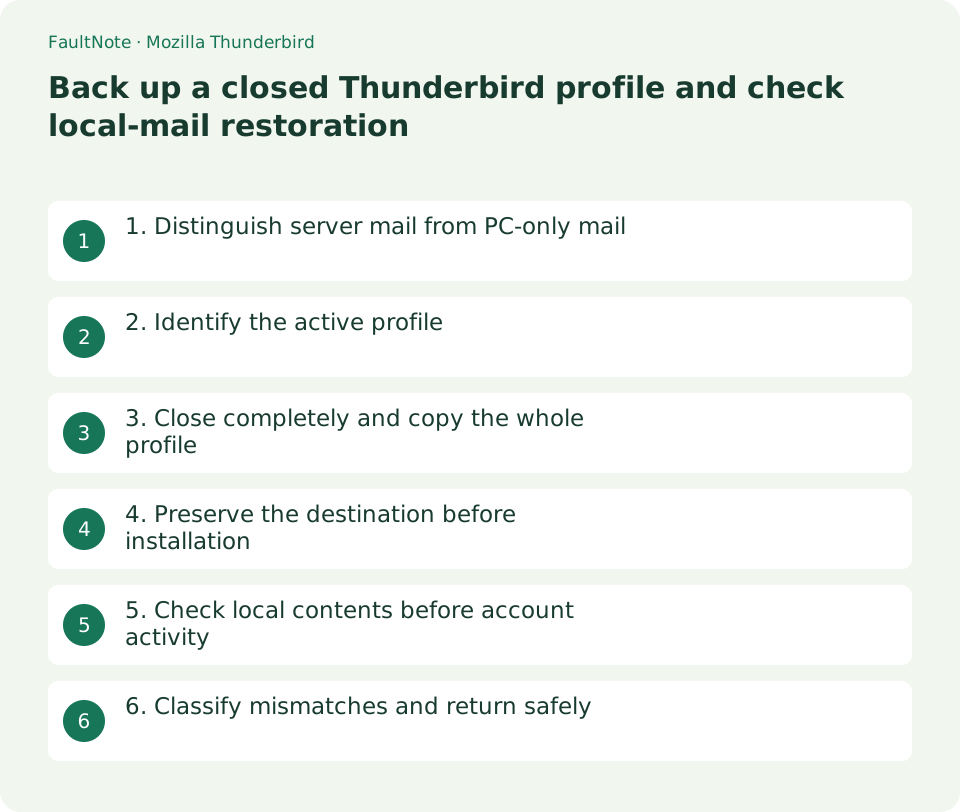
Who this guide is for and what to prepare
- People preparing a recoverable backup
- People checking what an application backup contains
What you need
- Record local-mail examples and external locations
- Ensure space to preserve the destination state
1. Distinguish server mail from PC-only mail
An IMAP inbox differs from POP mail and Local Folders. Server messages reappearing does not demonstrate recovery of PC-only history. Inventory Local Folders, sent-mail storage, archives and POP accounts, prioritizing irreplaceable data.
Choose representative messages by date, subject, local folder and attachment presence, keeping private details out of public notes. These are read-only markers, not instructions to move or delete mail. A contact export is not a full mail-profile backup.
2. Identify the active profile
Use Help > Troubleshooting Information and Open Folder for Profile Folder. Identify the actual active location rather than assuming a default Roaming path. Map names to paths if multiple profiles exist.
Check custom mail-storage locations in account settings and Local Folders. Include external data locations separately if configured. Do not confuse a similarly named Local cache folder with the data profile.
3. Close completely and copy the whole profile
Exit normally after saving and mail activity finishes, then confirm no Thunderbird window or process remains before copying. Do not force termination during mail activity. A copy made while shutdown is unresolved is not a verified archive.
Copy the entire profile folder into a dated generation and record its original name, application version and external storage locations. Do not cherry-pick large mail files or remove contents to reduce size; related configuration and data need coherent preservation.
- Identify the active Profile Folder and external mail locations
- Exit normally and copy the whole profile after confirming shutdown
- Archive the destination’s current closed profile
- Check local bodies, attachments and contacts in a distinct test environment
4. Preserve the destination before installation
If the destination already uses Thunderbird, archive its closed current profile first. Do not merge an old generation into folders containing new mail. Follow Mozilla’s restoration instructions for matching or differing profile names.
Prefer a distinguishable test user environment where possible and keep Thunderbird closed during placement. Copy from archive to destination, never the reverse. Retain the original archive and work from a separate copy.
5. Check local contents before account activity
Consider an offline application check before unnecessary sending, receiving or synchronization. Do not delete or move server mail with restored old settings. Follow organizational account rules without disabling network-wide security.
Open selected local message bodies and attachments and check representative contacts. If only IMAP returns but old POP attachments fail, restoration is incomplete. Counts alone cannot establish readability; record checks across dates and attachment types.
6. Classify mismatches and return safely
Check the active profile, external paths and chosen generation if mail is missing. Path mistakes, incomplete copies and account authentication are different failures. Successful sign-in does not prove local recovery, and a password prompt does not mean mail files vanished.
Close the application and restore the preserved destination state when ending the drill. Record the verified generation, readable local mail, external paths and authentication needs. Do not overwrite current live mail simply because an older archive opens.
Scroll horizontally to see the full table →
| Check | Decision |
|---|---|
| Only IMAP appears | Check local and POP examples |
| An attachment fails | Check generation and external storage |
| A password is requested | Separate authentication from data recovery |
| Rollback is required | Close and restore the preserved destination profile |
Limitations and requirements
- Close both source and destination applications for copying
- Do not unconditionally replace current mail with an older generation
Frequently asked questions
Is exporting contacts sufficient?
It does not preserve mail, attachments and configuration. Archive the profile and external mail locations.
Can I copy while it runs?
This workflow copies after complete shutdown; an inconsistent live copy is not accepted.
Should I receive immediately?
First inspect local restoration and account settings to avoid unintended server changes.
Sources and verification date
Sources checked: . These sources support the specifications, procedures or prices discussed here. Check each source for applicable conditions and current information.
Related practical guides
- Export a Thunderbird profile ZIP and check its 2 GB and import boundaries
- Choose Thunderbird archive storage: IMAP versus local folders
- Thunderbird: Manage Multiple Email Accounts in One App
- Add an email account to Thunderbird
- IMAP vs POP3: Multiple Devices, Server Storage, and Backup
- Back up a VS Code profile: local export and a separately named import drill