Rebuild Thunderbird’s global search index when results are blank or slow
What to do first
When messages open directly but global search fails, preserve the search database and reindex. Compare Activity Manager progress and known-message searches, separately from sync or original-message failures.
This is a general troubleshooting guide, not an announcement of a current outage.
Affected products and symptoms
- Product
- Mozilla Thunderbird
- Versions and conditions
- Thunderbird Desktop
- Error codes and identifiers
- global-messages-db.sqlite
Symptoms
- Existing messages do not appear in global search
- Search is extremely slow or returns blank results
Causes and conditions
The Gloda global-search database may be corrupt, fragmented, or still indexing.
Before you start
- Confirm important mail exists on the server or in a backup
- Provide enough free space and time for the computer to remain on during indexing
Precautions
- Search results are incomplete during reindexing
- Do not mistake message-store files for the search database
Tools and official pages used in this guide
Check the official page for exact setting names, limitations, and updated decision paths.
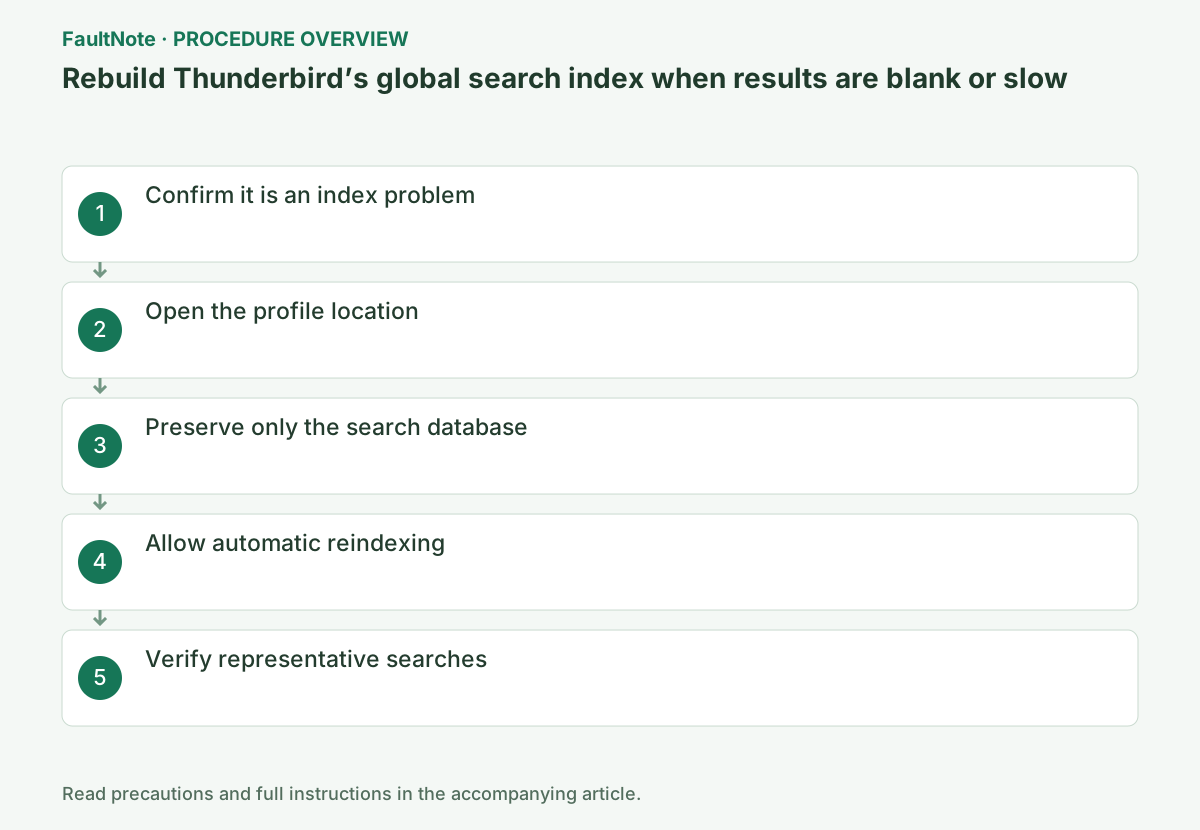
Step-by-step instructions
Open the message directly in its folder, then compare in-folder filtering with global search.
If the message itself will not open or a folder is missing, troubleshoot synchronization or folder storage first; rebuilding the global index is not the right first action.
Search for a known subject and compare opening that message directly in its folder. Rebuild the index only when direct access works but search fails.
Select representative old, recent, and sent messages and retain folder and search terms. Use identical conditions afterward; changed filters can alter counts independently of rebuilding.
Official links for this step
- Official Mozilla Thunderbird troubleshooting
Check the official page for exact setting names, limitations, and updated decision paths.
- Official Mozilla Thunderbird troubleshooting
Open Menu > Help > Troubleshooting Information and select Open Folder beside Profile Folder.
Leave that folder open, quit Thunderbird, and verify no Thunderbird process remains. Never change the database while Thunderbird is running.
Locate the active profile through Troubleshooting Information rather than guessing among large database files. Quit before handling it, record paths, and do not modify another active profile.
Move global-messages-db.sqlite to a backup location such as the desktop. Moving it instead of deleting it keeps a rollback copy.
Do not touch Mail, ImapMail, prefs.js, or folder message files. Use the main database as the precise target even if related temporary files exist.
The official procedure deletes global-messages-db.sqlite; this guide preserves it by moving it aside. Do not move mail message files. Record size and timestamp and verify the target before restarting.
Start Thunderbird. It creates a new global-messages-db.sqlite and begins indexing messages and address-book cards.
Monitor Tools > Activity Manager. Large mailboxes take time, and partial or blank results during that period do not prove failure.
Search for an old unique subject, a recent sender, and a word from a message body.
Rebuilding does not automatically reduce database size. Do not repeat it merely to shrink the file unless fewer messages are being indexed.
A new database appearing does not mean indexing finished. Watch Activity Manager and do not repeatedly restart rebuilding for empty interim results. Record interruptions and check progress after resuming.
After completion, search representative subject, sender, and body terms. For a missing folder, check message availability. If content cannot open directly, investigate sync and storage instead of only indexing.
A large rebuilt database is not automatically failure. Official guidance says it does not automatically shrink unless fewer messages are indexed. Deleting important mail to reduce space is separate from recovering search.
Check the result
- Indexing completes in Activity Manager
- Both older and recent messages appear in search
If the problem continues
- If one folder is missing, inspect that folder’s synchronization state
- Test the same account in a new profile to isolate profile-specific damage
Scope of this guide
Troubleshooting guide — Preserve mail data and replace only the search index, then monitor automatic reindexing in Activity Manager.
Frequently asked questions
Can I use mail while rebuilding?
Yes, but performance can be reduced and searches can remain partial until completion.
Will rebuilding shrink the database?
Not automatically. It generally shrinks only when fewer messages need indexing.
A new DB exists, but search is empty.
Indexing may still be underway. Inspect Activity Manager without repeatedly moving the DB. After completion, compare direct access to the same messages and identical search conditions.
Only one folder is missing from search.
Verify direct access and body availability there. Separate global indexing from folder synchronization or originals, preserving local-only content before broad redownload operations.
Official sources and dates
Source publication or resolution date: Not specified. Sources checked: 2026-10-13. The check date is not the date the problem first occurred. Interface labels can vary between versions and display languages.