Separate work and personal profiles in Chrome
This is the procedure for separating history, bookmarks, extensions, and login status into usage-specific profiles. We will explain in detail the starting position, setting values, completion confirmation, and how to review in case of problems.
Published · Updated · FaultNote editorial policy
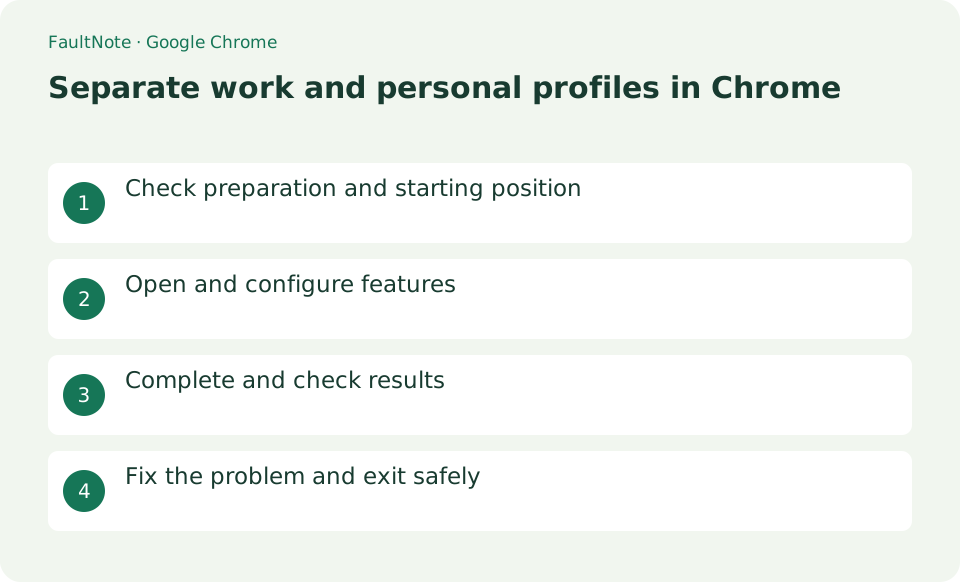
Who this guide is for and what to prepare
- First-time users of Google Chrome
- People who want to safely check the operation of separating work and personal profiles in Chrome
What you need
- Decide on a name and color to distinguish your work Google account from your personal one.
Inspect the current profile and login
Decide on a name and color to distinguish your work Google account from your personal one.
Create a separate work profile
Select your profile image in the top right > Add Chrome Profile. Log in with your work account, or select Continue without account if synchronization is not required.
Give it a name like "Work" and choose a different photo and color scheme than for personal use. Open your work site in a new window and register one bookmark.
- Add a new profile from the profile menu
- Set a recognizable name and color
Verify accounts in separate windows
Switch to personal by going to Profile Image > [Other Chrome Profiles] and make sure that work bookmarks and login status are not mixed in.
- Check the account inside each website
Review switching and removal effects
To have it selected at startup, go to Profile Image > Manage Chrome Profiles and turn on Show at startup.
People who can use the same PC can switch to different profiles. When you delete your profile, your unsynced history, passwords, and bookmarks on your device will also be deleted.
- Preserve required bookmarks before removal
Check both the browser profile and website account
After opening the work profile, check the account shown inside Gmail or Drive as well as the browser profile name. Renaming a profile does not sign websites into the intended account. Give the profile a recognizable name and color and add work bookmarks to make its window easier to identify. Before sending or sharing something, confirm the website account again.
With two profiles side by side, open work documents in one and personal mail in the other, then inspect both site account indicators. Before uploading, recheck the destination site and chosen file. If downloads share a location, use filenames or folders to distinguish their purpose as well.
Decide what should sync before daily use
If you enable synchronization, review the destination Google account and selected data categories in settings. Starting a fresh profile makes it easier to avoid mixing personal passwords or browsing history into a work account. Managed browsers may restrict some options. If an option is locked by policy, confirm the permitted workflow with the administrator instead of attempting to bypass the restriction.
Preserve local data before removing a profile
Before removing a profile, export bookmarks you need and locate any important downloads. Seeing synchronization enabled does not prove every recent change has finished syncing. After switching to the remaining profile, verify that required sites use the intended account. Anyone sharing the same operating-system session may be able to switch profiles, so profile organization alone should not be treated as an access control for confidential data.
Scroll horizontally to see the full table →
| Observed result | Next action | Success condition |
|---|---|---|
| A site shows the personal account | Inspect the website login separately | The work site opens with the work account |
| Sync options are locked | Inspect management-policy indicators | The permitted workflow is known |
| A profile should be removed | Preserve unsynced bookmarks first | Required information is verified elsewhere |
Limitations and requirements
- People who can use the same PC can switch to different profiles. When you delete your profile, your unsynced history, passwords, and bookmarks on your device will also be deleted.
Frequently asked questions
What if you can't find the item you want in Google Chrome?
To have it selected at startup, go to Profile Image > Manage Chrome Profiles and turn on Show at startup.
What should I be especially careful about when separating work and personal profiles in Chrome?
People who can use the same PC can switch to different profiles. When you delete your profile, your unsynced history, passwords, and bookmarks on your device will also be deleted.
Can separate profiles use the same site at the same time?
Each profile provides a separate browsing environment, but verify the website account in each window. Company device restrictions or SSO requirements still apply; creating another profile does not itself satisfy them.
What if both profiles sync with one Google account?
Selected synchronized data may be shared through that account across the intended work boundary. Check the account and sync categories if separation is the goal. Different names or colors do not prove that synchronized data is separate.
Sources and verification date
Sources checked: . These sources support the specifications, procedures or prices discussed here. Check each source for applicable conditions and current information.
Related practical guides
- Organize Chrome download folders, history, and actual files
- Stop unwanted Chrome website notifications by origin
- Manage Chrome camera, microphone, and location permissions per site
- Clear one Chrome website storage before retrying sign-in
- Incognito shopping: retained records and checks before closing
- Review Chrome address and payment autofill on a shared PC