PC Headset Connections: USB, 3.5 mm, 2.4 GHz Dongle or Bluetooth, and What Happens to the Microphone
A Bluetooth headset that sounds fine for music and terrible the moment a call starts is not faulty; it is how Bluetooth Classic Audio works. Microsoft documents that stereo playback runs over A2DP, an output-only profile, and that capturing the headset's microphone requires HFP, a mono profile running at 8 kHz or 16 kHz. In Windows 11, HFP is selected when an application opens the microphone endpoint or creates an output stream with the category set to Communications. There are three ways around it: use an LE Audio capable pairing, use a 2.4 GHz dongle, or connect over USB or an analog 3.5 mm jack. To hear stereo while the microphone is active over LE Audio, Microsoft states you need Windows 11 version 24H2 or newer, a PC with integrated Bluetooth LE support from the factory, and the manufacturer's drivers. Before buying, match the connection type against your PC, your free USB ports, and the devices you want to share the headset with.
Published · Updated · FaultNote editorial policy
Who this guide is for and what to prepare
- Anyone whose game or music audio degrades as soon as they unmute in a meeting or voice chat
- People deciding between a USB, analog, dongle or Bluetooth headset for a PC
- Anyone who wants one headset to cover a PC, a phone and a console
What you need
- Your Windows version (Settings > System > About) and whether the PC has Bluetooth
- How many USB ports are free, since a dedicated dongle occupies one
- The headset's product page specifications: connection types, supported operating systems, required ports and supported consoles
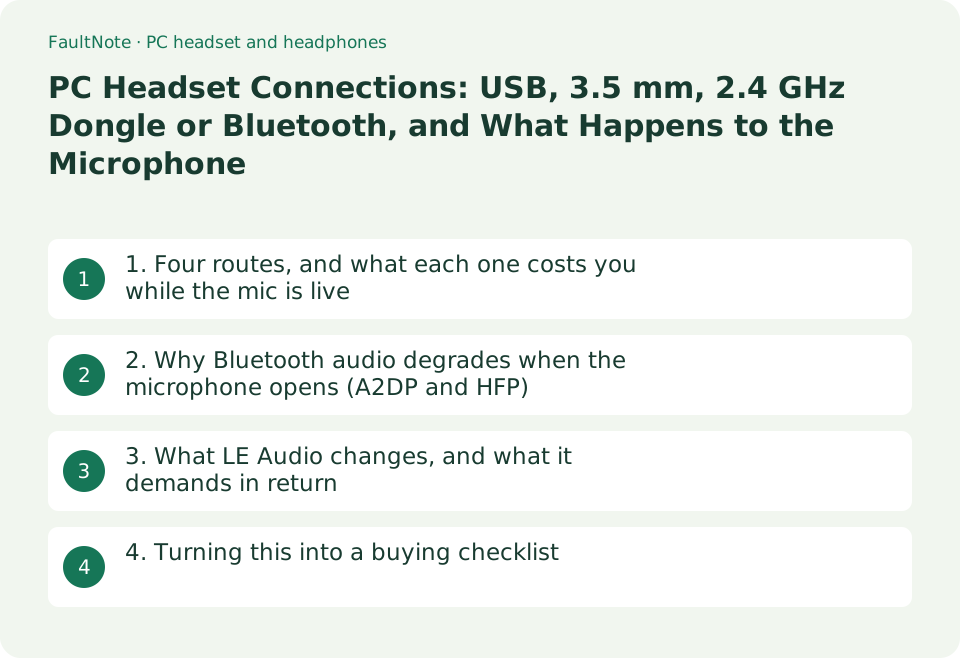
1. Four routes, and what each one costs you while the mic is live
There are four ways to attach a headset to a PC: USB, an analog 3.5 mm jack, a manufacturer's 2.4 GHz wireless dongle, and Bluetooth. All four produce sound. The difference appears when the microphone is in use at the same time. Over Bluetooth, Windows moves from the stereo playback profile to the mono hands-free profile, and game or music quality drops with it. A 2.4 GHz dongle or a USB connection does not perform that switch.
A dongle costs you a USB port, and the headset stops working wirelessly if the dongle is lost. Logitech G's product page for the PRO X 2 LIGHTSPEED, for example, lists the connection types as 2.4 GHz LIGHTSPEED and Bluetooth, states the PC requirement as Windows 10 or later with a USB 2.0 port, and notes that PlayStation 5 and PlayStation 4 are supported for "USB wireless stereo sound only". Read those qualifiers before buying if you plan to share the headset with a console. Analog 3.5 mm is the simplest wiring, but the device you plug into imposes its own limits: Sony states that the DualSense headset jack feature requires a wired connection with PC and Mac, and Microsoft states that attachments such as headsets, chatpads and the Xbox Stereo Adapter will not work with an Xbox controller while it is connected via Bluetooth.
Scroll horizontally to see the full table →
| Connection | Playback while the microphone is in use | What it needs | When it fits |
|---|---|---|---|
| USB (wired) | No Bluetooth profile switch occurs | One free USB port; some models add a driver or utility | Meetings and streaming where microphone quality must not drop; no battery to manage |
| Analog 3.5 mm (wired) | Handled as the PC's audio input and output | A 4-pole headset jack or a splitter, and support on the device you plug into | Moving one headset between a PC, console and handheld by swapping the plug |
| 2.4 GHz dedicated dongle | No profile switch occurs | Occupies one USB port; unusable if the dongle is lost | Wireless play with game audio and voice chat at the same time |
| Bluetooth | Switches to HFP (mono) when the microphone is used | Bluetooth on the PC; LE Audio adds further requirements (sections 2 and 3) | Sharing with a phone and carrying the headset around |
2. Why Bluetooth audio degrades when the microphone opens (A2DP and HFP)
Microsoft's Windows driver documentation states that Bluetooth Classic Audio supports stereo playback over A2DP (the Advanced Audio Distribution Profile) and mono playback and capture over HFP (the Hands-Free Profile). A2DP only supports audio output from the host to the device, so capturing the headset's microphone requires HFP instead. HFP runs in one of two modes, narrowband at 8 kHz using the SBC codec or wideband at 16 kHz using the mSBC codec, and Windows picks the first mode supported by both the host and the device. In other words, the good codecs apply to playback, and opening the microphone drops the link to telephony-grade audio. The same document adds a footnote that some wideband-capable audio devices are not compatible with the Bluetooth radio in select Windows devices, which makes those devices revert to narrowband mode. So when a headset that should reach 16 kHz still sounds like a phone call, the cause can be the combination with the PC's radio rather than the headset alone.
How this appears depends on the Windows version. In Windows 10, separate endpoints are created, "{Device Name} Stereo" for A2DP and "{Device Name} Hands-Free" for HFP, and Microsoft documents that when audio is streamed to the hands-free output, or an application opens the hands-free microphone input, the device switches into HFP mode and any audio streaming to the stereo output is discarded. In Windows 11 the endpoints are unified: a single output and input are created, HFP is chosen when an application opens the microphone endpoint or creates an output stream with the category set to Communications, and A2DP is used in all other cases. Windows resamples audio automatically for the profile in use.
Scroll horizontally to see the full table →
| Aspect | A2DP (stereo playback) | HFP (microphone in use) |
|---|---|---|
| What it does | High-quality stereo playback, output only | Concurrent mono playback and mono capture |
| Audio quality terms | SBC is required; AAC, aptX Classic and aptX Adaptive (lossless) are added where supported (aptX Adaptive on Windows 11 24H2 and only on select devices with compatible Qualcomm radios) | Narrowband 8 kHz (SBC) or wideband 16 kHz (mSBC). Some wideband-capable devices revert to narrowband with select PC radios |
| How it appears in Windows 10 | "{Device Name} Stereo" | "{Device Name} Hands-Free" for both output and input |
| How it appears in Windows 11 | A single unified output and input endpoint | Same endpoints; the switch condition is below |
| Switch condition in Windows 11 | Used in all other cases | An application opens the microphone endpoint, or an output stream is created with the Communications category |
3. What LE Audio changes, and what it demands in return
LE Audio is the route to better quality without leaving Bluetooth. Microsoft's driver documentation describes Bluetooth LE Audio as introduced in Windows 11 version 22H2 (KB5026446). The support article states that when an LE Audio device is used with a Windows 11 PC that supports LE Audio, playback quality while the microphone is used improves to super wideband fidelity. It adds that with Windows 11 build 26100.4484 or newer and updated Bluetooth drivers from the PC manufacturer, some PCs can go further and support stereo playback while the microphone is in use.
The requirements are specific. To hear stereo while the microphone is active, the PC must run Windows 11 version 24H2 or newer, have integrated support for Bluetooth LE from the factory, and have the manufacturer's drivers for LE Audio with stereo functionality; the headphones, earbuds or speakers must also support LE Audio. Microsoft states plainly that without that support you will hear mono audio when the microphone is used. The setting lives in Settings > System > Sound: open the LE Audio device under Output, expand Output settings > Format, and choose Mono (1 channel) or Stereo (2 channels) under "Format when microphone is active". If that element is missing, the system does not support stereo while the microphone is active. Stereo is the default, and Microsoft suggests switching to mono if you hear loss of audio or glitches.
Scroll horizontally to see the full table →
| What you want | Requirement as documented by Microsoft | If you do not meet it |
|---|---|---|
| Use LE Audio at all | LE Audio was introduced in Windows 11 version 22H2 (KB5026446); both the PC and the headset must support it | The pairing falls back to Classic Audio (A2DP and HFP) |
| Super wideband playback while the microphone is active | An LE Audio device used with a Windows 11 PC that supports LE Audio | Playback stays at HFP quality, 8 kHz or 16 kHz |
| Stereo playback while the microphone is active | Windows 11 version 24H2 or newer, factory-integrated Bluetooth LE, manufacturer drivers; build 26100.4484 or newer widened support | Audio is mono whenever the microphone is in use |
| Fix dropouts or glitches | Set "Format when microphone is active" to Mono (1 channel) | If the element is absent the system does not support it; check OS and driver updates |
| You use the system-wide mono setting | A warning banner appears when mono audio is enabled in Settings > Accessibility > Audio; disable it if you want stereo | Microsoft notes that stereo audio may not function correctly |
4. Turning this into a buying checklist
Reduced to a purchase decision, two questions settle it: do you need good playback while the microphone is live, and how many devices will share the headset? If the microphone is the point, as in meetings and streaming, USB or a 2.4 GHz dongle is the straightforward answer. If portability and sharing with a phone matter more, Bluetooth is reasonable as long as you understand the microphone limitation and check from the PC side whether the LE Audio requirements can be met.
The specification lines worth reading are concrete. On Logitech G's PRO X 2 LIGHTSPEED page the PC requirement is Windows 10 or later with a USB 2.0 port, PlayStation 5 and 4 are listed for USB wireless stereo sound only, battery life is up to 50 hours, wireless range is up to 30 m, and the microphone is a cardioid electret condenser with a frequency response of 100 Hz to 10 kHz. That microphone figure is listed separately from the headphone response of 20 Hz to 20 kHz, so do not read one as the other. If you plan to plug a headset into a console controller, the connection has its own limits: Sony states the DualSense headset jack requires a wired connection with PC and Mac, and Microsoft states that headsets and other attachments do not work with an Xbox controller over Bluetooth.
Scroll horizontally to see the full table →
| Your situation | First candidate | Check before buying |
|---|---|---|
| Microphone quality matters most, for meetings or streaming | USB, or a 2.4 GHz dedicated dongle | A free USB port (the PRO X 2 LIGHTSPEED requirement is a USB 2.0 port) |
| Wireless, with game audio and voice chat together | 2.4 GHz dedicated dongle | Whether a replacement dongle is obtainable; the stated battery life and range |
| Shared with a phone and carried around | Bluetooth, ideally LE Audio capable | Whether the PC is on Windows 11 24H2 or newer with factory Bluetooth LE and manufacturer drivers |
| Plugged into a console controller | Analog 3.5 mm | Xbox controller attachments do not work over Bluetooth; the DualSense headset jack requires a wired connection on PC and Mac |
| You care about how your voice sounds | Read the specification before the connection type | The microphone's frequency response and pickup pattern (for example cardioid, 100 Hz to 10 kHz), listed separately from playback |
Limitations and requirements
- The statements here are official documentation and published specifications read on September 19, 2026 from Microsoft Learn, Microsoft Support, Logitech G, Sony and Xbox Support. We have not measured audio quality or latency, and this article does not cover prices or stock.
- Codec and LE Audio support depends on the Bluetooth radio in the PC and the manufacturer's drivers, not only on the Windows version. Microsoft notes that aptX Adaptive is supported only on select Windows devices with compatible Qualcomm Bluetooth radios.
- The model used as an example is described by the figures on its own product page. Other models and other brands specify connections and requirements differently, so check the specification sheet for the model you intend to buy.
Frequently asked questions
My Bluetooth headset sounds worse as soon as a call starts. Is it broken?
No, this is documented behavior. In Bluetooth Classic Audio, stereo playback runs over the output-only A2DP profile, and using the microphone requires HFP, which is mono at 8 kHz (narrowband) or 16 kHz (wideband). In Windows 11, HFP is selected when an application opens the microphone endpoint or creates an output stream with the Communications category. To avoid it, use an LE Audio capable pairing, a 2.4 GHz dongle, or a wired USB or analog connection.
I cannot find "Format when microphone is active" in Windows 11 settings.
Microsoft's support article states that if that element does not appear, your system does not support stereo audio while the microphone is active, and advises checking for the latest OS and driver updates or contacting the PC manufacturer. Stereo while the microphone is active requires Windows 11 version 24H2 or newer, factory-integrated Bluetooth LE, the manufacturer's drivers, and an LE Audio capable headset.
For gaming, should I pick a 2.4 GHz dongle or Bluetooth?
If you listen to game audio while talking in voice chat, a dedicated 2.4 GHz dongle avoids the profile switch entirely and is the easier choice. The costs are one occupied USB port and being unusable if the dongle is lost. Some headsets support both: Logitech G lists 2.4 GHz LIGHTSPEED and Bluetooth for the PRO X 2 LIGHTSPEED, with a PC requirement of Windows 10 or later and a USB 2.0 port.
Sources and verification date
Sources checked: . These sources support the specifications, procedures or prices discussed here. Check each source for applicable conditions and current information.
- Microsoft Learn: Bluetooth Classic audio (roles of A2DP and HFP, codecs, Windows 10 and 11 endpoints) ↗
- Microsoft Support: Configuring Bluetooth LE Audio quality settings on Windows 11 (requirements and settings path) ↗
- Microsoft Learn: Bluetooth Low Energy (LE) Audio (introduced in Windows 11 version 22H2) ↗
- Logitech G: PRO X 2 LIGHTSPEED product page (connection types, PC and console requirements, microphone specification) ↗
- Sony: How to use DualSense wireless controllers with PC, Mac and mobile devices (headset jack requires a wired connection) ↗
- Microsoft (Xbox Support): How do I connect my Xbox controller to PC? (attachments do not work over Bluetooth) ↗
Related practical guides
- Adding Bluetooth to a desktop PC: reading a USB adapter's version number, placement and limits
- USB vs PCIe Wi-Fi Adapter: Check Installation Requirements, Bluetooth and Speed Labels Before Buying
- Choosing a KVM switch: the video ceiling row, keyboard/mouse emulation and EDID
- USB receiver or Bluetooth for a wireless mouse and keyboard: what each one actually requires
- Onboard audio or a USB DAC/headphone amp: work out the voltage your headphones actually need
- External SSD vs HDD for backups: capacity, speed and portability