Apps do not recognize the microphone or cannot hear you in Windows 11
What to do first
Separate physical mute, Windows permissions, input selection, and app settings when troubleshooting microphone problems, using the built-in Windows recording test as the baseline.
This is a general troubleshooting guide, not an announcement of a current outage.
Affected products and symptoms
- Product
- Windows 11 Microphone
- Versions and conditions
- Windows 11
Symptoms
- Other meeting participants cannot hear you
- The microphone does not appear in the app
- Recording stopped working after a Windows update
Causes and conditions
A physical mute switch, Windows privacy permissions, input device selection, input volume, or the app's own selection may be inconsistent.
Before you start
- Release the headset's mute switch
- Identify the name of the microphone you want to use
- For a Bluetooth device, confirm that it is connected
Precautions
- Do not grant microphone access to apps that do not need it
- If organization management has grayed out the switch, ask the administrator
Tools and official pages used in this guide
Check the official requirements, screen names, and limitations for this procedure.
This is a built-in Windows app. You can also launch it with Open Get Help on the official page. If prompted to open the app, open it on the affected PC.
Step-by-step instructions
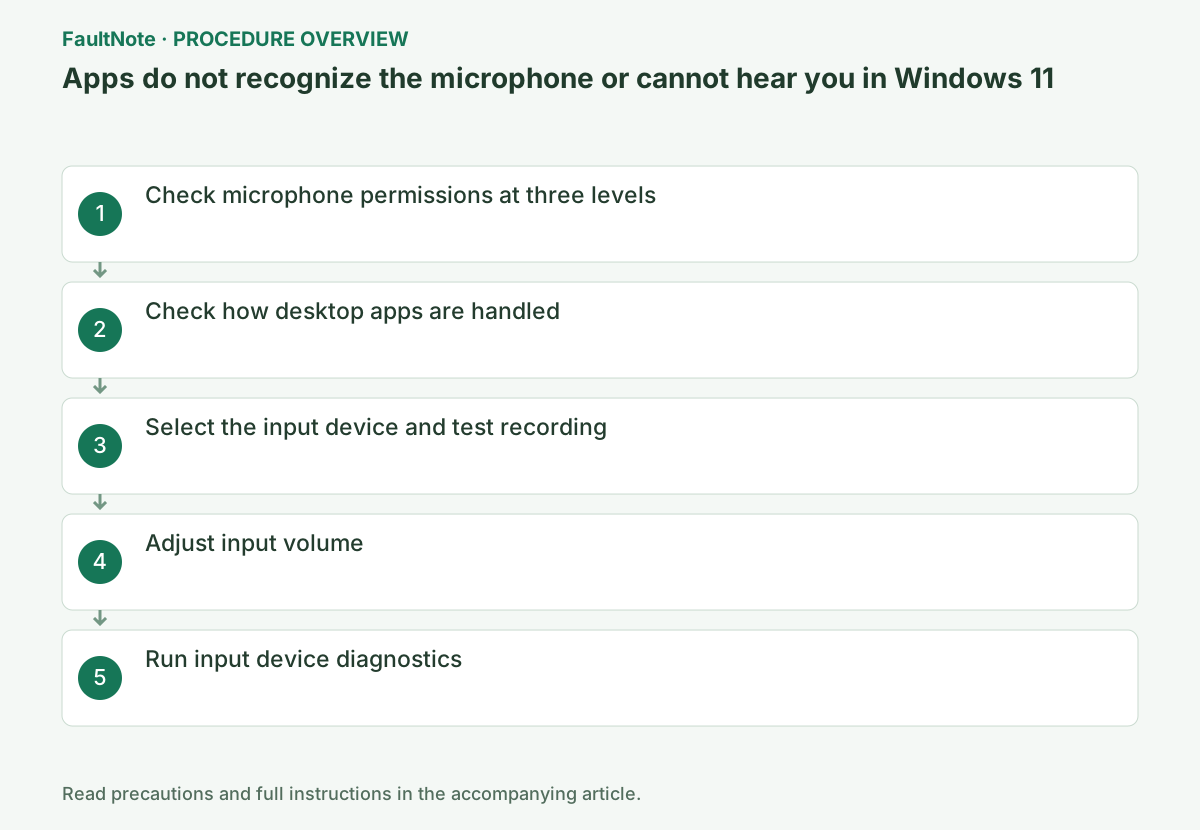
Check the input device in Settings > System > Sound. Internal and headset microphones may be separate entries. Select the intended device, inspect physical mute/cabling, and then run the input test. Speaker selection does not necessarily switch microphone input too.
A responding input test establishes that Windows obtains a signal from that device. Silence only in the app calls for app permission/selection/mute checks. A silent Windows test calls for device selection, switches, USB and driver checks. A remote participant hearing nothing does not uniquely identify a permission fault.
Open Settings > Privacy & security > Microphone. Turn on Microphone access and Let apps access your microphone. For Store apps, also turn on the individual app switch.
Start by releasing the mute switch on the headset itself. You can also reach this screen by pressing Windows key+I to open Settings and entering "Microphone privacy settings" in the search box. If the switch is grayed out and cannot be changed, check the organization's management settings.
For apps such as Teams and browsers that do not appear individually in the list, turn on Let desktop apps access your microphone at the bottom of the same screen. Browser use also requires separate microphone permission for the site.
Select the microphone under Settings > System > Sound > Input. In its properties, select Start test under Test your microphone, speak normally, then stop the test and play the recorded sample.
A USB microphone, webcam microphone, and laptop's built-in microphone may appear as separate devices. Select the device you intend to use and speak toward it. Even if the input responds, reselect the device name if it is the wrong microphone.
Official links for this step
- Fix microphone problems
Check the official requirements, screen names, and limitations for this procedure.
- Fix microphone problems
Distinguish device-level microphone access, app access and desktop-app settings. Browser meetings can also depend on site permission. Allow the required app/site rather than enabling every app by default. Ask an administrator about locked organizational settings.
Reopen the app after changes and select the intended input in its audio settings. Check meeting mute separately from device mute. Compare the Windows test with the app test using the same speech and record where silence begins. Success in another app does not establish access for the original one.
If the recording is quiet, gradually raise Input volume in the same properties and test again. Lower it if the sound distorts. If the Windows test is normal, select the same microphone name in the affected app's audio settings.
Once Windows can record, reopen the meeting app and set its input device to the same name. Check your voice in the pre-meeting test. If it picks up only background noise, adjust microphone placement and input volume.
Under Advanced in Settings > System > Sound, select Input devices for common sound problems and complete the Get Help diagnostics.
Official links for this step
- Official Get Help information and launch link
This is a built-in Windows app. You can also launch it with Open Get Help on the official page. If prompted to open the app, open it on the affected PC.
- Official Get Help information and launch link
Record a few seconds without private information and listen to the sample. An input meter alone may reflect noise or another microphone; playback checks the actual voice. Distortion and complete silence are different results. Retain original values and comparisons if adjusting input settings.
After the original app works, restore permissions enabled only for diagnosis. For recurrence, provide the input/connection, Windows recording and app results, and mute/permission state. Check supported drivers or rollback if an update worsened it. A local sample helps distinguish remote output/network problems too.
Check the result
- Your voice plays back clearly in the recording sample
- The affected app's input meter moves as you speak
If the problem continues
- If the Windows test also shows no response, compare another port or microphone
- If only the Windows test works, review the app or website permissions and input selection
Scope of this guide
Troubleshooting guide — Ensure that the Windows recording sample plays back, the same microphone is selected in the affected app, and its input meter responds.
Frequently asked questions
My app is not in the microphone permissions list.
Desktop apps do not appear in the individual list. Check the overall desktop app permission and the input settings within the app.
Only browser-based meetings do not work.
In addition to Windows permission, you must set the site's microphone permission to Allow in the browser.
Does a moving meter prove the microphone is correct?
It establishes a signal, not necessarily the intended voice/device. Play a short recording and select the same device in the app. Distinguish noise-only input, another internal mic and app-only silence.
Why is a browser meeting denied despite Windows permission?
Check browser site permission and meeting microphone selection too. Reopen the page if needed and test the original service. Repeatedly toggling only Windows permission cannot remove a remaining site denial.
Should I leave every test permission enabled after success?
Keep permissions needed for use and restore unnecessary diagnostic permissions. Record which app was verified first. Do not accidentally revoke the access required by the original app. Reopen and retest it after permission cleanup to verify normal use.
Official sources and dates
- Fix microphone problems ↗
- How to set up and test microphones in Windows ↗
- Windows camera, microphone, and privacy ↗
Source publication or resolution date: Not specified. Sources checked: 2026-09-05. The check date is not the date the problem first occurred. Interface labels can vary between versions and display languages.