Bluetooth devices cannot be discovered or paired in Windows 11
What to do first
If Bluetooth is available but cannot connect, check the other device's pairing state, discovery scope, and old pairing information, then pair again.
This is a general troubleshooting guide, not an announcement of a current outage.
Affected products and symptoms
- Product
- Windows 11 Bluetooth
- Versions and conditions
- Windows 11
Symptoms
- The device does not appear in Add device
- A previously paired device cannot connect
- Pairing fails after confirming the PIN
Causes and conditions
Communication may be prevented by the other device not being in pairing mode, battery level or distance, an existing pairing, discovery settings, or missing updates.
Before you start
- Check the other device's manual for its pairing procedure
- Charge it adequately or prepare fresh batteries
- Disconnect it from other PCs and smartphones
Precautions
- Do not accidentally pair with an unknown device that appears
- Resetting a device erases its pairing information; check its manual and do this last
Tools and official pages used in this guide
Check the official requirements, screen names, and limitations for this procedure.
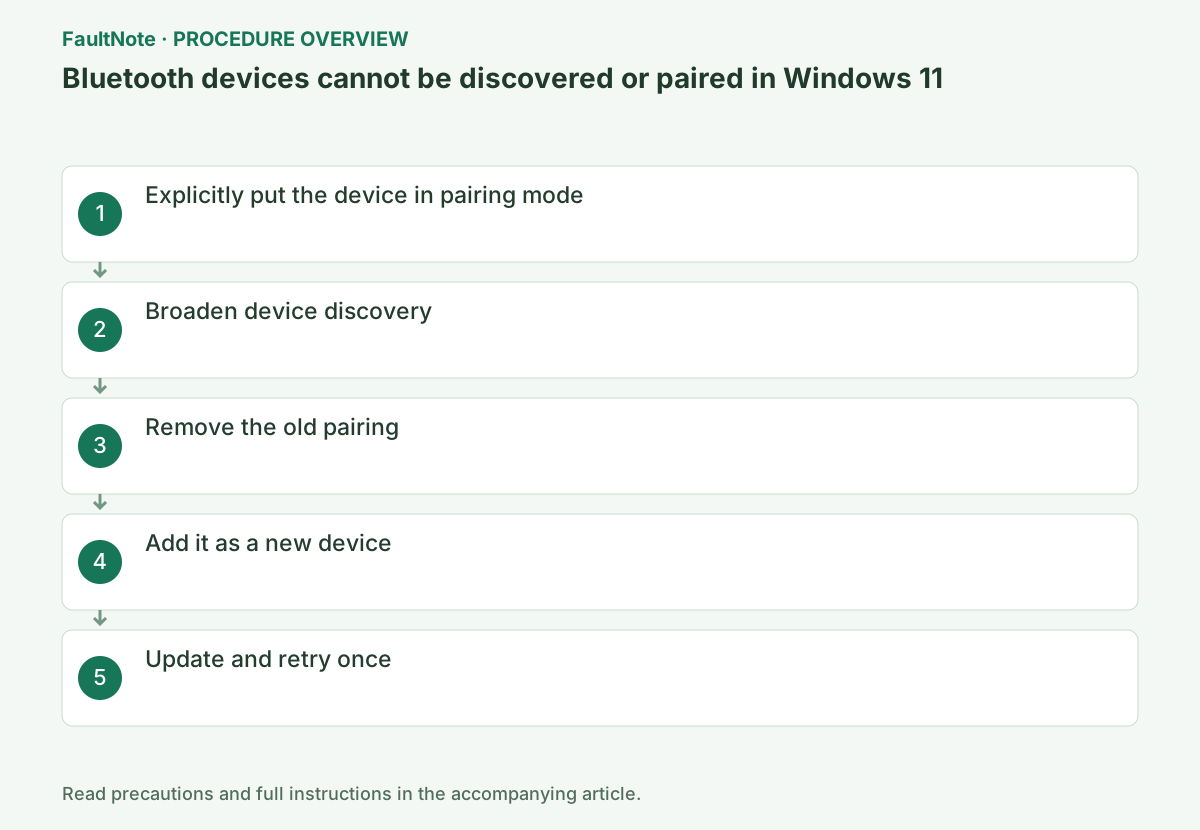
Step-by-step instructions
First confirm Bluetooth can be enabled. Distinguish an absent discovery entry, failed registration, and a connected accessory whose audio/input fails. For the last case, inspect output or app selection before removing registration. A missing toggle requires adapter diagnosis first.
Use the manual to distinguish pairing mode from ordinary power-on. Disconnect an existing phone or other-PC connection before testing. Multi-connection support varies by accessory. Record its displayed name, charge and other connections.
Place the device near the PC, turn it off and back on, and follow its manual to enter pairing mode with a flashing indicator. Move it away from USB 3.0 devices, which may cause radio interference at close range.
Simply turning on headphones or similar devices does not make them discoverable. Follow the pairing procedure in the manual and confirm that the indicator flashes differently from its normal connected state. If it is already connected to a smartphone, disconnect it there and try adding it from the PC.
Open Settings > Bluetooth & devices > Devices. Under Device settings, change Bluetooth devices discovery to Advanced. This includes specialized devices that may not appear in the usual list.
If the device remains in the list, select the ... menu on the right > Remove device to delete its pairing. Turn Bluetooth off, wait 10 seconds, then turn it back on. If the other device also has an option to remove the PC pairing, use it.
Remove only the affected device. If you use a Bluetooth mouse or keyboard to control the PC, first prepare a touchpad or wired input device. After pressing Remove, confirm that the device name disappears from the list before continuing.
Official links for this step
- Troubleshoot Bluetooth not connecting in Windows
Check the official requirements, screen names, and limitations for this procedure.
- Troubleshoot Bluetooth not connecting in Windows
Removing the only Bluetooth keyboard or mouse can prevent further operation. Have built-in or wired input available first. Read the manufacturer procedure if accessory-side registration must also be cleared. Windows removal and factory-resetting the accessory are different actions.
After removal, put just the target accessory in pairing mode and add it. Reduce ambiguity if similar names appear, and confirm matching codes when required. Test the actual function after registration and record whether the failure stage changed.
Select Settings > Bluetooth & devices > Add device > Bluetooth, then select the device that appears. If a PIN appears on both devices, confirm that they match before approving.
If multiple devices have similar names, identify the entry that disappears when you turn off the intended device before selecting it. If asked for a PIN, follow the input method specified on screen or in the device manual; avoid trying unknown numbers one after another.
If pairing fails, select Settings > Windows Update > Check for updates, restart, then try the same add-device procedure once.
Do not stop at Connected: test headphones by playing audio or a mouse by moving the pointer. If a device connects but produces no sound, check the Windows sound output device instead of repeatedly pairing it.
If another known accessory works on the PC, prioritize the target accessory settings/specifications. If the target also fails on another compatible device, use accessory manufacturer diagnostics. Mark unavailable comparisons as untested rather than confirmed. Record adapter/hub paths too.
After recovery, test typing, movement or audio and a normal reconnection. A headset connected label does not establish the selected output. Restore temporary volume/output settings or other-device connections as needed. Provide the accessory, failure stage and comparisons for recurrence.
Check the result
- The device shows Connected in the Settings list
- Its intended function, such as keyboard input or headphone playback, works
If the problem continues
- If another PC or smartphone also cannot discover it, check the other device itself
- If other Bluetooth devices also fail on this PC, proceed to Bluetooth diagnostics and driver checks
Scope of this guide
Troubleshooting guide — Make the device appear as Connected under Bluetooth & devices and confirm that input or playback actually works.
Frequently asked questions
The device name appears twice.
Some devices expose multiple profiles, such as audio and control. Select the normal device name specified in the manual.
No PIN appears.
Devices without a screen may use automatic confirmation or a fixed PIN. Check the device manual instead of guessing.
Should I pair again if a connected headset is silent?
First check Windows and app output selection. Connection and audio routing are separate. Compare a test sound or another app; if selecting the correct output helps, removal is unnecessary. Check accessory volume and mute too.
What should I prepare before removal?
Prepare alternative input if needed, the pairing procedure and connection details. Check the manual for multi-connection or accessory-side registration requirements. Keep a usable control method and add devices one at a time.
Official sources and dates
Source publication or resolution date: Not specified. Sources checked: 2026-09-05. The check date is not the date the problem first occurred. Interface labels can vary between versions and display languages.
Related troubleshooting guides
Windows errors and troubleshooting →
- External drive disconnects in the middle of a large copy: check power delivery, the removal policy and USB power management in that order
- External SSD not reaching USB 20Gbps or USB4 speed: check PC ports, cables, hubs and Windows indicators
- USB-C connection notifications: is the port, the cable, the device or the power the missing piece?
- USB devices repeatedly disconnect after idle or sleep