No sound from speakers or headphones in Windows 11
What to do first
When sound is missing, check whether output switched to HDMI or another device and whether the app is muted, then narrow down the cause with Windows audio diagnostics and official driver updates.
This is a general troubleshooting guide, not an announcement of a current outage.
Affected products and symptoms
- Product
- Windows 11 Audio
- Versions and conditions
- Windows 11
Symptoms
- Video audio or notification sounds cannot be heard
- The built-in speakers stop producing sound after connecting HDMI
- Only a particular app is silent
Causes and conditions
Possible causes include the wrong output device, mute settings, per-app volume, a poor connection, audio enhancements, or driver problems.
Before you start
- Check whether another audio source is also silent
- Check headphone or speaker power and cables
- If this started immediately after an update, record the date and time
Precautions
- Start at a low volume to avoid sudden loud playback
- Use official audio drivers from the PC or device manufacturer
Tools and official pages used in this guide
Check the official requirements, screen names, and limitations for this procedure.
This is a built-in Windows app. You can also launch it with Open Get Help on the official page. If prompted to open the app, open it on the affected PC.
Step-by-step instructions
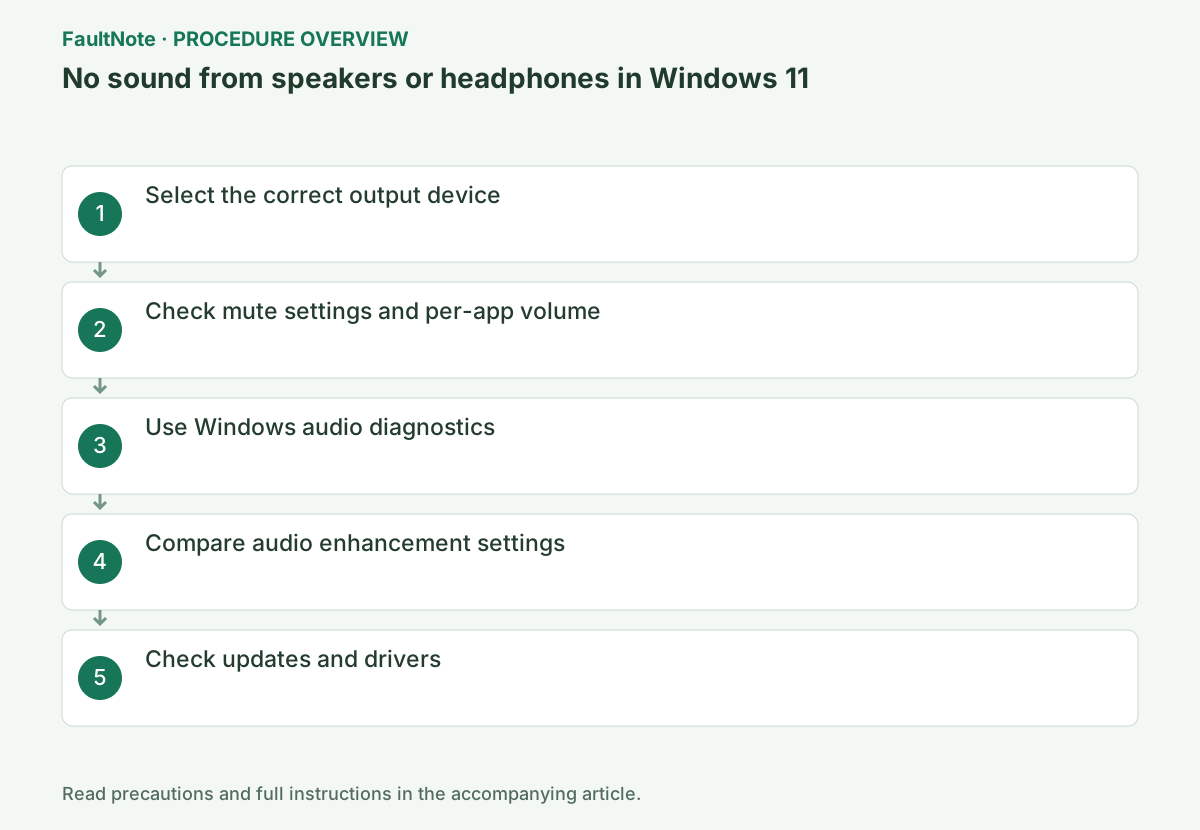
Identify whether silence affects internal speakers, USB, Bluetooth or HDMI. After connecting a display, check whether output changed to it. Select the device actually in use instead of an unpowered or audio-incapable display. Record the connection path if names are ambiguous.
Compare a Windows test sound with the failing app. If the test works, inspect app output/volume/mute first. If every sound fails, inspect physical mute, power, cabling and Windows output. Compare another known output on the PC when available.
Select the speaker icon on the taskbar and open the output selector to the right of the volume slider. Choose the speakers or headphones you actually use. Check that a monitor without audio support has not been selected as the HDMI output.
You can also select the output by pressing Windows key+I and opening Settings > System > Sound. If several devices are listed, identify the name that appears or disappears when you connect or disconnect the headphones. For Bluetooth devices, confirm that they are connected, not just powered on.
Open Settings > System > Sound > Volume mixer. Check that the output device, system volume, and affected app's volume are not set to zero or muted, and set the app's output to the intended device as well.
Check the mixer while the affected app is playing audio. If the app is not listed, start playback and reopen the screen. If the Windows test sound works but only that app is silent, also check its own volume and mute settings.
Open Settings > System > Sound. Under Advanced > Troubleshoot common sound problems, choose Output devices. Answer the questions in Get Help and specify the affected device.
Official links for this step
- Fix sound or audio problems in Windows
Check the official requirements, screen names, and limitations for this procedure.
- Official Get Help information and launch link
This is a built-in Windows app. You can also launch it with Open Get Help on the official page. If prompted to open the app, open it on the affected PC.
- Fix sound or audio problems in Windows
Set a modest volume, select the device and test the same short sound. Check app mute in the volume mixer. When a meeting app and browser differ, inspect the app output setting; a system default and an app-specific output may differ.
Before testing enhancements or other settings, record the original state. Compare the same sound, and restore ineffective changes before the next test. Record the driver provider/version before official updates. Changing several settings at once obscures which one helped.
Open the device under Sound > Output, set Audio enhancements to Off, and play a test sound. If this improves matters, the combination of enhancements and driver is a possible cause.
Note the original enhancement setting before changing it and compare using the same output and volume. Restore the setting if the sound still cannot be heard. If even the Windows test sound is silent, continue checking the device instead of reinstalling the video service.
Complete Windows Update. If this does not help, open Device Manager > Sound, video and game controllers, right-click the affected device, choose Update driver > Search automatically for drivers, and restart.
Once the test sound works, test the original media or meeting app. Headset playback and microphone input require separate checks. Restore elevated volume before wearing headphones, and check correct output after reconnecting.
For continued failure, provide device/connection details, Windows-test and app results, and recent setting changes. If an update triggered it, check available rollback or manufacturer-supported versions. Restore unnecessary diagnostic changes. No displayed error and audible output are separate results.
Check the result
- The device's test sound can be heard
- After restarting the affected app, the same content produces sound
If the problem continues
- Use another jack, cable, or speaker to isolate a device-side problem
- If the issue began immediately after an update, check for a supported manufacturer version or the driver's Roll Back Driver option
Scope of this guide
Troubleshooting guide — Ensure that both the Windows test sound and the affected app play through the intended output device.
Frequently asked questions
System sounds work, but only my meeting app is silent.
Check that app's volume and output in Volume mixer. After making changes, close and reopen the app.
Sound returns when I disconnect HDMI.
The HDMI monitor has become the default output. Use the taskbar output selector to switch back to the built-in speakers.
Why do speakers work when HDMI is removed?
Check Windows output while HDMI remains attached. Select the intended speakers if HDMI output is chosen. Compare only the routing change before concluding the device is faulty.
Why is maximum volume still silent?
Raising volume cannot fix wrong routing or mute. Check output and the test sound, then lower volume before audio returns. Do not reconnect headphones with maximum volume left in place.
Why does the Windows test work but the meeting app stay silent?
Check the app speaker selection and test it. Its output can differ from the Windows default. Inspect app volume and mute too. Reopen after connection changes and compare the same device. Changing microphone input does not repair the output used to hear others.
Official sources and dates
Source publication or resolution date: Not specified. Sources checked: 2026-09-05. The check date is not the date the problem first occurred. Interface labels can vary between versions and display languages.