USB vs PCIe Wi-Fi Adapter: Check Installation Requirements, Bluetooth and Speed Labels Before Buying
To put a desktop PC on Wi-Fi you can plug in a USB adapter or open the case and fit a PCIe card. The user guide for the TP-Link Archer TX20E (PCIe) says to insert the card in an available PCIE X1 slot (X1, X4 or X16) and to plug the supplied Bluetooth USB cable into an available F_USB connector, noting that if that cable is not correctly connected to the motherboard the Bluetooth function will not work even after driver installation. On the USB side, the Archer TX20U Plus ships with a 1-meter USB 3.0 cable, and a TP-Link support article strongly suggests plugging it into a USB 3.0 port. In the TP-Link US adapter listing checked on 19 September 2026, none of the Wi-Fi 6 or newer USB adapters listed Bluetooth, so a PCIe card is the option if you also want to add Bluetooth. Settle whether the adapter fits your PC - slot, header, USB 3.0 port - before comparing speed numbers.
Published · Updated · FaultNote editorial policy
Who this guide is for and what to prepare
- People adding Wi-Fi to a desktop PC that cannot be reached with Ethernet
- People unsure whether a USB adapter or a PCIe card will actually fit their PC
What you need
- Your PC model and motherboard specifications (free PCIe slots, internal USB headers, the generation of the rear USB ports)
- The standard your router supports (Wi-Fi 6 / 6E / 7) and its bands
- If you will open the case: whether it needs a low-profile bracket, and where the antennas can sit
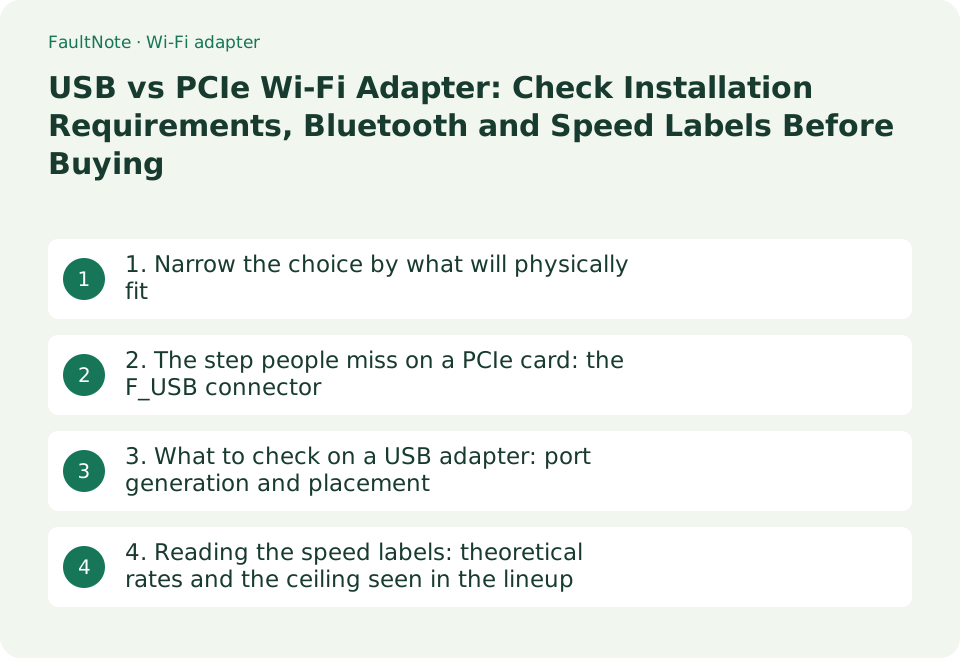
1. Narrow the choice by what will physically fit
What fits your PC is settled before any speed comparison. A PCIe card needs a free slot and work inside the case, and models with Bluetooth also use an internal USB header on the motherboard. A USB adapter only needs a port, but TP-Link specifies a USB 3.0 port, and a USB 2.0 port will not deliver the speeds the product assumes. On laptops and mini PCs, where no PCIe slot is available, a USB adapter is effectively the only option.
The table below narrows the candidates by situation. With either type, the speed you get also depends on the router and where the antennas sit.
Scroll horizontally to see the full table →
| Your situation | Type that suits it | What to check first |
|---|---|---|
| Desktop PC you can open, with a free PCIe slot | PCIe expansion card | A free X1, X4 or X16 slot, bracket height, and space for the antennas |
| You want to add both Wi-Fi and Bluetooth | PCIe card with Bluetooth | Whether the motherboard has a free F_USB (internal USB) connector |
| Laptop or mini PC, or you would rather not open the case | USB adapter | Whether a USB 3.0 port is free (a USB 2.0 port limits the speed) |
| You want to move it between PCs, or use it temporarily | USB adapter | Supported operating systems and how the driver is installed (automatic, or downloaded first) |
| The PC sits where reception is poor | Either type; antenna placement is what matters | Whether a PCIe card's external antennas can be extended, or a USB adapter's cable lets you put it on the desk |
2. The step people miss on a PCIe card: the F_USB connector
The user guide for the TP-Link Archer TX20E (AX1800 Wi-Fi 6 Bluetooth 5.2 PCIe Adapter) says to turn off the computer, unplug the power cable and remove the case panel, connect the provided Bluetooth USB cable to the adapter, and locate an available PCIE X1 slot (X1, X4 or X16) to insert the card. It adds that if the bracket is not suitable for your computer you can detach it from the board and replace it with the low-profile bracket.
The next step is the important one. The guide tells you to locate an available F_USB connector and plug the Bluetooth USB cable into it, with the note: if the Bluetooth USB cable is not correctly connected to the motherboard, Bluetooth function won't work even after driver installation. If you are buying the card for its Bluetooth, confirm that your motherboard has a free internal USB (F_USB) header first. For the antennas, the guide's tip is to make sure the path between the antennas and your router is clear.
Scroll horizontally to see the full table →
| Item to check | What the Archer TX20E guide says | Where to look on your own PC |
|---|---|---|
| Slot | Insert into an available PCIE X1 slot (X1, X4 or X16) | Free slots in the motherboard specifications, and clearance around the graphics card |
| Bracket | If the bracket does not suit the case, detach it and fit the low-profile bracket | Whether your case is a small-form-factor design |
| Bluetooth connection | Plug the supplied Bluetooth USB cable into an available F_USB connector; if it is not connected correctly, Bluetooth will not work even after installing the driver | How many internal USB headers are free (front-panel USB may already use them) |
| Antennas | Keep the path between the antennas and the router clear | Whether the antennas are visible from behind the PC, or an extension base can be used |
| Supported OS | The user guide (REV1.0.0) states "Windows 10 (64-bit) only" | Check the current product page and Download Center for the operating systems supported now |
3. What to check on a USB adapter: port generation and placement
The datasheet for the TP-Link Archer TX20U Plus (AX1800) lists a 1-meter USB 3.0 cable in the box, and the product page says USB 3.0 ensures there is no bottleneck between the TX20U Plus and your PC. A TP-Link support article (updated 21 October 2022) goes further: it strongly suggests plugging the Archer TX20U Plus into the USB 3.0 port on the PC, and explains how to tell the ports apart by the color inside them - black for USB 2.0, blue for 3.0, green for USB 3.1. If only USB 2.0 ports are free, that decides the ceiling, so check the port generation first.
For placement, the unit measures 84 x 156.3 x 19.2 mm and the supplied cable lets you stand it on the desk. The listed operating systems are Windows 10 and 11. In the TP-Link US adapter listing checked on 19 September 2026, the Wi-Fi 6, 6E and 7 USB adapters carried notes such as "SuperSpeed USB 3.0" but no Bluetooth entry; the only USB product listed with Bluetooth was the Archer T2UB Nano (AC600, Bluetooth 4.2). If you want Bluetooth from the same device, check this per model. The same listing also carries Bluetooth-only USB adapters with no Wi-Fi function (UB500, UB500 Plus), so buying a Wi-Fi adapter and a Bluetooth adapter separately is a valid option.
Scroll horizontally to see the full table →
| Item to check | What TP-Link states for the Archer TX20U Plus | What to confirm before buying |
|---|---|---|
| Port required | A support article strongly suggests a USB 3.0 port; the box includes a 1 m USB 3.0 cable | Whether a free port is USB 3.0 or later (port color: black = 2.0, blue = 3.0, green = 3.1) |
| Size | 84 x 156.3 x 19.2 mm with two external antennas | Whether you will plug it in directly or stand it on the desk with the cable |
| Supported OS | Windows 10, 11 | Your Windows version and whether a driver is available for it |
| Bluetooth | Not listed for this model (and not listed for the Wi-Fi 6 or newer USB adapters in the lineup) | If you need Bluetooth too, consider a PCIe card or a Bluetooth-only USB adapter (the same listing includes the UB500 and UB500 Plus) |
4. Reading the speed labels: theoretical rates and the ceiling seen in the lineup
Names such as "AX1800" and "BE6500", and figures such as "2882 Mbps + 2882 Mbps + 688 Mbps", add up the theoretical maximum link rates of each band. TP-Link notes at the front of its user guide that maximum wireless signal rates are the physical rates derived from IEEE Standard 802.11 specifications, that actual wireless data throughput and coverage are not guaranteed, and that they vary with network conditions, AP limitations and environmental factors including building materials, obstacles, traffic volume and AP location. It also notes that Wi-Fi 6 features such as OFDMA, MU-MIMO and 1024-QAM require APs to support them, and that HT160 requires an AP that supports 160 MHz bandwidth. Comparing adapter numbers without the router and the environment therefore proves little.
The advertised ceiling can also differ between the USB and PCIe lines of the same maker. In the TP-Link US adapter listing checked on 19 September 2026, the highest PCIe entries were BE9300 cards such as the Archer TBE550E (5764 + 2882 + 688 Mbps), while the highest USB entries were BE6500 models such as the Archer TBE6500U, TBE6500UH and TBE400U (2882 + 2882 + 688 Mbps). Both lines include Wi-Fi 7 products, but the listing offered higher figures on the PCIe side. This is an observation of that listing at that time; it does not cover future products or differences between country lineups.
Scroll horizontally to see the full table →
| The figure on the box | What it means | What to check alongside it |
|---|---|---|
| AX1800 (1201 + 574 Mbps) and similar | The sum of theoretical maximum link rates per band, not throughput | Whether the router is Wi-Fi 6 or newer and can use the same channel width |
| BE9300 (5764 + 2882 + 688 Mbps) | The highest PCIe figure in the TP-Link US listing on 19 September 2026 | Using the 6 GHz band requires a Wi-Fi 6E or Wi-Fi 7 router |
| BE6500 (2882 + 2882 + 688 Mbps) | The highest USB figure in the same listing | Whether you can use a USB 3.0 port, and where the adapter will sit |
| "160 MHz support" and similar | TP-Link notes that HT160 requires an AP that supports 160 MHz | Check the channel-width setting in the router's admin page |
Limitations and requirements
- The specifications and lineup here are what TP-Link's US site and official PDFs (Archer TX20E User Guide, Archer TX20U Plus datasheet) stated on 19 September 2026. Wording changes by country, date and revision, so check the product page for the country you buy in.
- For the Archer TX20E, the product page describes 1201 Mbps on 5 GHz while the user guide (REV1.0.0) says up to 2402 Mbps on 5 GHz. Because the two do not agree, use the specification table on your country's product page when buying.
- All speeds quoted here are manufacturer figures (theoretical rates). No throughput was measured for this site, and this guide does not cover prices, stock or where to buy.
Frequently asked questions
Which is faster, a USB adapter or a PCIe card?
It depends on the specific model and the installation, not on the connection type alone. In the TP-Link US listing checked on 19 September 2026, the PCIe side included BE9300 entries (5764 + 2882 + 688 Mbps) while the highest USB entries were BE6500 (2882 + 2882 + 688 Mbps). Those are theoretical maximum link rates, and TP-Link notes that actual throughput is not guaranteed. The router's standard and where the antennas sit often matter more in practice.
Can I get Bluetooth from a PCIe Wi-Fi card?
Yes on models that include it, but it needs a cable. The Archer TX20E guide has a step for plugging the supplied Bluetooth USB cable into an available F_USB connector on the motherboard, and states that if it is not connected correctly, Bluetooth will not work even after installing the driver. Check that your internal USB headers are not already taken by front-panel USB before you buy.
Is it all right to use a USB adapter in a USB 2.0 port?
Some adapters will still work, but not at the speed they are designed for. TP-Link strongly suggests plugging the Archer TX20U Plus into a USB 3.0 port, and the bundled cable is a 1 m USB 3.0 cable. If only USB 2.0 ports are free, free up a USB 3.0 port or consider a PCIe card instead.
Sources and verification date
Sources checked: . These sources support the specifications, procedures or prices discussed here. Check each source for applicable conditions and current information.
- TP-Link: Archer TX20E User Guide REV1.0.0 (PCIE X1 slot, F_USB connection, notes) ↗
- TP-Link: Archer TX20E product page ↗
- TP-Link: Archer TX20U Plus datasheet (package contents and specifications) ↗
- TP-Link: Archer TX20U Plus product page ↗
- TP-Link Support FAQ 3423: What to do if Archer TX20U Plus plug and play doesn't work (updated 21 October 2022) ↗
- TP-Link: Adapters listing (PCIe and USB lineup, checked 19 September 2026) ↗
Related practical guides
- Adding Bluetooth to a desktop PC: reading a USB adapter's version number, placement and limits
- Connecting a Game Controller to a PC: USB Cable vs Bluetooth vs Xbox Wireless Adapter
- USB receiver or Bluetooth for a wireless mouse and keyboard: what each one actually requires
- Japan's technical conformity mark: what to check before importing a wireless PC accessory
- External SSD vs HDD for backups: capacity, speed and portability
- How to Choose a USB-C Cable: 60W vs 240W Power Marks, 10Gbps to 80Gbps Data Rates and Video Output by Use