Choosing a KVM switch: the video ceiling row, keyboard/mouse emulation and EDID
The first thing to read in a KVM switch listing is not the "4K" headline but the Video row of the specification table. ATEN lists both the CS1822 (HDMI) and the CS1922M (DisplayPort) as "Up to 4096 x 2160 @ 60Hz, 2560 x 1440 @ 144Hz". That means 60 Hz at 4K, or 144 Hz only up to 1440p - decisive if you own a high-refresh 4K monitor. The second check is how the keyboard and mouse are handled: the ATEN user manual states that mouse-wheel port switching works only with a USB 3-key scroll wheel mouse, is disabled by default, and functions only while mouse emulation is enabled. It also states that disabling keyboard emulation disables the [M], [W], [F2], [F3], [F4], [F5], [F6] and [F10] hotkey operations. The third is EDID: for the familiar complaint that windows move or the screen stays blank after switching, ATEN documents Video DynaSync and an ATEN default EDID mode, presented as EDID Expert on its higher-tier models. This guide adds the supplied cables, power, audio and USB hub behaviour, all from published documentation.
Published · Updated · FaultNote editorial policy
Who this guide is for and what to prepare
- People who want to run a desktop and a laptop, or a work and a personal machine, from one monitor, keyboard and mouse
- People with a high-refresh or 4K monitor who need to check whether a KVM switch meets their video conditions
- People who want to avoid the usual post-purchase complaints: hotkeys that do not switch, windows that move on every switch
What you need
- The monitor input you will use (HDMI or DisplayPort) and the resolution and refresh rate combination you actually run
- The video output on each of the two PCs and a free USB Type-A port on each (the switch uses one USB cable per PC)
- A list of the peripherals you want to share, beyond keyboard and mouse: webcam, audio device, external drive and whether they should sit on the switched hub
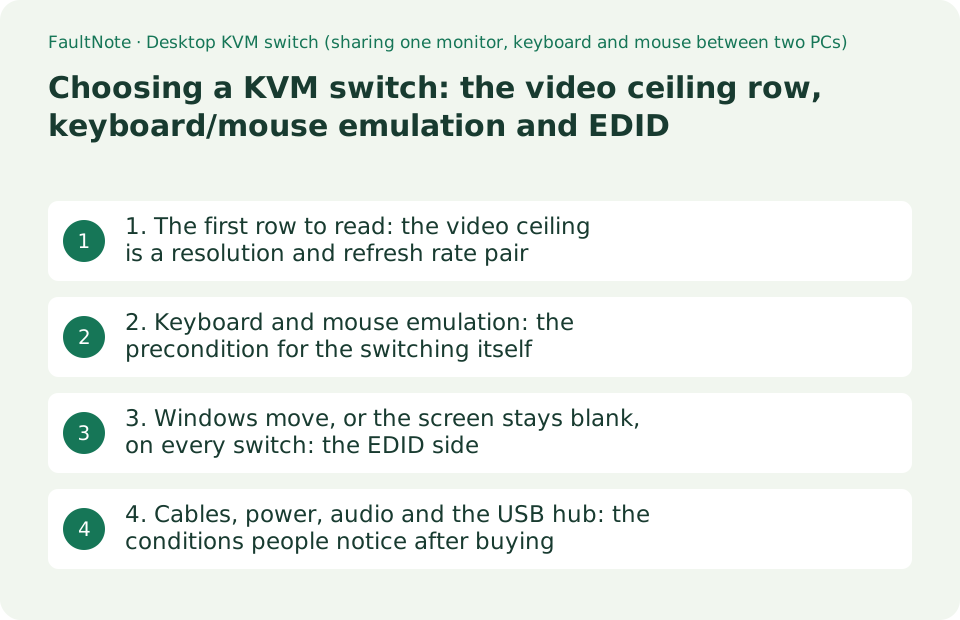
1. The first row to read: the video ceiling is a resolution and refresh rate pair
In ATEN's specification tables the Video row for the CS1822 (2-port, HDMI) reads "Up to 4096 x 2160 @ 60Hz, 2560 x 1440 @ 144Hz", and the CS1922M (2-port, DisplayPort, built-in MST hub) reads exactly the same (both read on 2026-09-19). The product name and headings emphasise 4K, but the actual condition is a pair: 60 Hz at 4K, or up to 2560 x 1440 if you want 144 Hz. For anyone wanting 120 or 144 Hz at 4K, this row is the first elimination.
The interface generation sets limits too. The CS1922M feature list states DisplayPort 1.2 compliance and HDCP 1.3 compliance, with the note that "for DisplayPort 1.4 compliant display device, make sure to configure the device setting to be compatible with DisplayPort 1.2 to avoid compatibility issue". So even a newer monitor may have to be stepped down in its own menu to suit the switch. The CS1822 is described as HDMI compliant and HDCP compliant, and its user manual notes that 4K video resolution needs a high quality HDMI cable.
Conversion is documented as well. The CS1922M supports DisplayPort Dual-Mode (DP++) and can carry HDMI and DVI signals through a DisplayPort-to-HDMI/DVI DP++ adapter, with the note that DP++ "does not require an active adapter for most single display setups" while "active DisplayPort adapters are recommended if you are unsure of the video source's DP++ compatibility". For splitting to two displays via MST, the same notes require either monitors capable of DisplayPort 1.2 daisy-chaining or a powered DisplayPort MST hub, plus a DisplayPort 1.2 compliant PC source.
Products aimed at special uses word the ceiling differently. The air-traffic-control CS1922ATC lists Video only as "Up to 4096 x 2160 @ 60Hz" with no 1440p144 entry, and instead highlights 2048 x 2048 @ 60 Hz for radar monitoring, a Zero-Second Switch that provides a continuous video stream, and two lockable DC jacks for power redundancy. Two 2-port switches from the same maker, and the contents of the specification rows still differ.
Scroll horizontally to see the full table →
| Row | ATEN CS1822 | ATEN CS1922M | ATEN CS1922ATC |
|---|---|---|---|
| Video interface | HDMI | DisplayPort 1.2 (console side has both DisplayPort and HDMI) | DisplayPort 1.2 |
| Video ceiling (specification table) | 4096x2160@60Hz, 2560x1440@144Hz | 4096x2160@60Hz, 2560x1440@144Hz | 4096x2160@60Hz |
| HDCP | HDCP compliant | HDCP 1.3 compliant | HDCP compliant |
| USB hub | USB 3.1 Gen 1, 2 ports (5 Gbps) | USB 3.1 Gen 1, 2 ports (5 Gbps) | USB 3.1 Gen 1, 2 ports (5 Gbps) |
| EDID-related features | Video DynaSync, ATEN default EDID mode | - (MST and DP 1.2 compatibility notes instead) | Video DynaSync, EDID Expert |
| Notable | Audio mixer modes; HD audio over HDMI cannot be switched independently | Two displays from one DP source (MST / splitter / single port modes) | 2048x2048@60Hz, Zero-Second Switch, dual power inputs |
2. Keyboard and mouse emulation: the precondition for the switching itself
A KVM switch keeps presenting a keyboard and mouse to the PC that is not currently in focus. That is emulation, and ATEN's specification tables carry it as an Emulation row reading "Keyboard / Mouse" and "USB". For gaming keyboards with their own features, or multi-function mice with their own drivers, a bypass mode passes the signals straight through - and that is where the trap is.
The CS1822 / CS1824 user manual published by ATEN (file dated 2025-10-31) explains how to enable or disable keyboard emulation (invoke Hotkey Setting Mode, press [N]) and adds the note: "When keyboard emulation is disabled, the [M], [W], [F2], [F3], [F4], [F5], [F6], and [F10] hotkey operations are disabled." In other words, bypass costs you the keyboard-driven configuration. For the mouse, switching ports by double-clicking the scroll wheel carries three stated conditions: USB 3-key scroll wheel mice only, disabled by default, and supported only when mouse emulation is enabled.
The basic hotkey behaviour is documented too. Port switching from the keyboard begins by pressing the Scroll Lock key twice, and when that is disabled the [Scroll Lock] [Scroll Lock] sequence (and the alternative [Ctrl] [Ctrl]) will not work. The keyboard language layout is set by hotkey, with codes US English 33, French 08, German 09 and Japanese 15 - worth knowing in advance if your keyboard is not a US layout.
One more entry matters for gaming. Enabling N-key rollover allows up to 15 simultaneous keystrokes, and the manual adds: if you encounter any problem when using the BIOS while the computer is starting up, turn the N-key rollover function off. That is the manufacturer's own isolation step for the classic "keys do nothing in BIOS through the switch" symptom.
Scroll horizontally to see the full table →
| What you want to do | Precondition stated by the manufacturer | What stops working |
|---|---|---|
| Switch with a hotkey (Scroll Lock twice) | Hotkey port switching must be enabled | If disabled, [Scroll Lock] [Scroll Lock] and [Ctrl] [Ctrl] do nothing |
| Switch by double-clicking the mouse wheel | USB 3-key scroll wheel mouse, feature enabled, mouse emulation enabled | Disabled by default; unavailable once emulation is off |
| Use gaming keyboard / multi-function mouse features | Turn emulation off (bypass) | [M] [W] [F2] [F3] [F4] [F5] [F6] [F10] hotkey operations are disabled |
| Use a non-US keyboard layout | Set the language code by hotkey (Japanese 15, French 08, German 09) | - |
| Play games with many simultaneous keys | Enable N-key rollover (up to 15 simultaneous keystrokes) | Manual advises turning it off if the BIOS misbehaves at startup |
| Use a Mac or Sun machine | [F2] for Mac, [F3] for Sun, [F10] for Windows keyboard emulation | A PC keyboard emulates the Mac layout; Mac keyboards work only with their own OS |
3. Windows move, or the screen stays blank, on every switch: the EDID side
The most common complaint about KVM switches is not that nothing appears but that desktop icons and windows get rearranged on every switch. The cause is that at the moment of switching the PC sees the display disconnect and loses the EDID - the data by which a monitor announces the modes it supports. ATEN documents two features for this. Video DynaSync is described on the product pages as "an exclusive ATEN technology that eliminates boot-up display problems and optimizes the resolution when switching among different sources". The other is the ATEN default EDID mode, for "smooth power-up, high-quality display and resolution optimization to eliminate compatibility issue".
The important part is that this is not necessarily automatic and always on. The CS1822 / CS1824 user manual carries enabling and disabling the ATEN default EDID mode as its own procedure, invoked from Hotkey Setting Mode. In other words, the manufacturer has documented it as a setting to check when the symptom appears after installation. On the higher-tier CS1922ATC the same idea is presented as EDID Expert, for "smooth power-up, high-quality display and use of the best video resolution across different screens".
The monitor's own settings can be the cause as well. As noted above, the CS1922M documentation asks that a DisplayPort 1.4 compliant display be configured for DisplayPort 1.2 compatibility. Most monitors expose a DisplayPort version item in the OSD, and leaving it at 1.4 is what the maker warns about. For a two-display MST setup, the same note requires daisy-chain-capable monitors or a powered MST hub.
Behaviour around powered-off machines is published too. The CS1922M feature list states Power On Detection: if a computer is powered off, the switch automatically switches to the next powered-on computer. If your second machine is usually off, it is worth knowing that this automatic move exists before it surprises you.
Scroll horizontally to see the full table →
| Symptom | Related feature or note in the documentation | Where to check |
|---|---|---|
| Windows and icons move after switching | Video DynaSync, ATEN default EDID mode | The ATEN default EDID mode section of the user manual (enabled by hotkey) |
| No image at boot, or a reduced resolution | Video DynaSync (described as eliminating boot-up display problems) | Same; presented as EDID Expert on higher-tier models |
| Unstable image with a newer monitor | Note asking that DisplayPort 1.4 displays be set to DP 1.2 compatibility | The DisplayPort version item in the monitor OSD |
| You want to drive two displays | MST mode / splitter mode / single port mode | Daisy-chain-capable monitors or a powered MST hub, and a DP 1.2 compliant source |
| Connecting a DP switch to an HDMI or DVI monitor | DP++ adapters supported; active adapters recommended if unsure | Note 2 on the product page |
| It switches to, or away from, a powered-off PC | Power On Detection (switches automatically to the next powered-on computer) | The feature list on the product page |
4. Cables, power, audio and the USB hub: the conditions people notice after buying
A KVM switch is a cable-heavy device. The CS1822 package contains the switch plus two HDMI 2.0 cables (1.8 m), two USB 3.0 cables (1.8 m), two audio cables (1.8 m), a power adapter and user instructions. The CS1922M ships with two DisplayPort 1.2 cables (1.5 m), two USB cables (USB 3.0-A to USB 3.0-B, 1.8 m), four audio cables (1.8 m) and a power adapter. The PC end is USB Type-B, so each PC also gives up one USB Type-A port. With 1.5 to 1.8 m cables, measure the run from a PC under the desk to a switch on top of it before ordering.
Power is required. ATEN publishes DC5V at 1.78 W for the CS1822, DC5V at 4.09 W for the CS1922M and DC12V at 16.09 W for the CS1922ATC, all with the note that "the measurement in Watts indicates the typical power consumption of the device with no external loading" while the BTU/h figure indicates consumption when fully loaded. Anything you plug into the built-in hub adds to that.
Audio carries a stated limitation. Both the CS1822 and CS1922M note that HD audio carried over HDMI (or DisplayPort) cannot be switched independently. The 3.5 mm audio path, by contrast, is covered by independent switching of the KVM, USB hub and audio focus. Whether you want audio to follow the switch, or to keep hearing one machine while you work on the other, decides how you should wire it.
Finally the hub. All three models carry a two-port USB 3.1 Gen 1 (5 Gbps) hub, one port on the front and one on the rear. Anything connected there is switched, so a webcam, audio interface or external drive on that hub is disconnected and reconnected every time you switch. Switching away from a drive mid-write is a bad idea, so connect anything that must stay live directly to its PC and keep the switch's hub for things you genuinely want to share.
Scroll horizontally to see the full table →
| Item | What is published | What to decide before buying |
|---|---|---|
| Supplied cables (CS1822) | 2x HDMI 2.0 (1.8 m), 2x USB 3.0 (1.8 m), 2x audio (1.8 m) | The distance from each PC; buy longer cables if needed |
| Supplied cables (CS1922M) | 2x DP 1.2 (1.5 m), 2x USB 3.0-A to B (1.8 m), 4x audio (1.8 m) | Whether 1.5 m reaches, and whether the DP cable can be swapped |
| Ports needed on each PC | One video output, one USB Type-A, audio if used | Free USB ports on the PC side |
| Power | CS1822 DC5V 1.78 W / CS1922M DC5V 4.09 W / CS1922ATC DC12V 16.09 W | A free outlet; the ATC model has two lockable inputs |
| Audio | HD audio over HDMI/DP cannot be switched independently; the 3.5 mm path supports independent KVM/USB/audio focus | Should audio follow the switch or stay on one PC? |
| USB hub | USB 3.1 Gen 1 (5 Gbps), 2 ports (one front, one rear) | Only connect devices that can tolerate being disconnected on every switch |
Limitations and requirements
- The video ceilings, USB hub, emulation, package contents and power figures are as published on three ATEN product pages and in the CS1822 / CS1824 user manual (PDF), read on 2026-09-19. No KVM switch was tested for this article.
- These conditions apply to the ATEN models named here. Other brands and other series differ in video ceiling, emulation behaviour and EDID handling, so check the specification table and manual of whatever you are considering.
- A "4K" badge alone tells you nothing about refresh rate, HDCP version or variable refresh rate support. Prices, stock and rankings are out of scope here.
Frequently asked questions
I have a 4K 144 Hz monitor. Will a KVM switch pass 144 Hz?
For the three ATEN models covered here, the Video row of the specification table decides it. The CS1822 and CS1922M both read "Up to 4096 x 2160 @ 60Hz, 2560 x 1440 @ 144Hz": 60 Hz at 4K, or 144 Hz only up to 2560 x 1440. Neither will give you 4K at 144 Hz. The CS1922ATC lists only "Up to 4096 x 2160 @ 60Hz". When comparing candidates, read that combination rather than the "4K" in the product name, and note ATEN's instruction that DisplayPort 1.4 monitors should be set to DisplayPort 1.2 compatibility.
Will my gaming keyboard macros and multi-button mouse work through a switch?
ATEN lets you switch keyboard and mouse emulation on or off, and bypass is the setting for passing proprietary features through. However, the user manual states that disabling keyboard emulation also disables the [M], [W], [F2], [F3], [F4], [F5], [F6] and [F10] hotkey operations. Mouse-wheel port switching additionally requires a USB 3-key scroll wheel mouse, has to be enabled because it is off by default, and works only while mouse emulation is enabled. So "pass proprietary features through" and "switch from the keyboard or mouse" are in some combinations mutually exclusive; decide in advance whether you are happy switching with the front-panel button.
My windows get rearranged on every switch. Is there a setting for that?
The manufacturer does provide features. ATEN publishes Video DynaSync, described as eliminating boot-up display problems and optimizing the resolution when switching among sources, and an ATEN default EDID mode for smooth power-up and best-resolution use; the CS1822 / CS1824 user manual carries enabling and disabling that mode as its own Hotkey Setting Mode procedure. The higher-tier CS1922ATC presents the same idea as EDID Expert. Also check the monitor side, since ATEN asks that DisplayPort 1.4 displays be configured for DP 1.2 compatibility. Note that the documentation states the purpose and the procedure, not a guarantee that the symptom disappears.
Sources and verification date
Sources checked: . These sources support the specifications, procedures or prices discussed here. Check each source for applicable conditions and current information.
Related practical guides
- DisplayPort vs. HDMI for 144Hz, 4K and 240Hz Monitors: Check Ports, Cables and GPU Support
- PC Headset Connections: USB, 3.5 mm, 2.4 GHz Dongle or Bluetooth, and What Happens to the Microphone
- Choosing a capture card: recording and passthrough resolutions differ, and the port sets the ceiling
- Switching keyboard layouts in Windows: what to set, and the sign-in screen trap
- USB hub devices disconnect: check bus power, external power and concurrent use
- 1080p, 1440p or 4K: Plan a Gaming Monitor and GPU Budget Together