Copy a large folder over an unreliable LAN with restartable Robocopy and a log
Preview and run a restartable Robocopy job with bounded retries, a log and post-copy verification. Compare the observed outcomes to choose the next investigation and preserve the original configuration.
Published · Updated · FaultNote editorial policy
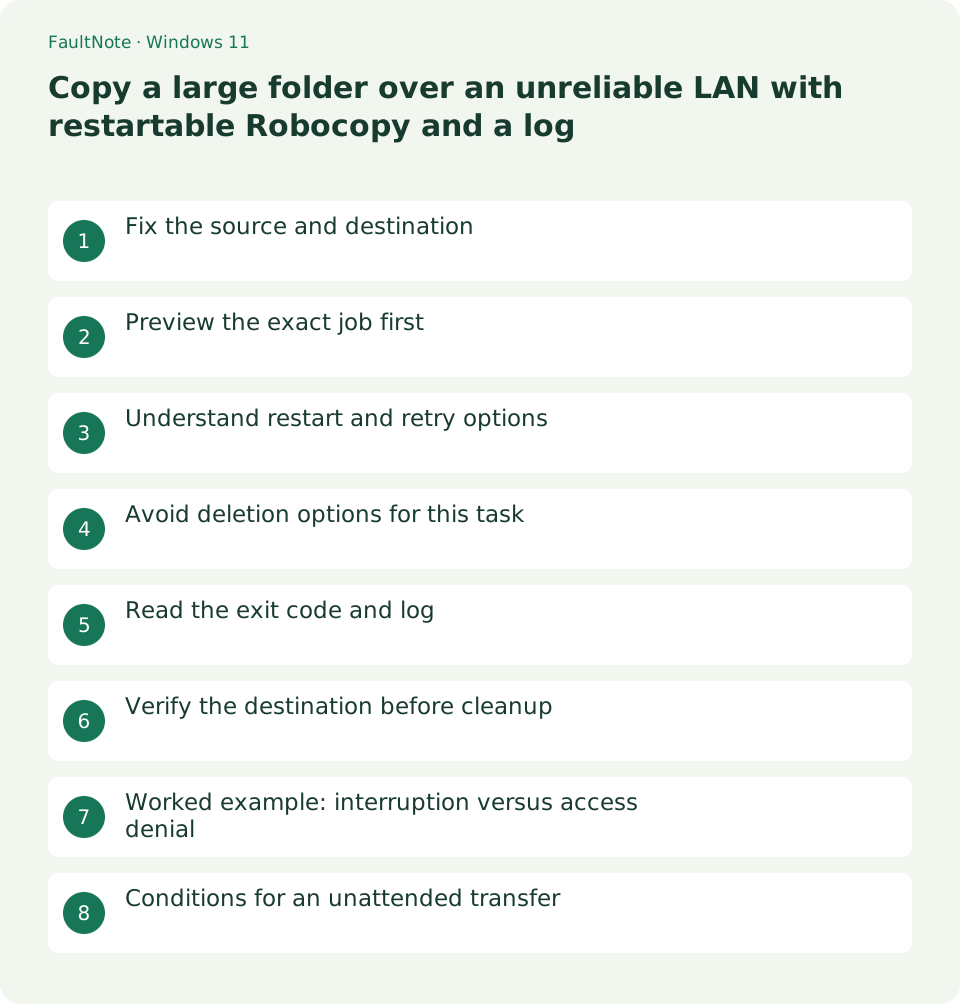
Who this guide is for and what to prepare
- Users transferring a large folder over a LAN and checking partial failure
What you need
- Save work and record the time and destination of the symptom
- Record the PC and router models and Windows version
Fix the source and destination
Save and close files still being edited and retain the source. Check write access and available space on the destination share, then use a dedicated empty folder. Keeping this a copy operation leaves the source available for verification.
Preview the exact job first
Replace the example paths. Run the first line separately: /L lists the planned operation without copying. Check source direction and the expected files before running the second line, which performs the job and writes a log.
robocopy "C:\Transfer" "\\HOME-PC\Incoming\Trial" /E /Z /R:2 /W:5 /L
robocopy "C:\Transfer" "\\HOME-PC\Incoming\Trial" /E /Z /R:2 /W:5 /LOG:"$env:USERPROFILE\Desktop\copy-log.txt"Understand restart and retry options
The example includes subfolders with /E, restartable mode with /Z, and two retries separated by five seconds. Restartable copying does not repair the connection. Once connectivity returns, rerun the same job and inspect its log.
- Replace paths, retain quotes and preview a small representative folder. Verify source direction from the selected files.
- Save and close source editors, choose a writable log path and run the copying command separately after preview.
- Read $LASTEXITCODE immediately. For eight or higher inspect failures, preserve the previous log and fix the underlying cause before retrying.
- Open important recipient files while retaining originals. Treat source deletion or moving as a separate post-verification task.
Avoid deletion options for this task
Do not add /MIR, /PURGE or /MOVE to this transfer: they introduce deletion or source removal. That changes the preservation assumptions of an initial migration. When destination names already exist, inspect overwrite behavior during preview.
Read the exit code and log
Immediately inspect $LASTEXITCODE in PowerShell. Robocopy does not reserve all successful outcomes for zero; eight or higher indicates at least one copy failure. Also inspect failed, skipped and total counts, distinguishing access denial from disconnection.
The example uses the same log filename, so preserve a previous run under another name before a comparison. Logs can contain private filenames, paths and error details. For support, extract the failed entries and necessary nearby context rather than publishing the complete directory inventory.
Verify the destination before cleanup
Open representative large and small destination files and compare hashes for important files when needed. Retain the log and source until ordinary applications can use the copied data. The example does not guarantee completion time or speed.
Scroll horizontally to see the full table →
| Observation | Next action |
|---|---|
| Exit code eight or higher | Identify at least one failed copy in the log and address its cause. |
| Below eight with no failed files | Inspect skipped or mismatched files and open important recipient files. |
| Rerun progresses after reconnecting | Keep the same paths and preserve source and previous logs. |
Worked example: interruption versus access denial
If the same file fails with a connection error and succeeds after reconnecting, prioritize connection stability. Repeated access denial at the same location instead suggests permissions or an application holding a file. Raising retries alone fixes neither cause; read the failed entry.
Do not delete the source after partial success. Matching file counts cannot establish the contents of failed or actively changing files. Open important documents on the recipient and inspect representative photos or video segments using the applications that will use them.
Conditions for an unattended transfer
For a long transfer, check sleep behavior on both PCs, AC power and destination capacity. Record temporary power-setting changes and restore them afterward. An overnight run is not automatically successful; inspect the final log and outcome the next morning.
If considering an archive for many files, account for extraction space and the size of a failed retry. Many small files and one large file create different workloads. Test representative data first in either case and retain originals before running the full migration.
Limitations and requirements
- These procedures target home PCs; follow administrator policy on managed devices.
Frequently asked questions
Does every rerun copy everything again?
Existing file state and options affect selection. Keep the same paths, inspect a preview when needed and read the resulting log.
Is exit code one a failure?
Robocopy uses nonzero codes for outcomes including copied files. Interpret the eight-or-higher failure threshold alongside the log.
Will this log append to the previous run?
The example /LOG writes the specified file. Preserve old runs separately; consult /LOG+ documentation when intentional appending is needed.
Sources and verification date
Sources checked: . These sources support the specifications, procedures or prices discussed here. Check each source for applicable conditions and current information.
Related practical guides
- Read a Windows Wi-Fi report to correlate intermittent disconnections
- Ethernet connects at 100 Mbps: isolate a low-rate cable or port link
- A single site will not open: compare DNS answers with nslookup
- A 169.254 address on Windows: inspect DHCP and the default gateway
- Ping fails but websites work: test TCP 443 separately
- How to read pathping loss without blaming a silent intermediate router