Back up PowerToys settings and verify restoration while preserving the current state
Use the backup controls in PowerToys General settings, preserve the pre-test state, and check representative input and window behavior. Documents and pictures need their own backup.
Published · Updated · FaultNote editorial policy
Who this guide is for and what to prepare
- People preparing a recoverable backup
- People checking what an application backup contains
What you need
- Record current settings and the PowerToys version
- Prepare a disposable document and windows
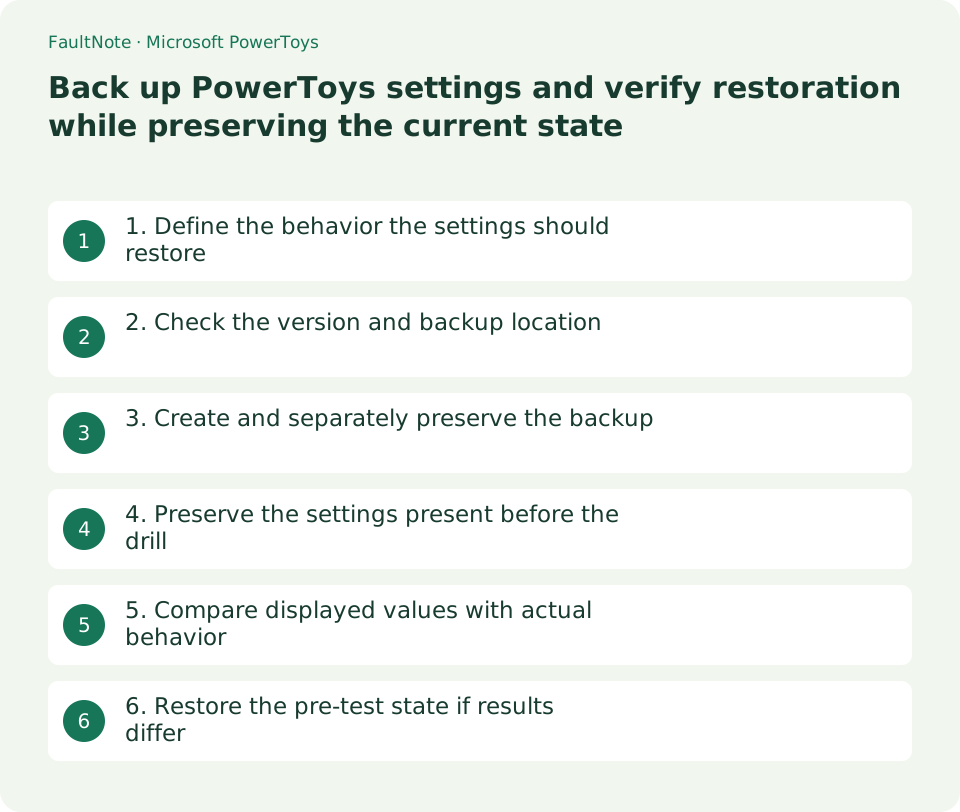
1. Define the behavior the settings should restore
List three behaviors you rely on, such as remapped keys, FancyZones layouts and enabled utilities. Concrete utility names and actions are easier to verify than a goal of restoring everything.
This archive covers PowerToys configuration. Files renamed with PowerRename, resized images and document contents need separate backups. Restoring settings does not undo previously processed data.
2. Check the version and backup location
Open General and inspect Back up & restore. Record the displayed location, installed version and installation type. Do not keep the only archive in a temporary folder on the source PC.
Preserve any existing archive before creating another. Follow the installed version’s controls and format; do not hand-edit an unfamiliar archive to force restoration. Record its date and location.
3. Create and separately preserve the backup
Run the backup control and confirm completion and the resulting archive. Copy it into a dated purpose-labelled folder and a separate backup location. Distinguish before-change and after-change generations.
Avoid changing settings while creating the archive. Record key values for the captured state. File presence and size help check transfer but do not prove the application can restore it; record the test date separately.
- Check version and archive location in General
- Preserve the previous generation and create a backup
- Separately archive the destination’s current settings
- Restore the chosen generation and test representative actions
4. Preserve the settings present before the drill
Restoration changes current settings. Back up the destination’s current configuration first, record active remaps and utilities, and use a test note and disposable windows away from important work.
Restore the intended archive through General and record the selected generation and result. Follow a requested restart after saving work. Do not require permanent elevation or disabled protection; investigate unsupported formats instead.
5. Compare displayed values with actual behavior
Check an actual remap in a disposable note and a zone action with a disposable window. A different monitor arrangement can change practical layout behavior even when the layout name returns; record destination-specific adjustments.
Compare source and destination versions when a utility is missing. Verify each needed item instead of assuming every utility-specific datum is included. Do not run bulk renaming or image conversion on originals as a test. Document manual reconstruction for missing items.
6. Restore the pre-test state if results differ
If input or layout differs unexpectedly, restore the pre-test archive before accumulating more changes and verify its representative behavior. Record errors, versions and archive dates; keep the archive unchanged while consulting support.
Separate export success, verified restored items and destination adjustments in the record. Retain useful earlier generations instead of deleting every archive after each export.
Scroll horizontally to see the full table →
| Check | Decision |
|---|---|
| A remap returns | Test input in a disposable note |
| Zone names return but placement differs | Check monitor conditions |
| A utility is absent | Compare versions |
| The drill needs rollback | Use the preserved destination state |
Limitations and requirements
- Preserve current settings before restoration
- Do not test bulk processing against original files
Frequently asked questions
Are processed pictures included?
No. Preserve picture files separately from configuration.
Will placement match another PC exactly?
Display conditions may differ. Verify imported configuration and practical adjustments separately.
Should I edit a failed archive?
Keep the original unchanged, investigate versions and errors, and restore the pre-test settings.
Sources and verification date
Sources checked: . These sources support the specifications, procedures or prices discussed here. Check each source for applicable conditions and current information.
Related practical guides
- Keep a reference window on top with PowerToys and unpin it when finished
- Use PowerToys Awake for a timed task and separate display power from sleep
- Capture screen colors as HEX or RGB with PowerToys Color Picker
- Measure on-screen width and spacing in pixels with PowerToys Screen Ruler
- Highlight a lost mouse pointer with PowerToys Mouse Utilities
- Remap a shortcut for one app with PowerToys Keyboard Manager