Measure on-screen width and spacing in pixels with PowerToys Screen Ruler
Choose Bounds or Spacing and record button width and gaps, checking detected edges, zoom and physical-size distinctions.
Published · Updated · FaultNote editorial policy
Who this guide is for and what to prepare
- People who need this specific workflow
What you need
- Prepare two static buttons and record zoom/scaling.
- Decide between width and spacing and prepare a result note.
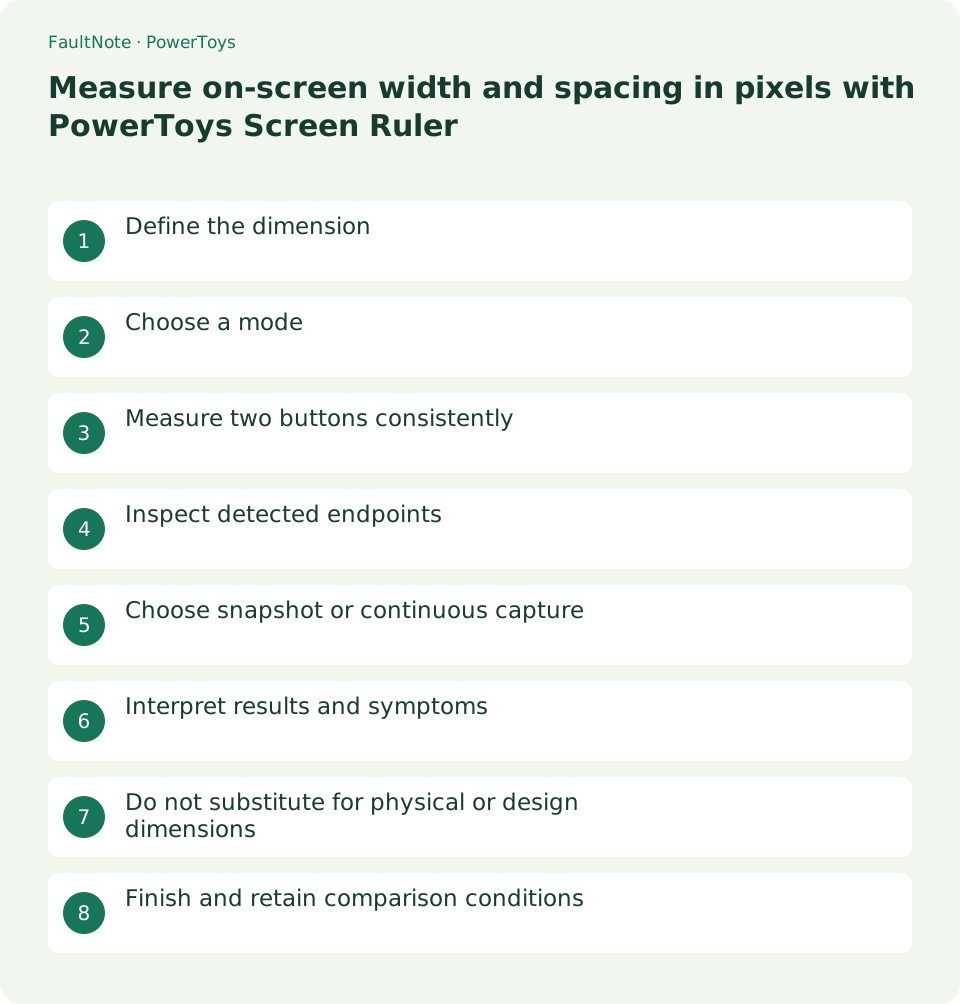
Define the dimension
Define whether you measure button bounds or the gap. Screen pixels may differ from source or logical dimensions; compare matching scale and zoom.
Choose a mode
Enable and open the toolbar. Bounds uses a dragged rectangle; spacing modes detect directions. Compare Bounds when detection misses the intended edge.
Measure two buttons consistently
Use consistent edges and shadow treatment, label widths and gaps and restart comparisons if layout or zoom changes.
- Open the toolbar and bound the first button.
- Record width and shadow treatment.
- Measure the second using identical criteria.
- Inspect horizontal-gap endpoints and label separately.
- Exit and record zoom and mode.
Inspect detected endpoints
Inspect endpoints after tolerance changes; shadows and gradients can affect detection. Record both settings and values instead of choosing convenient numbers.
Choose snapshot or continuous capture
Snapshot mode can become stale after changes. Continuous mode uses more resources; prefer stable UI states for comparisons.
Interpret results and symptoms
Scroll horizontally to see the full table →
| Result or symptom | Next check |
|---|---|
| Endpoints match | Compare consistently and label dimensions. |
| Shadow included | Use consistent shadow criteria and inspect mode/tolerance. |
| Stale result after moving | Restart snapshot measurement for the current view. |
| Values change with zoom | Record display changes and compare matching conditions. |
Do not substitute for physical or design dimensions
Separate screen observation from physical, source-design and print dimensions. Verify authoritative design values when precision requirements demand them.
Finish and retain comparison conditions
Exit with Esc, check copied results and retain target, dimension, scale and mode for repeatable comparisons.
Limitations and requirements
- Separate screen observation from physical, source-design and print dimensions. Verify authoritative design values when precision requirements demand them.
Frequently asked questions
Can it measure physical monitor width?
Use a physical ruler or specifications for actual dimensions.
Why do repeated values differ?
Stabilize zoom, position, motion and tolerance individually.
Does this reveal source-image size?
Scaled display dimensions differ; inspect source metadata.
Should continuous capture always be on?
Use it when updates are necessary rather than for every static comparison.
Sources and verification date
Sources checked: . These sources support the specifications, procedures or prices discussed here. Check each source for applicable conditions and current information.
Related practical guides
- Keep a reference window on top with PowerToys and unpin it when finished
- Use PowerToys Awake for a timed task and separate display power from sleep
- Capture screen colors as HEX or RGB with PowerToys Color Picker
- Highlight a lost mouse pointer with PowerToys Mouse Utilities
- Remap a shortcut for one app with PowerToys Keyboard Manager
- Enter accented characters from PowerToys Quick Accent candidates