Keep a reference window on top with PowerToys and unpin it when finished
Pin one reference window, verify visibility while typing elsewhere and test unpinning, layout and screen-sharing effects.
Published · Updated · FaultNote editorial policy
Who this guide is for and what to prepare
- People who need this specific workflow
What you need
- Prepare a saved reference and a blank test note.
- Record the configured shortcut and existing settings.
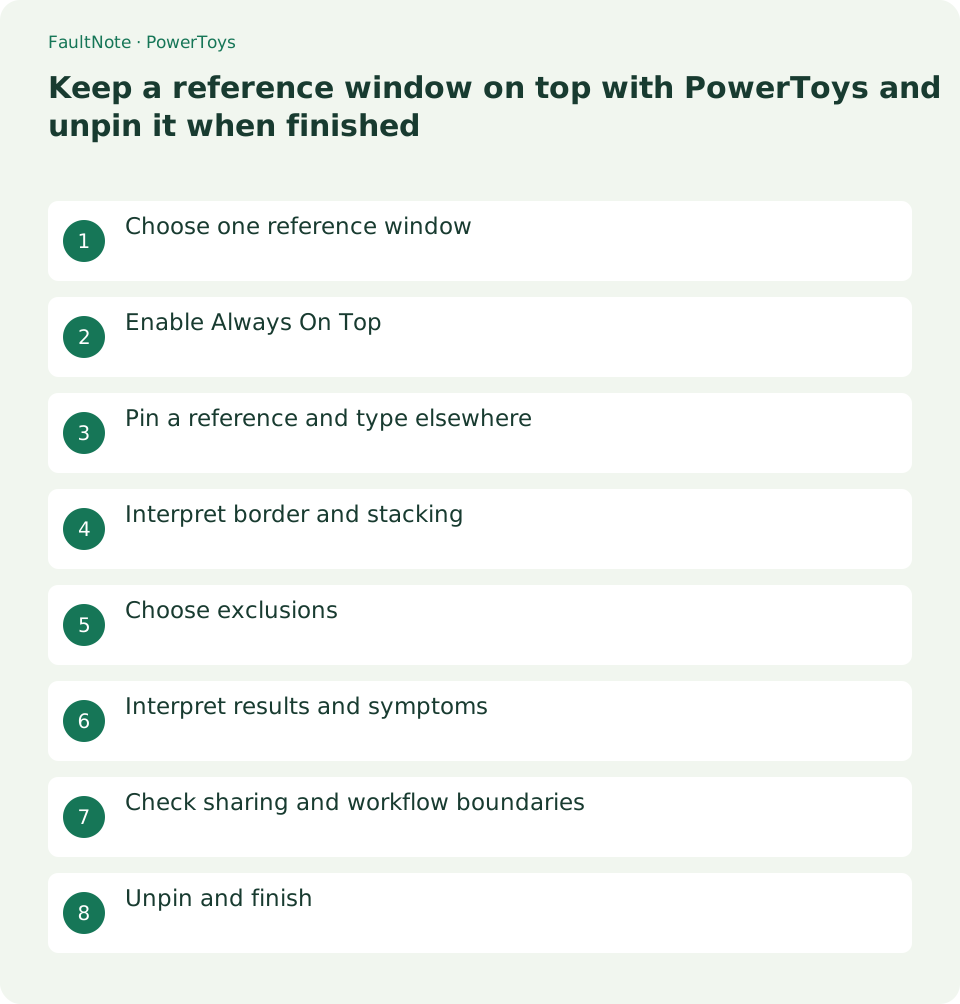
Choose one reference window
Pinning changes stacking, while tiling changes position. Resize the reference so it does not cover the input area and prefer a readable arrangement over many pinned windows.
Enable Always On Top
Enable the utility, check its activation shortcut and use a visible border to distinguish state. Keep border styling unobtrusive and sound optional.
Pin a reference and type elsewhere
The active window is the target. Activate the reference before pressing the shortcut and compare stacking when switching focus. This does not save or recover document content.
- Activate the reference and press Win+Ctrl+T.
- Switch to the input window and inspect stacking.
- Resize or move the reference if it obscures controls.
- Activate the reference again and toggle unpinning.
- Verify ordinary stacking after unpinning.
Interpret border and stacking
A border indicates pinning but does not guarantee priority over other topmost windows. Compare ordinary windows and adjust placement to avoid hiding controls.
Choose exclusions
Excluded-app matching can include partial names. Use a precise executable name when needed and verify each added exclusion.
Interpret results and symptoms
Scroll horizontally to see the full table →
| Result or symptom | Next check |
|---|---|
| Border and pinning work | Inspect placement and pin only required references. |
| Wrong window pinned | Unpin and select the intended active window. |
| Shortcut does nothing | Check enablement, conflicts and exclusions. |
| Another window stays above | Compare ordinary windows and possible competing topmost behavior. |
Check sharing and workflow boundaries
Pinning is not privacy protection. Review whole-screen sharing and compare supported ordinary windows before broad permission changes.
Unpin and finish
Activate the pinned window and toggle it again, verifying normal stacking. Save before closing; disable only this utility when appropriate.
Limitations and requirements
- Pinning is not privacy protection. Review whole-screen sharing and compare supported ordinary windows before broad permission changes.
Frequently asked questions
Is a pinned note automatically saved?
Pinning only changes stacking; save through the document application.
Can I pin multiple windows?
Operate on each window individually, but organize competing pinned windows.
Can I hide only the border?
Change the border setting while retaining a clear way to identify and unpin windows.
Must I uninstall PowerToys to stop it?
Disable only Always On Top if you still need other utilities.
Sources and verification date
Sources checked: . These sources support the specifications, procedures or prices discussed here. Check each source for applicable conditions and current information.
Related practical guides
- Use PowerToys Awake for a timed task and separate display power from sleep
- Capture screen colors as HEX or RGB with PowerToys Color Picker
- Measure on-screen width and spacing in pixels with PowerToys Screen Ruler
- Highlight a lost mouse pointer with PowerToys Mouse Utilities
- Remap a shortcut for one app with PowerToys Keyboard Manager
- Enter accented characters from PowerToys Quick Accent candidates