Highlight a lost mouse pointer with PowerToys Mouse Utilities
Configure Find My Mouse separately from click highlighting and check accidental activation, appearance and exclusions without changing movement.
Published · Updated · FaultNote editorial policy
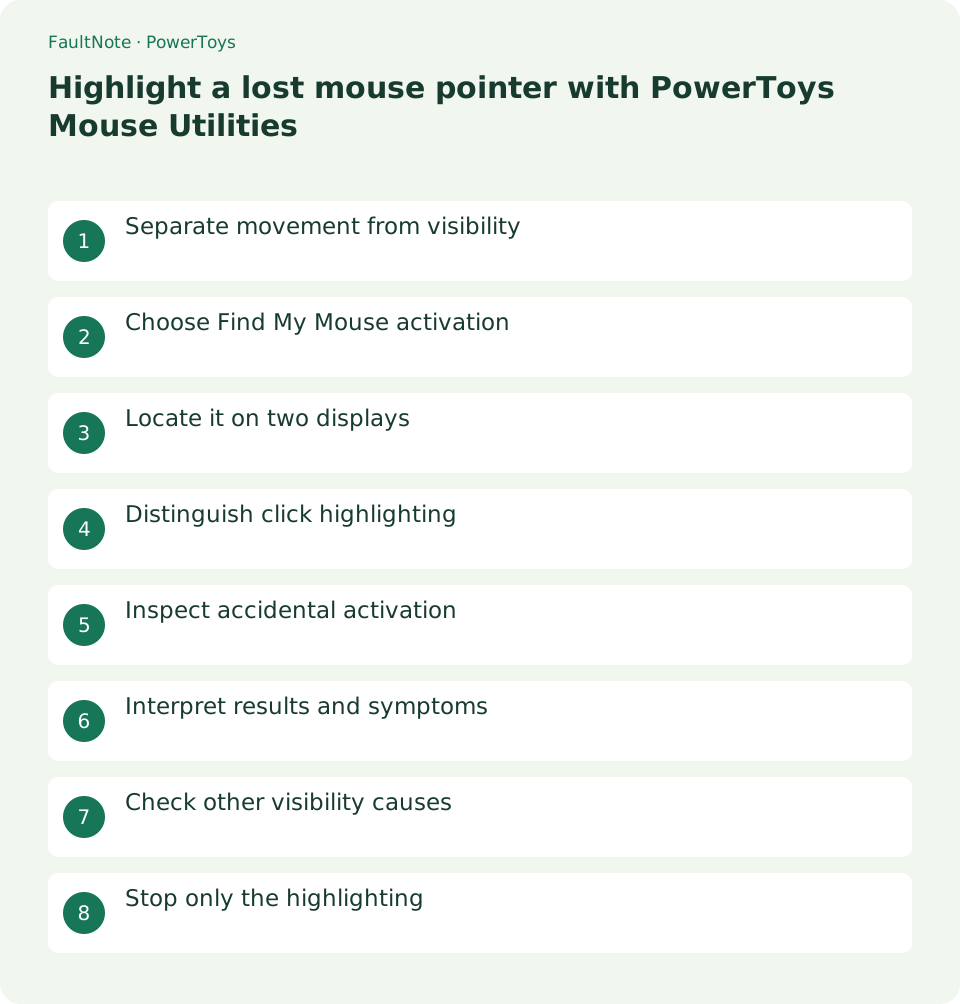
Who this guide is for and what to prepare
- People who need this specific workflow
What you need
- Prepare the normal display arrangement and contrasting backgrounds.
- Identify ordinary Ctrl usage and a low-conflict activation method.
Separate movement from visibility
Locate an otherwise working pointer; this does not fix disconnection or drift. Compare highlighting separately from speed and layout changes.
Choose Find My Mouse activation
Enable Find My Mouse and choose an activation method matching normal Ctrl usage. Begin with an explicit trigger before adjusting shake sensitivity.
Locate it on two displays
Trigger and dismiss on each display and choose appearance that directs attention without making the task unreadable. This does not record positions or click automatically.
- Enable and inspect activation.
- Locate on the first display.
- Dismiss and repeat on the second.
- Test ordinary Ctrl operations.
- Disable that feature and verify normal display.
Distinguish click highlighting
Configure location and click indicators separately and record their shortcuts, testing distinguishable colors on the actual background.
Inspect accidental activation
Change triggers that conflict with normal editing, consider exclusions and review sharing appearance while retaining original values.
Interpret results and symptoms
Scroll horizontally to see the full table →
| Result or symptom | Next check |
|---|---|
| Location clear | Test contrast on normal backgrounds. |
| Ctrl triggers too often | Choose another explicit trigger. |
| Only click circles appear | Check whether Mouse Highlighter is active. |
| Pointer does not move | Investigate connection/input separately. |
Check other visibility causes
Temporary highlighting differs from persistent pointer styling and does not repair application-specific cursors or input failures.
Stop only the highlighting
Dismiss and disable the specific utility, restoring its binding if needed without resetting drivers or movement settings.
Limitations and requirements
- Temporary highlighting differs from persistent pointer styling and does not repair application-specific cursors or input failures.
Frequently asked questions
Does it change mouse speed?
This workflow highlights appearance; speed settings are separate.
Can sharing show it?
Check the actual sharing method rather than assuming visibility.
What if shake activation triggers accidentally?
Review sensitivity or switch to a key, retaining original settings.
Must I disable every mouse utility?
Disable only unwanted utilities.
Sources and verification date
Sources checked: . These sources support the specifications, procedures or prices discussed here. Check each source for applicable conditions and current information.
Related practical guides
- Keep a reference window on top with PowerToys and unpin it when finished
- Use PowerToys Awake for a timed task and separate display power from sleep
- Capture screen colors as HEX or RGB with PowerToys Color Picker
- Measure on-screen width and spacing in pixels with PowerToys Screen Ruler
- Remap a shortcut for one app with PowerToys Keyboard Manager
- Enter accented characters from PowerToys Quick Accent candidates