Remap a shortcut for one app with PowerToys Keyboard Manager
Create a process-targeted Notepad remap and verify isolation and restoration by deleting the row or disabling the utility.
Published · Updated · FaultNote editorial policy
Who this guide is for and what to prepare
- People who need this specific workflow
What you need
- Save a harmless multiline test note and record current mappings.
- Check process name and whether the source shortcut is free.
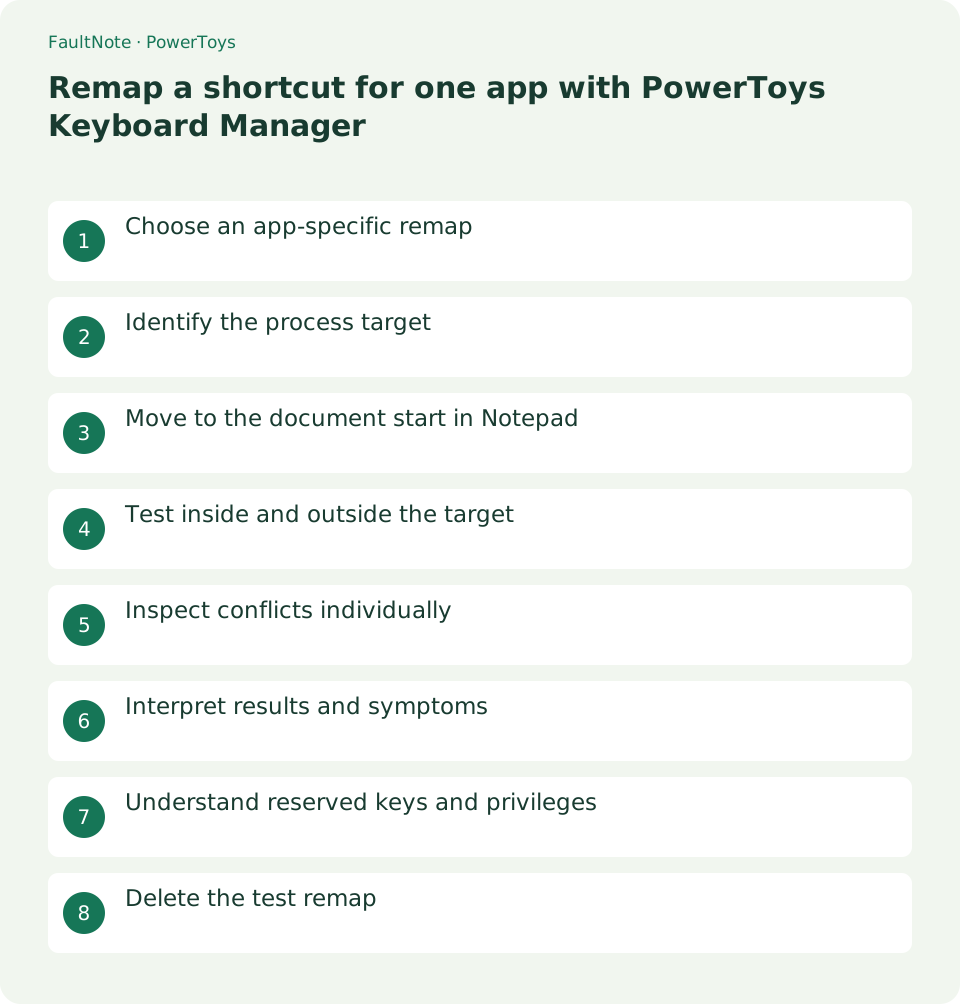
Choose an app-specific remap
Use shortcut remapping rather than global letter changes. Choose a nonconflicting input and verify the original target action first.
Identify the process target
Target the process name, not a product label. A blank target is global; inspect source, destination and target across editor versions.
Move to the document start in Notepad
Enable Keyboard Manager and map Ctrl+Alt+J to Ctrl+Home for notepad. This moves the caret; verify other tools do not own the source binding.
- Test the original Ctrl+Home.
- Set source and target shortcuts.
- Set notepad as Target app before saving.
- Test from the end and compare another app.
- Remove the row and verify normal behavior.
Test inside and outside the target
Verify the intended action inside Notepad and unchanged behavior outside it, including normal typing and modifier release.
Inspect conflicts individually
Check runtime, enablement, target and the original action, then isolate competing tools one mapping at a time.
Interpret results and symptoms
Scroll horizontally to see the full table →
| Result or symptom | Next check |
|---|---|
| Works only in target | Document the mapping before another trial. |
| Affects another app | Inspect target scope and blank values. |
| Original key fails too | Check original action and focus separately. |
| Stops when disabled | This is runtime remapping, not an OS layout change. |
Understand reserved keys and privileges
Reserved keys, many Fn keys and logon contexts are not ordinary remapping targets. Compare normal versus elevated applications; remapping requires the running enabled utility.
Delete the test remap
Delete and save the test row, verify restoration and preserve other mappings without resetting the entire configuration.
Limitations and requirements
- Reserved keys, many Fn keys and logon contexts are not ordinary remapping targets. Compare normal versus elevated applications; remapping requires the running enabled utility.
Frequently asked questions
Should I remap all letter keys?
Start with scoped shortcuts and know recovery before broad changes.
Can it remap Fn?
Fn often is not exposed as an ordinary key; consult manufacturer settings.
Can I enter the product name?
Use the actual process name rather than product or window title.
Does it continue after PowerToys exits?
Saved mappings require the running enabled utility.
Sources and verification date
Sources checked: . These sources support the specifications, procedures or prices discussed here. Check each source for applicable conditions and current information.
Related practical guides
- Keep a reference window on top with PowerToys and unpin it when finished
- Use PowerToys Awake for a timed task and separate display power from sleep
- Capture screen colors as HEX or RGB with PowerToys Color Picker
- Measure on-screen width and spacing in pixels with PowerToys Screen Ruler
- Highlight a lost mouse pointer with PowerToys Mouse Utilities
- Enter accented characters from PowerToys Quick Accent candidates