Use PowerToys Awake for a timed task and separate display power from sleep
Choose a timed request and display behavior separately, respecting the lock-screen limitation and checking normal behavior afterward.
Published · Updated · FaultNote editorial policy
Who this guide is for and what to prepare
- People who need this specific workflow
What you need
- Record normal power settings and the required interval.
- Check power availability and prepare task-completion evidence.
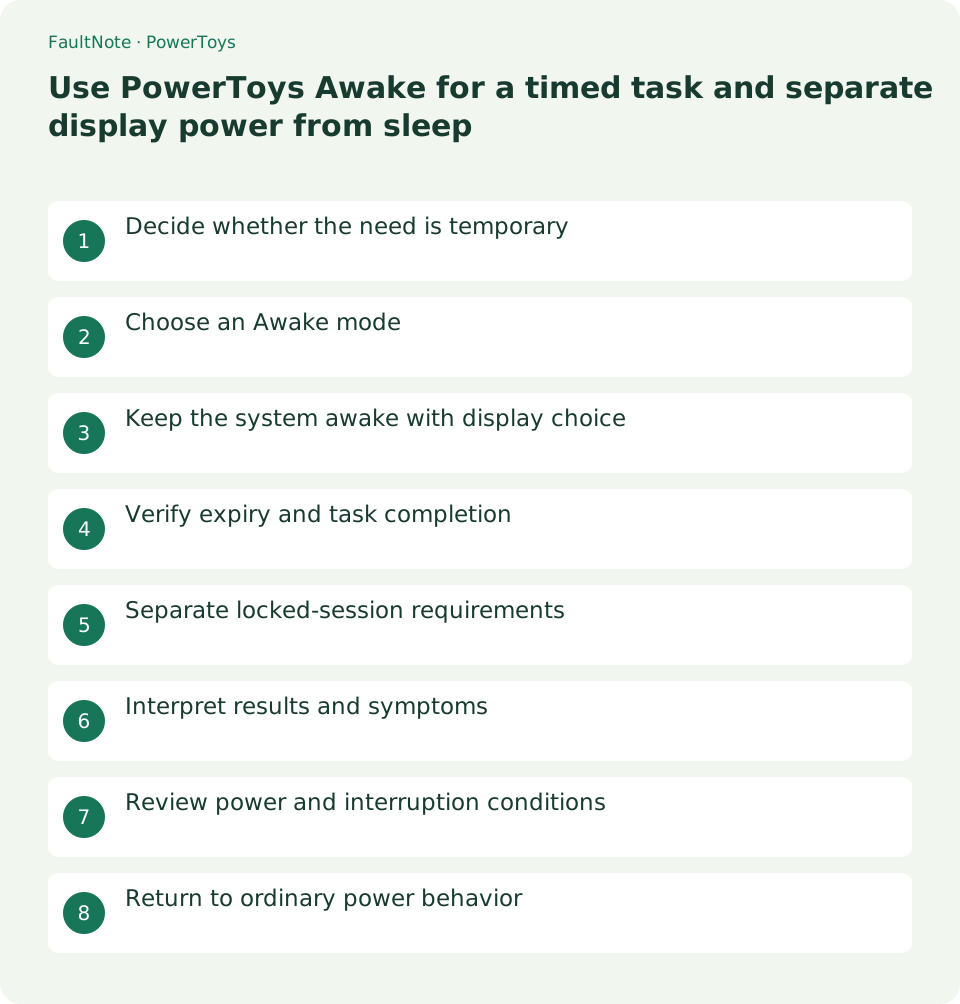
Decide whether the need is temporary
Use it for a bounded attended task without changing the power plan. Awake status is not task success and does not prevent power loss or all manual actions.
Choose an Awake mode
Enable Awake and select a 30-minute interval. Passive mode leaves the plan active; expiration uses a date/time and indefinite mode requires explicit stopping.
Keep the system awake with display choice
Choose Keep screen on independently. Display-off is not necessarily sleep; editing the interval restarts its timer.
- Choose a timed 30-minute example.
- Set display retention for the actual need.
- Inspect the tray mode.
- Monitor the task and remember edits restart the timer.
- Disable after completion and inspect normal mode.
Verify expiry and task completion
Inspect tray mode, stop early if finished and do not assume automatic extension. Check task results and save output separately from expiry.
Separate locked-session requirements
Current documentation excludes lock-screen operation. Do not avoid locking as a workaround; use an appropriate permitted plan for locked-session needs.
Interpret results and symptoms
Scroll horizontally to see the full table →
| Result or symptom | Next check |
|---|---|
| Display turns off | Distinguish display setting from system sleep. |
| Interval seems longer | Check whether editing restarted it. |
| Request stops while locked | Respect the limitation and use a suitable locked-session method. |
| Task stops before expiry | Investigate application, connectivity, manual actions and power. |
Review power and interruption conditions
Monitor energy use and low-battery conditions. Manual sleep, application errors and connectivity remain separate interruption causes.
Return to ordinary power behavior
Disable or select the normal-plan mode. Its request ends without rewriting the plan; do not reset Windows settings unnecessarily.
Limitations and requirements
- Monitor energy use and low-battery conditions. Manual sleep, application errors and connectivity remain separate interruption causes.
Frequently asked questions
Does it edit my sleep settings?
It issues a request rather than rewriting the plan; ordinary behavior resumes afterward.
Does it work while locked?
Not according to current documentation; keep locking and choose another unattended method.
Will closing a laptop lid always preserve the task?
Lid behavior is separate; inspect target settings rather than assuming a guarantee.
Can I stop before expiry?
Disable or select passive mode; ending the power request is separate from cancelling the task.
Sources and verification date
Sources checked: . These sources support the specifications, procedures or prices discussed here. Check each source for applicable conditions and current information.
Related practical guides
- Keep a reference window on top with PowerToys and unpin it when finished
- Capture screen colors as HEX or RGB with PowerToys Color Picker
- Measure on-screen width and spacing in pixels with PowerToys Screen Ruler
- Highlight a lost mouse pointer with PowerToys Mouse Utilities
- Remap a shortcut for one app with PowerToys Keyboard Manager
- Enter accented characters from PowerToys Quick Accent candidates