Use PowerPoint slide masters to standardize titles and logos
Place shared logos on the master and content arrangements in layouts, then test existing slides. Inspect their source rather than expecting every directly inserted object to change.
Published · Updated · FaultNote editorial policy
Who this guide is for and what to prepare
- People standardizing titles and logos in a collaboratively assembled deck
What you need
- Keep the original PPTX and prepare a copy with title, text, and photo slides
- Open the desktop version on Windows or Mac; web master editing is not equivalent
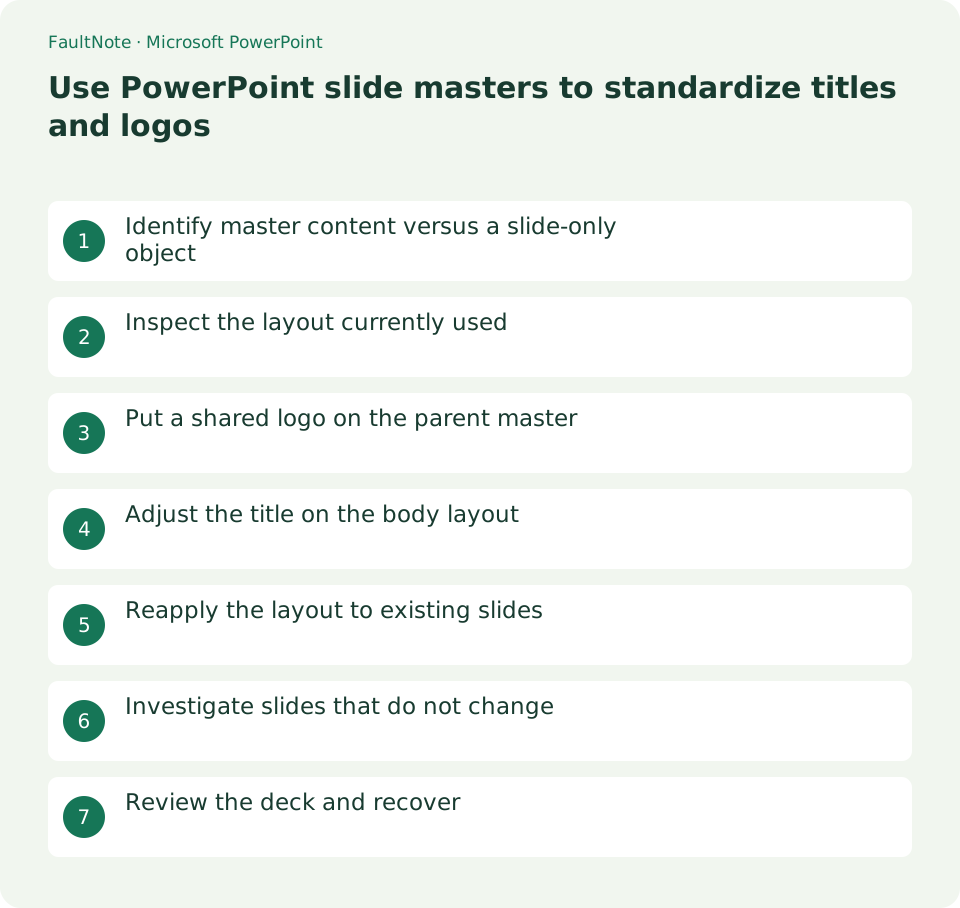
Identify master content versus a slide-only object
For a 12-slide meeting deck, share the logo everywhere but standardize titles only on text slides. Master changes affect slides based on that master; layout changes affect that layout. Decide scope before manually moving every object.
A logo unavailable in Normal view may belong to a master or layout. Inspect View > Slide Master before pasting another copy and creating duplicates. Selectable Normal-view objects need separate inspection.
Inspect the layout currently used
Select a slide and inspect Home > Layout. Identify the title and body layouts, then find their smaller thumbnails beneath the large master thumbnail.
Imported slides can introduce multiple masters. Similar appearance does not establish a common source. Match the applied layout before editing and do not delete unreviewed masters together.
Put a shared logo on the parent master
For a deck-wide logo, select the parent master and insert the image inside the margins without covering content. Check whether the title slide needs it and inspect existing copies before cleanup.
Master placement reduces accidental Normal-view movement but is less suited to per-slide removal. Use individual layouts when only some slide types need the logo.
Adjust the title on the body layout
Move and resize the existing title placeholder on the body layout rather than layering a new text box. Check separation from the body area.
Test a long two-line title for height and spacing. Short titles alone may hide overlap problems; avoid changing unrelated body typography.
Reapply the layout to existing slides
Close Master View and reapply the changed layout through Home > Layout on a test body slide. Existing slides can require reapplication even when newly added slides look correct.
Direct text boxes or manual overrides may not follow the definition identically. Test any Reset operation in the copy and inspect custom diagrams or tables for unintended movement.
Investigate slides that do not change
Check its parent and layout, distinguishing another master, direct placement, and overrides. For duplicate logos, inspect both Normal and master placement.
Treat intentional special slides as separate layouts where appropriate. Distinguish deliberate exceptions from missed application before standardizing them.
Review the deck and recover
Review title, short body, long title, and photo slides in Slide Show. Check uncovered content, then extend changes and reopen after saving.
Undo while editing or consult the retained original after saving. Separate master edits from direct-object cleanup to trace failures, retaining an editable PPTX.
Limitations and requirements
- Do not bulk-delete masters without checking use
- Verify master edits separately from directly placed objects
Frequently asked questions
Why is the logo unavailable in Normal view?
It may belong to the master or layout. Inspect View > Slide Master before adding a duplicate.
Only newly added slides change.
Reapply the layout to existing slides, then inspect another master or direct placement if unchanged.
Can I edit masters only in the web app?
Microsoft documents master customization as unavailable on the web. Change the definition in desktop PowerPoint.
Should I reset every slide at once?
Test representative slides in a copy because custom positioning can change. Review intentional special slides separately.
Sources and verification date
Sources checked: . These sources support the specifications, procedures or prices discussed here. Check each source for applicable conditions and current information.
Related practical guides
- Align and evenly space PowerPoint objects with guides
- Crop PowerPoint photos to a consistent ratio using Fill and Fit
- Embed PowerPoint fonts while checking editing needs and permission
- Use PowerPoint Presenter View on two displays without exposing notes
- Embed video in PowerPoint and verify portability and playback
- Export PowerPoint to narrated video