Embed video in PowerPoint and verify portability and playback
Prefer embedding for PPTX-only delivery; manage source media when linked. Verify preview, show triggers, and destination playback separately.
Published · Updated · FaultNote editorial policy
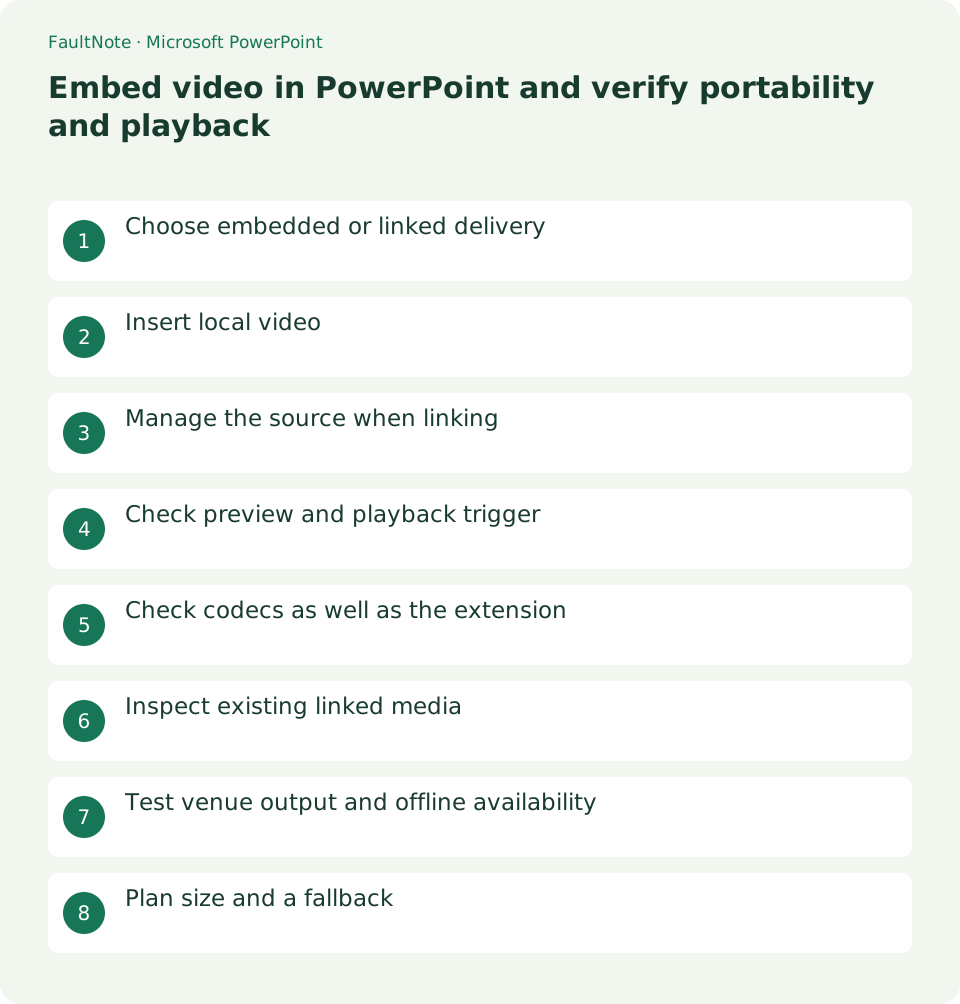
Who this guide is for and what to prepare
- People playing a deck's video at a venue or on another PC
What you need
- Keep permitted source video and the original deck
- Prepare a destination-equivalent PowerPoint and audio-output test
Choose embedded or linked delivery
For a short classroom demonstration on another PC, embedded media increases deck size while linked media requires its source. Decide the actual delivery files. Online video also depends on connection and provider conditions.
Insert local video
Select the slide and Insert > Video > This Device or Video on My PC, then Insert. Microsoft documents embedding as the default. Save and verify the thumbnail and duration rather than confusing an inserted video with a pasted poster image.
Manage the source when linking
Place video with the PPTX before choosing Link to File from the insertion menu. This reduces breakage but is not a universal portability guarantee. Copy both and test without access to the original source location.
Check preview and playback trigger
Preview with the selected video's playback bar, checking audio. Choose automatic or click playback and test in Slide Show. Editing preview success does not verify show clicks or animation ordering.
Check codecs as well as the extension
Microsoft recommends MP4 with H.264 video and AAC audio. An .mp4 extension alone does not establish codecs. Create a permitted compatible copy if needed, retaining the original and checking quality, audio, and captions.
Inspect existing linked media
Inspect File > Info and media/link information where available. Identify linked versus embedded status before repair and compare duration and content before replacing a same-named file. Consult version-specific controls.
Test venue output and offline availability
Test the delivered deck on another machine without source-location access, using venue output and show triggers. For online sharing, check meeting-app sound sharing; local sound does not prove participant delivery.
Plan size and a fallback
Review required duration or a compatible copy if embedding is large. Test optimization on a delivery copy. Prepare a permitted standalone local player fallback without treating it as validation of in-deck playback.
Limitations and requirements
- Check delivery before moving or renaming linked sources
- Retain original media before optimization or conversion
Frequently asked questions
Does any MP4 always work?
Codecs and destination versions matter. Check H.264/AAC guidance and test the actual machine.
Is the PPTX alone sufficient?
Check embedding status. Linked media needs its source and testing after delivery.
It previews but fails in Slide Show.
Inspect triggers and animation/click ordering during actual show navigation.
Only online participants cannot hear it.
Inspect meeting-app sound sharing separately and verify with a participant.
Sources and verification date
Sources checked: . These sources support the specifications, procedures or prices discussed here. Check each source for applicable conditions and current information.
Related practical guides
- Use PowerPoint slide masters to standardize titles and logos
- Align and evenly space PowerPoint objects with guides
- Crop PowerPoint photos to a consistent ratio using Fill and Fit
- Embed PowerPoint fonts while checking editing needs and permission
- Use PowerPoint Presenter View on two displays without exposing notes
- Export PowerPoint to narrated video