Crop PowerPoint photos to a consistent ratio using Fill and Fit
Adjust frame and image position separately without stretching. Use Fill for a full frame and Fit for the entire image, preserving a reversible editing copy.
Published · Updated · FaultNote editorial policy
Who this guide is for and what to prepare
- People fitting differently oriented photos into matching cards
What you need
- Keep source photos and the original PPTX; deleting cropped data during compression is separate
- Prepare a portrait, a text-bearing image, and a diagram needing its full content
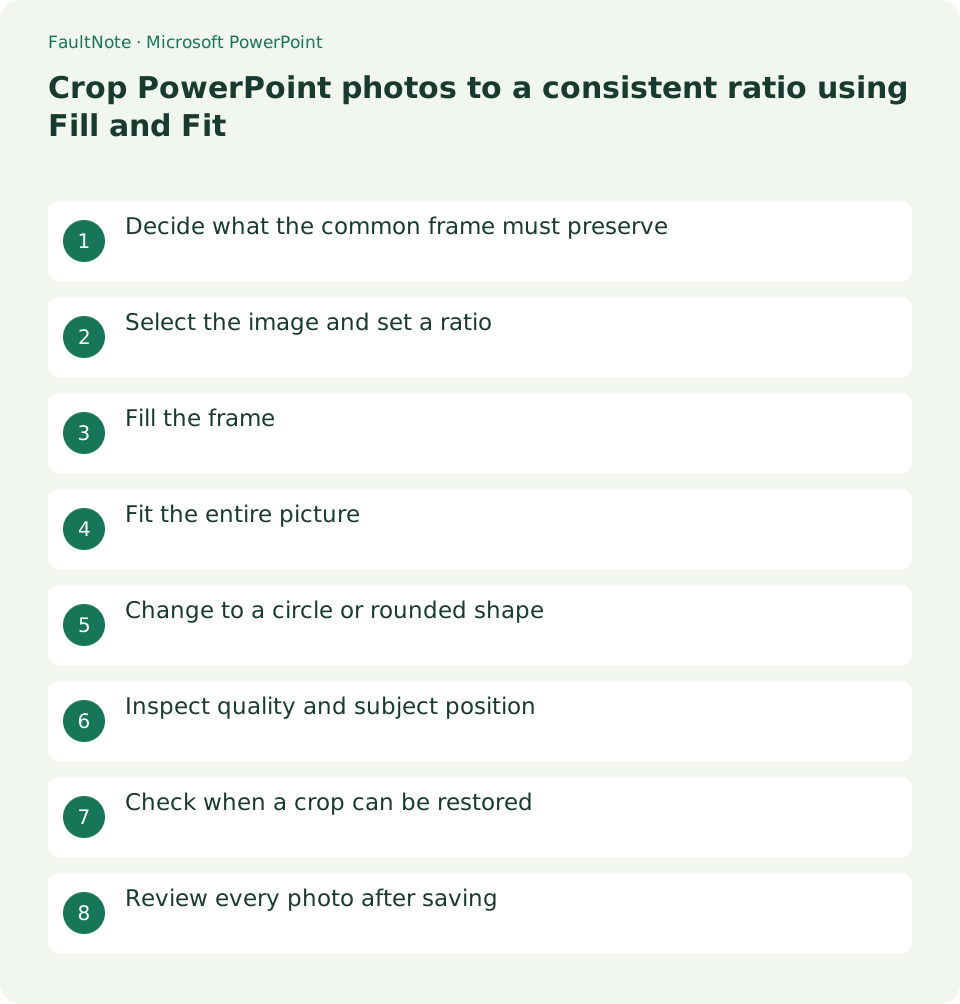
Decide what the common frame must preserve
For three travel photos in matching landscape frames, decide whether filling the frame or showing the whole image matters more. Fill can crop edges; Fit can leave space. Identify faces, labels, legends, and other required content before choosing.
Select the image and set a ratio
Select Picture Format > Crop > Aspect Ratio and apply a common ratio before matching frame sizes. This differs from independently stretching width and height. Reselect the actual picture if a shape or group exposes another menu.
Fill the frame
Crop > Fill preserves image proportion while covering the frame. A portrait in a landscape frame loses edges; move the picture within the crop to position the subject. Distinguish crop handles changing the frame from moving content inside it.
Fit the entire picture
Crop > Fit shows the whole picture inside the frame, potentially leaving space when ratios differ. This can suit diagrams or evidence images with edge labels. Review frame size and background rather than distorting the original to remove gaps.
Change to a circle or rounded shape
Use Crop to Shape for an oval or rounded frame. A true circle also needs a 1:1 frame; selecting an oval alone can retain a wide ratio. Limit decorative shapes where hidden corner content is unnecessary.
Inspect quality and subject position
Review at Slide Show size. Enlarging a small crop can reveal insufficient source resolution; cropping creates no extra detail. Check text and required background as well as faces and revisit each crop after rearrangement.
Check when a crop can be restored
Undo or reopen Crop to widen the visible area. Test Reset Picture because size or formatting can also change. Deleting cropped data during compression can remove recovery data after saving; keep that separate from the editing original.
Review every photo after saving
Reopen and verify consistent ratios, subjects, text, and margins. Inspect replacement images for inherited cropping. Keep sources for future aspect ratios and assess file-size reduction separately.
Limitations and requirements
- Cropping is not secure removal of confidential content
- Recover deleted crop data from retained originals
Frequently asked questions
A landscape crop cuts off a face.
Move the image inside Fill, or choose Fit or another ratio if the required area cannot fit.
Why is my circular crop an ellipse?
Set the frame to 1:1 as well as an oval shape; do not stretch the source image.
Does cropping delete the hidden parts?
Display cropping differs from deleting cropped data during compression. Keep sources and an editing copy.
Should screenshots also use Fill?
Prefer preserving required buttons and labels, using Fit where needed.
Sources and verification date
Sources checked: . These sources support the specifications, procedures or prices discussed here. Check each source for applicable conditions and current information.
Related practical guides
- Use PowerPoint slide masters to standardize titles and logos
- Align and evenly space PowerPoint objects with guides
- Embed PowerPoint fonts while checking editing needs and permission
- Use PowerPoint Presenter View on two displays without exposing notes
- Embed video in PowerPoint and verify portability and playback
- Export PowerPoint to narrated video