Use PowerPoint Presenter View on two displays without exposing notes
Assign notes and audience slides to different displays. Use extended rather than mirrored output and verify the actual audience and sharing surfaces.
Published · Updated · FaultNote editorial policy
Who this guide is for and what to prepare
- Presenters needing private notes alongside an audience slide show
What you need
- Connect an external display and allocate time to inspect both screens
- Use a test copy without sensitive notes to verify sharing scope
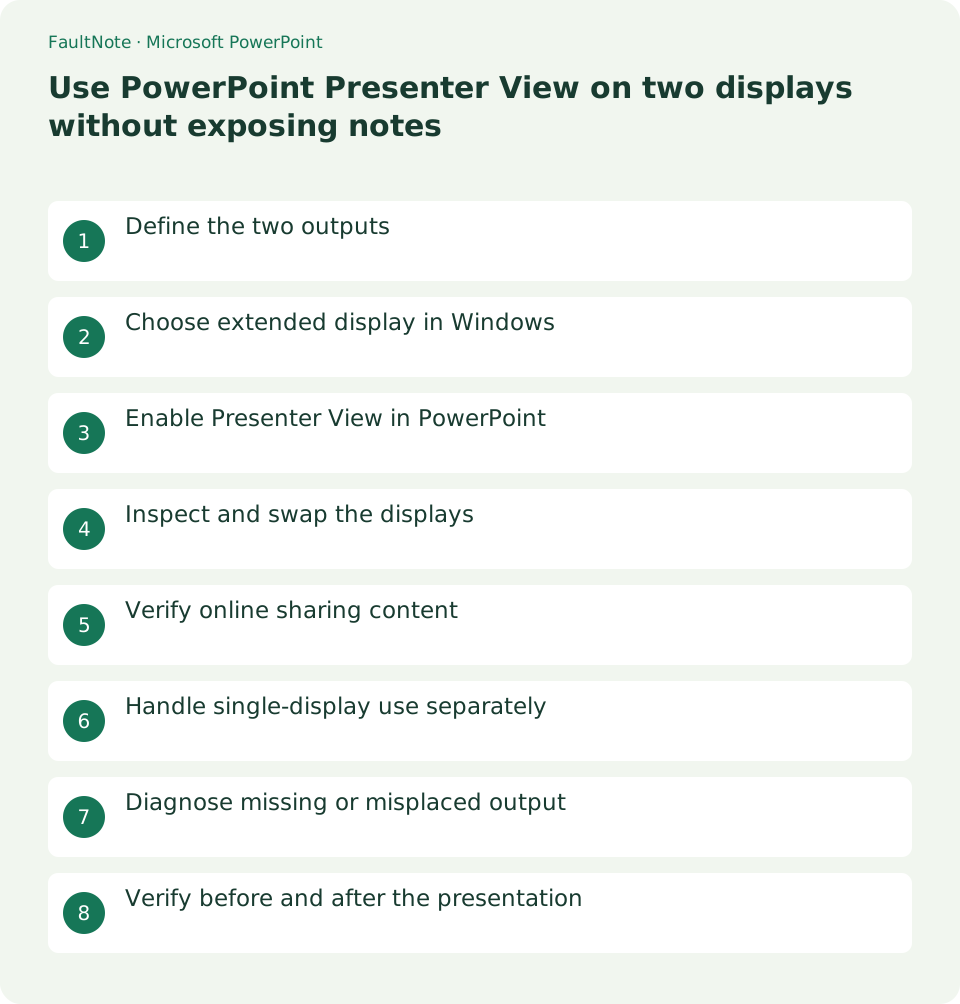
Define the two outputs
Use the laptop for notes and the next slide and the projector for audience slides. Presenter View controls display assignment, not removal of notes from the file. Inspect distributed PPTX notes and online sharing separately.
Choose extended display in Windows
Connect the display and identify it in Windows System > Display or use Win+P > Extend. Duplicate mirrors content and does not separate notes from slides. Match numbers to physical displays and recheck after reconnection.
Enable Presenter View in PowerPoint
Enable Use Presenter View under Slide Show and inspect the slide-show monitor. Test automatic selection on the actual connected display rather than treating disconnected setup as venue verification. Mac uses its own presentation settings.
Inspect and swap the displays
Start the show and inspect where notes appear. Use Presenter View display settings to swap outputs if reversed. Stop sharing or end the show before correcting exposed notes, and have someone inspect an audience screen you cannot see.
Verify online sharing content
Choose the intended slide-show window or supported presentation sharing method, not a desktop containing Presenter View. Verify with a test participant; screen labels and thumbnail previews alone are insufficient.
Handle single-display use separately
Alt+F5 can open Presenter View on one Windows screen, but sharing that screen exposes notes. Availability differs from privacy. Review the meeting app's presentation sharing and use a tested alternative notes surface when needed.
Diagnose missing or misplaced output
If external output is black, first test Windows identification and another window. Missing hardware calls for connection/input checks; healthy windows with absent slides call for PowerPoint monitor selection. Change one variable at a time.
Verify before and after the presentation
Test beginning, navigation, and a notes-bearing slide with the actual connections and receiving participant. Stop sharing before opening other material afterward, and re-identify displays at the next venue.
Limitations and requirements
- Display assignment does not remove notes from the PPTX
- Stop sharing before opening private material
Frequently asked questions
The audience sees my notes.
Stop sharing, inspect extended-display assignment, and swap or select the intended show output.
Can Duplicate separate the two views?
Duplicate mirrors content. Use extended display and check the show monitor.
Is single-screen Alt+F5 automatically private?
Sharing that view exposes notes; verify the target and receiver output.
Can I reuse previous display numbers?
Reconnection can change assignments; identify and inspect the actual screens.
Sources and verification date
Sources checked: . These sources support the specifications, procedures or prices discussed here. Check each source for applicable conditions and current information.
Related practical guides
- Use PowerPoint slide masters to standardize titles and logos
- Align and evenly space PowerPoint objects with guides
- Crop PowerPoint photos to a consistent ratio using Fill and Fit
- Embed PowerPoint fonts while checking editing needs and permission
- Embed video in PowerPoint and verify portability and playback
- Export PowerPoint to narrated video