Align and evenly space PowerPoint objects with guides
Fix card sizes and outside positions, then apply top alignment and horizontal distribution separately. Inspect reference and selection if objects move unexpectedly.
Published · Updated · FaultNote editorial policy
Who this guide is for and what to prepare
- People aligning diagrams and cards more precisely than by eye
What you need
- Make a copy with three similarly sized cards and a title
- Distinguish shape bounds from the positioning of their text
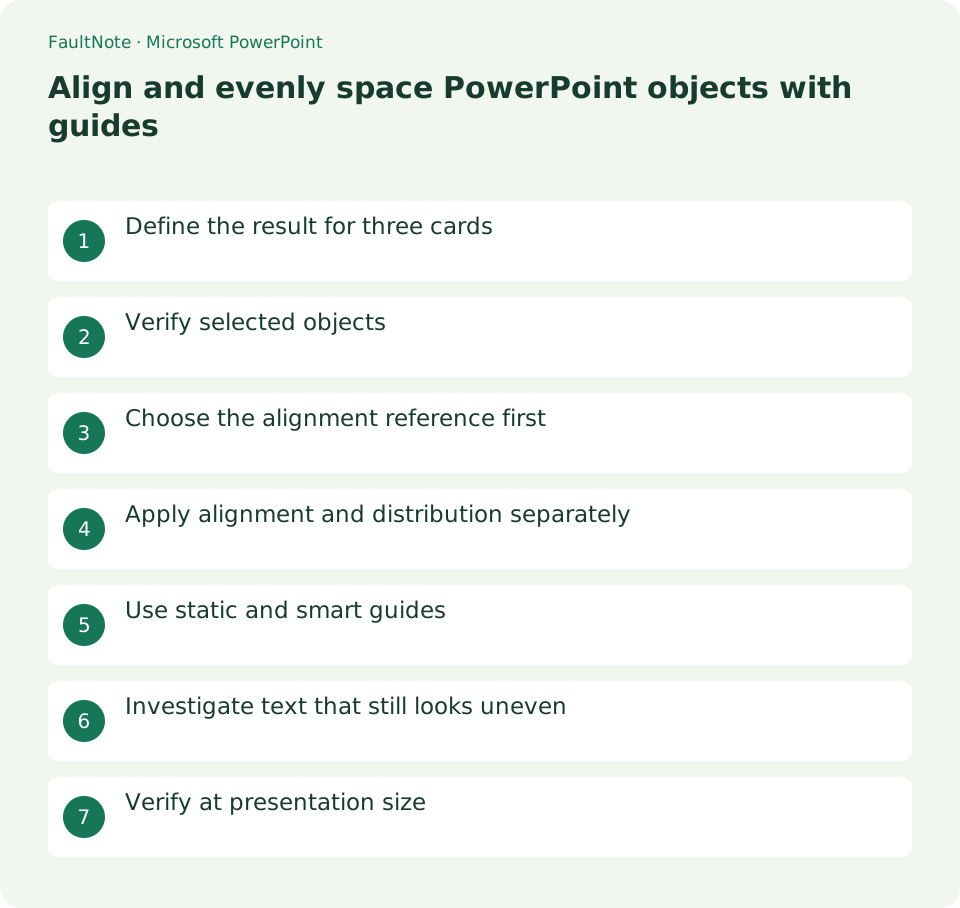
Define the result for three cards
For three horizontal cards, align shape bounds rather than expecting text lines or image whitespace to match. Review sizes and internal padding first.
Place the outside cards at the intended limits, with the middle card between them. Select only these cards, excluding headings and other content.
Verify selected objects
Multiselect and confirm a border on every target. Use the Selection pane for overlapping objects. Editing text or selecting only background is different from object selection.
Grouping each card with its icon keeps them together. Grouping the whole row turns it into one object, so distinguish card-level from row-level groups.
Choose the alignment reference first
Open Shape Format or Picture Format > Align and inspect slide versus selected-object reference. Use selected objects for matching card tops.
Slide-centered alignment on individual cards can overlap them. To center the row, first group the aligned row, then center that group on the slide.
Apply alignment and distribution separately
Apply Align Top, inspect the result, then Distribute Horizontally. Vertical alignment and horizontal spacing are independent operations.
If sizes differ, standardize dimensions where intended before judging gaps. Inspect outside margins too. Undo a failed operation and review reference and selection before retrying.
Use static and smart guides
View > Guides shows center references, while Gridlines adds a grid. Smart guides appear during dragging to indicate relations to other objects; these are editing aids.
Guides are not audience-facing lines. Use actual shapes for printed lines, and inspect persistent lines as possible drawn objects rather than assuming the guide toggle removes them.
Investigate text that still looks uneven
For aligned bounds but uneven text, compare internal padding, vertical text alignment, and paragraph spacing. Shape alignment does not rewrite content.
Transparent image margins can distort perceived centers. Inspect visible content before moving shapes further, editing only the affected card inside its group.
Verify at presentation size
Review title, vertical alignment, and outside margins in Slide Show with guides hidden. Adjust outer limits and redistribute if the row is cramped.
Group at the appropriate level and reopen after saving. Grouping reduces accidental movement but does not prevent editing. Compare the original when restoring intentional freeform placement.
Limitations and requirements
- Keep the pre-alignment copy
- Distinguish whole-row and card-level groups
Frequently asked questions
Why does distribution move the row?
Inspect reference and outer limits. Undo, select only the cards, and establish the intended span.
Can I align objects within a group?
A whole group acts as one object. Select the appropriate level for internal content versus card arrangement.
Do guides appear in distributed PDFs?
Editing guides do not print. Inspect drawn or image lines if present in a PDF, checking the final output.
Why do text tops remain uneven?
Compare padding, vertical text alignment, paragraph spacing, and line breaks separately from shape alignment.
Sources and verification date
Sources checked: . These sources support the specifications, procedures or prices discussed here. Check each source for applicable conditions and current information.
Related practical guides
- Use PowerPoint slide masters to standardize titles and logos
- Crop PowerPoint photos to a consistent ratio using Fill and Fit
- Embed PowerPoint fonts while checking editing needs and permission
- Use PowerPoint Presenter View on two displays without exposing notes
- Embed video in PowerPoint and verify portability and playback
- Export PowerPoint to narrated video