Embed PowerPoint fonts while checking editing needs and permission
Embedding can reduce substitution but is not guaranteed for every font or environment. Decide editing needs, inspect save warnings and permission, and open on the recipient machine.
Published · Updated · FaultNote editorial policy
Who this guide is for and what to prepare
- People sharing PPTX files that change fonts or line breaks on another PC
What you need
- Retain the original PPTX and font names
- Determine whether recipients only view or also enter new text
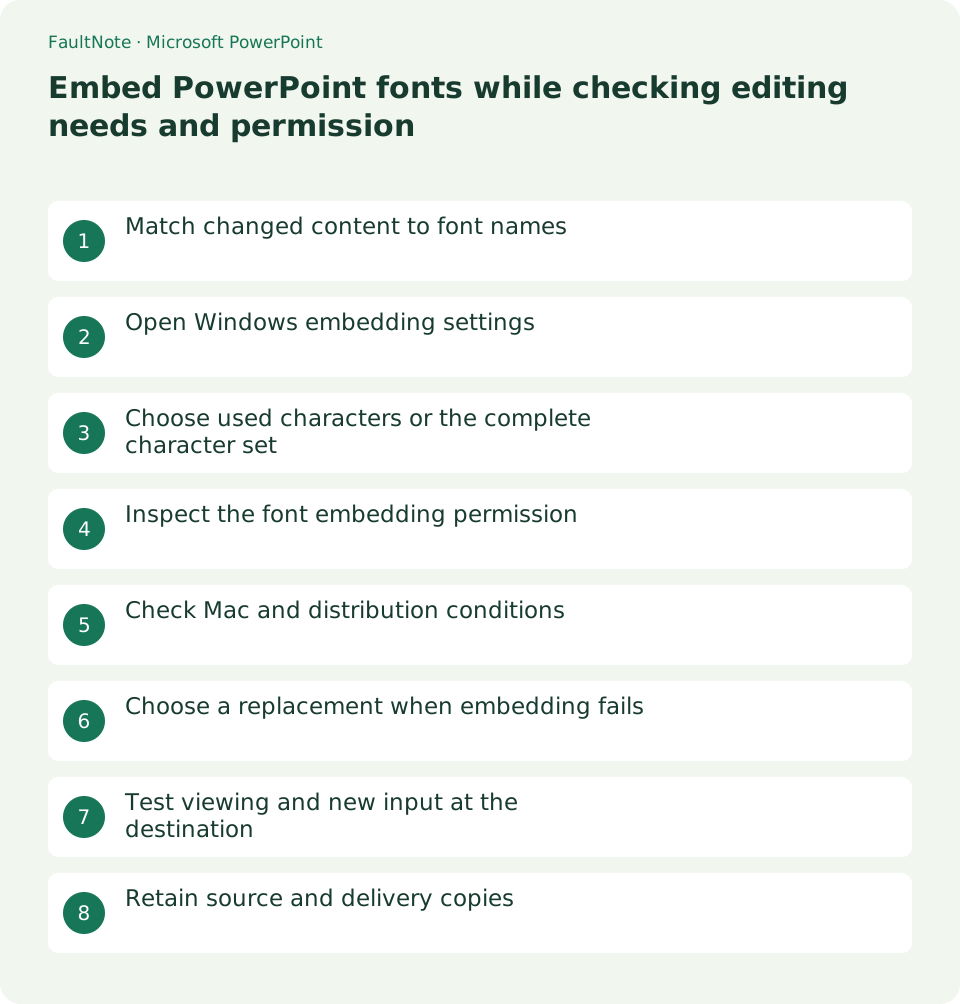
Match changed content to font names
Compare the same long title on source and recipient machines, inspecting font names, width, and wrapping. Distinguish substitution from changed shape dimensions before resizing everything. Source-PC success does not establish offline availability.
Open Windows embedding settings
In desktop Windows PowerPoint, open File > Options > Save and enable Embed fonts in the file for the intended presentation. Save a separate copy and inspect warnings; the checkbox alone does not save. Consult supported versions instead of assuming the same web setting exists.
Choose used characters or the complete character set
Embedding only used characters reduces size but limits editing with newly entered characters. Consider full-character embedding for collaboration and test new symbols or text absent from the original. Existing-title appearance does not establish editable coverage.
Inspect the font embedding permission
Not all TrueType fonts permit embedding. Record warned font names and inspect Windows font information where available, then consult the vendor license. Do not alter permissions to bypass restrictions.
Check Mac and distribution conditions
Microsoft documents embedding on supported Mac PowerPoint versions; check version and Mac save settings rather than assuming identical Windows controls. Editable PPTX and fixed PDF delivery serve different needs, and PDF output still needs inspection.
Choose a replacement when embedding fails
Create an alternative-font copy and inspect titles, body text, and labels. Equal text length does not imply equal wrapping. Verify at presentation size and separately check redistribution permission before sending font files.
Test viewing and new input at the destination
Open the saved file on the recipient machine and compare titles, symbols, and charts. For editing, enter new text in a test copy and verify font and wrapping. Saving successfully on the source machine is not destination verification.
Retain source and delivery copies
If size grows, review required fonts and delivery intent rather than disabling embedding blindly. Removing it and reopening can lead to substitution; preserve the source. Prepare a replacement-font version or viewing PDF if recipient reproduction remains unsuitable.
Limitations and requirements
- Check embedding and redistribution permissions separately
- Source appearance does not guarantee destination reproduction
Frequently asked questions
Can every font be embedded?
No. Check format and permissions and consider alternatives rather than bypassing restrictions.
Are used characters sufficient for editing?
New characters may be limited. Consider full embedding and test new input.
Can I skip checking a PDF?
Inspect substitution, wrapping, and charts after conversion, while preserving editability where needed.
Does removing embedding preserve appearance?
Another environment can substitute fonts after reopening. Compare a separate copy with the original.
Sources and verification date
Sources checked: . These sources support the specifications, procedures or prices discussed here. Check each source for applicable conditions and current information.
Related practical guides
- Use PowerPoint slide masters to standardize titles and logos
- Align and evenly space PowerPoint objects with guides
- Crop PowerPoint photos to a consistent ratio using Fill and Fit
- Use PowerPoint Presenter View on two displays without exposing notes
- Embed video in PowerPoint and verify portability and playback
- Export PowerPoint to narrated video