Find files by name and extension in Explorer: control scope and filters
Start in the likely folder, test a name and an extension separately, then combine them. Verify result locations and content before choosing the original. This workflow refines search scope and queries rather than repairing an index.
Published · Updated · FaultNote editorial policy
Who this guide is for and what to prepare
- People searching many similarly named files in a known location
- People who need name and format filters rather than document-content search
What you need
- Record part of the filename and the expected format
- Keep files unchanged while inspecting result locations
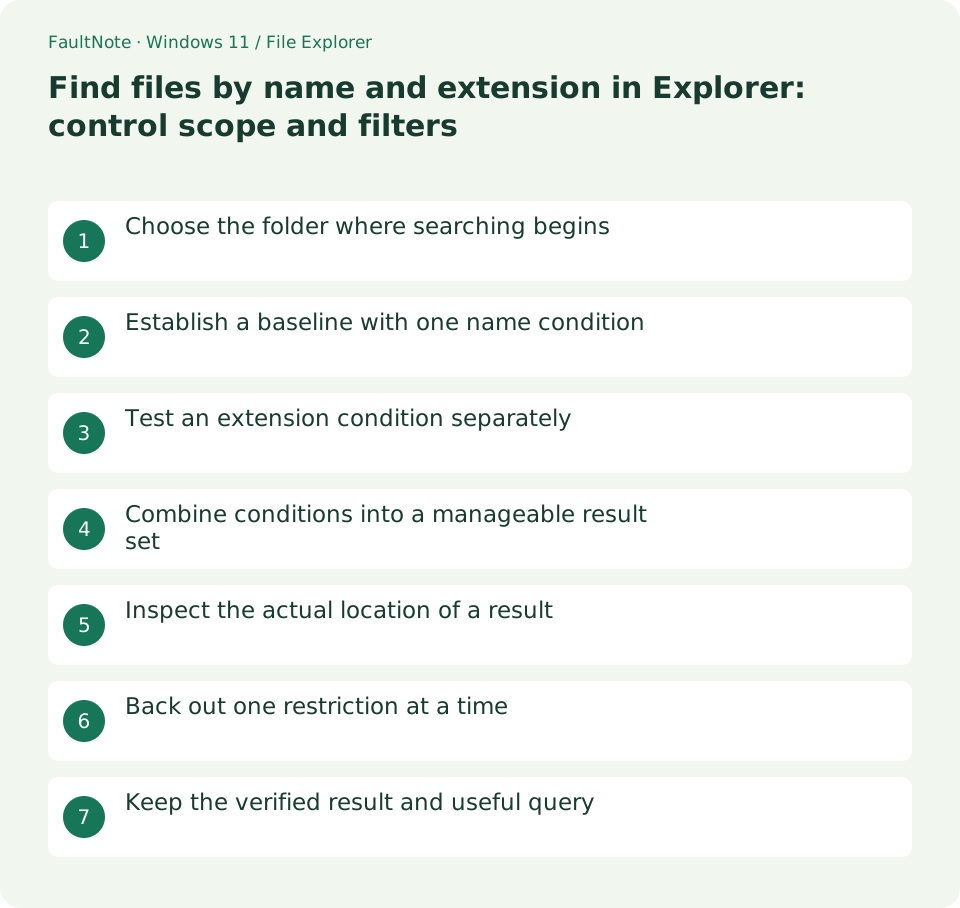
Choose the folder where searching begins
For example, locate a PDF containing invoice in a project folder. Open that folder and verify the address bar before searching. Home or This PC can mix results from unrelated locations. Start with the known area and widen to its parent only when needed, separating query failure from a different save location.
Establish a baseline with one name condition
Start with invoice and wait for completion. A plain word can match information beyond filenames; compare the documented canonical property form System.FileName:invoice when you need name-specific matching. Use an ASCII colon and your own search term. Establish a known result before combining name, format and date conditions.
Test an extension condition separately
Clear the query and test an extension alone, such as System.FileExtension:.pdf. Confirm a known PDF is returned in your environment before relying on combined AQS. Compare name-only and extension-only results, checking Type or Properties rather than trusting matching icons. If the known file fails either baseline, revisit scope and input first.
Combine conditions into a manageable result set
After both individual filters work, try System.FileName:invoice System.FileExtension:.pdf. Compare names, modification dates and locations. Add quotes or wildcards one at a time. If syntax seems treated as text, return to a plain name search and inspect Type manually. Successful syntax interpretation and identifying the needed document are separate checks.
Inspect the actual location of a result
Use Open file location when available or inspect Properties. Check for a similarly named file in another project, then open the candidate in its actual folder. Avoid bulk moves or deletions from mixed-location results. Record the verified location and name; a newer temporary or submission copy is not automatically authoritative.
Back out one restriction at a time
For zero results, remove the extension filter, shorten the name, then widen to the parent, recording which change helps. Check connectivity for network or external locations. Do not assume every newly saved or unindexed property is instantly searchable. If manual access works but search fails, retain that evidence for a separate scope/index investigation rather than deleting the index or resaving everything.
Keep the verified result and useful query
Open and verify the intended contents in the actual folder. Keep the useful query and starting location for reuse; result count alone cannot establish the correct version. If copying is needed, finish identification first and act from the source folder, then verify the copy. This prevents moving mixed candidates merely because they appeared in one result list.
Limitations and requirements
- Avoid bulk deletion or moves from mixed search results
- Substitute your own name/format and test individual filters first
Frequently asked questions
Why does the expression return unexpected results?
Test known files with each filter separately. Available properties can depend on the search environment and location. Compare one condition at a time or combine plain name search with Type inspection.
Can this also find text inside documents?
Content search depends on format and indexing support. Filename/extension results do not establish content indexing. Check the application search or Windows content-search requirements separately.
Should I choose the newest same-named file?
Dates are one clue, affected by copy/export behavior. Verify location, version identity and contents before choosing the original.
Sources and verification date
Sources checked: . These sources support the specifications, procedures or prices discussed here. Check each source for applicable conditions and current information.
Related practical guides
- Why file Created and Modified dates differ: compare provenance after copying
- Show hidden files for inspection: restore the view without changing attributes
- Always show file extensions: distinguish names, types and real conversion
- Distinguish shortcuts from actual files: inspect target and working folder
- Pin work folders to Quick access: distinguish unpinning from deletion
- Windows 11: Manage Multiple Folders with File Explorer Tabs