Distinguish shortcuts from actual files: inspect target and working folder
A desktop icon may be a shortcut rather than a document or executable. Inspect its target and decide whether you need an entry point or the actual data. Locate the target before repairing a broken reference and keep deleting a link distinct from deleting its target.
Published · Updated · FaultNote editorial policy
Who this guide is for and what to prepare
- People locating the file behind a desktop icon
- People whose copied shortcut does not work on another PC
What you need
- Record the icon name and its own location
- Retain existing references without moving guessed targets
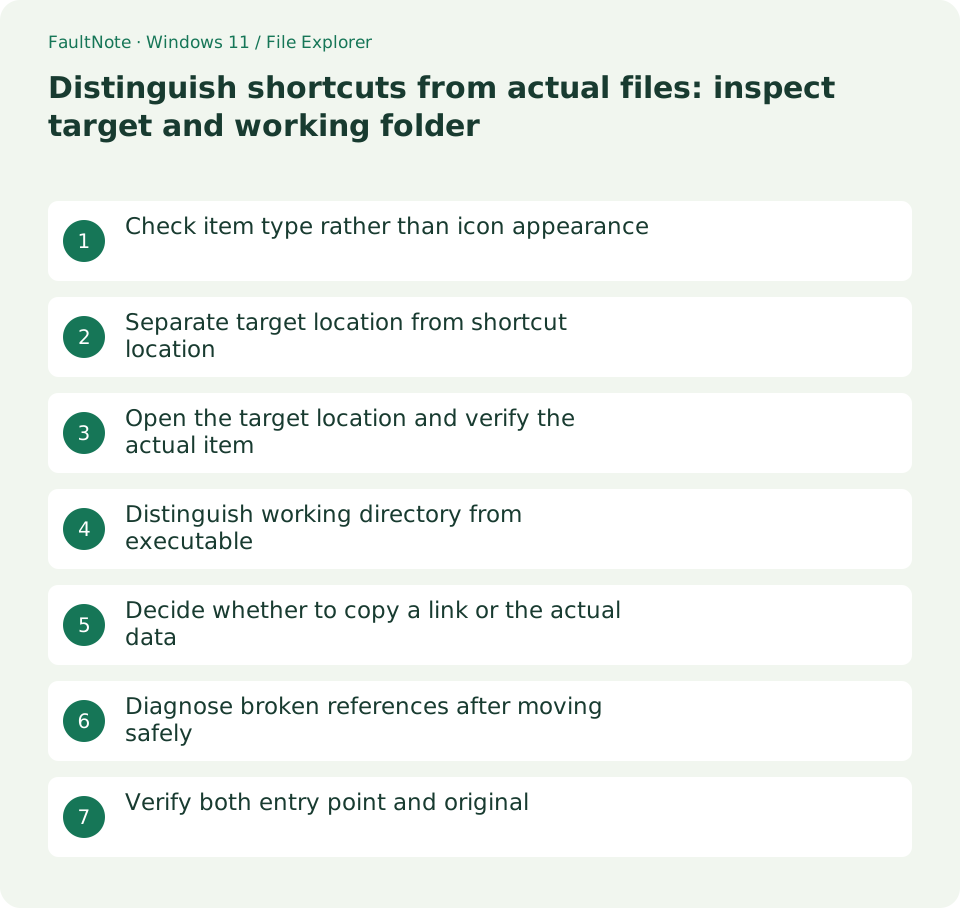
Check item type rather than icon appearance
For a desktop document icon, inspect Properties and type rather than relying only on an arrow overlay. Ordinary shortcuts have a Shortcut tab. Internet links or special app entry points can differ, so do not assume every icon exposes identical .lnk fields.
Separate target location from shortcut location
Read Target separately from the shortcut own location. A desktop link can point to another drive. Separate quoted executable paths from arguments rather than treating all text as a folder. Record only required details and redact internal servers or usernames in public reports.
Open the target location and verify the actual item
Use Open file location when available and confirm the exact path and item. Read documents through the intended app. For applications, inspect the installation location without moving internal files for organization. Verify the exact linked version and connectivity for network/external targets; a visible shortcut does not prove target availability.
Distinguish working directory from executable
Record Start in separately when present. Relative-path applications can behave differently with the same executable but another working directory. Microsoft documents target, working directory and arguments as distinct link data. Use product guidance and retain the original shortcut before changing values; an empty field is not automatically faulty.
Decide whether to copy a link or the actual data
A copied shortcut does not transfer a document contents. Identify and copy the actual document while retaining the original. An app shortcut on another PC does not install the product or dependencies; follow its installation/migration procedure. When merely relocating an entry point, verify target availability on that PC rather than mistaking link size for transferred data.
Diagnose broken references after moving safely
For a missing target, check the old path, any move and storage connectivity. Link resolution may work but is not guaranteed for every move. Verify contents/version before making an entry for a similarly named candidate. Keep the old link until the replacement is proven; a missing product is not restored by shortcut editing alone.
Verify both entry point and original
Test opening through the shortcut and directly from the verified target location separately. Confirm the intended document/product version and record both paths. Before removing an unused entry, verify you are acting on the shortcut itself rather than deleting inside its target folder. Finish with original data retained and the working entry confirmed.
Limitations and requirements
- A copied shortcut is not data transfer or application migration
- Verify the intended target and version before changing a link
Frequently asked questions
Does copying the shortcut to USB transfer the document?
Usually it transfers a reference. Locate and copy the actual document, verify USB contents and keep the original during verification.
Does deleting the link remove its target?
Deleting an ordinary shortcut differs from deleting its target. Verify whether the current view contains the link or the opened target using type and path.
Why does the application behave differently with a correct target?
Check working directory, arguments, product settings and dependencies. Preserve current values and follow product guidance before moving its executable.
Sources and verification date
Sources checked: . These sources support the specifications, procedures or prices discussed here. Check each source for applicable conditions and current information.
Related practical guides
- Find files by name and extension in Explorer: control scope and filters
- Why file Created and Modified dates differ: compare provenance after copying
- Always show file extensions: distinguish names, types and real conversion
- Show hidden files for inspection: restore the view without changing attributes
- Pin work folders to Quick access: distinguish unpinning from deletion
- Windows 11: Work Faster with Essential Keyboard Shortcuts