Windows 11: Manage Multiple Folders with File Explorer Tabs
Group multiple folders together using explorer tabs. Open Explorer with Win+E and create a new tab with [+] in the top tab row or Ctrl+T. Each tab displays a separate folder within a single window, allowing you to move between copy sources and destinations without confusing them.
Published · Updated · FaultNote editorial policy
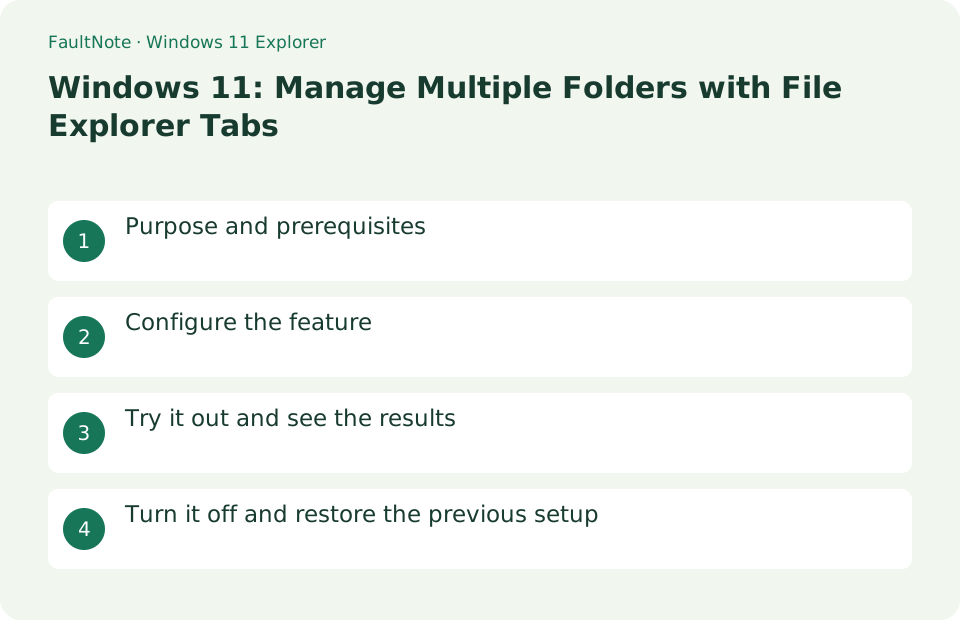
Who this guide is for and what to prepare
- Users who want to streamline daily operations with Windows 11
- Users who want to try out the feature in a way that allows them to restore the settings.
What you need
- Save the file you are working on and try it with test data that does not include personal information.
- Closing the tab doesn't delete the file, but it doesn't close the window while copying/moving. Separate confirmation will be displayed for places that require administrator privileges.
Choose a practical workflow
Keep originals while copying material for submission. An initially empty destination reduces overwrite ambiguity. Identify the source and destination before adding tabs and note whether they are local or in OneDrive. Matching folder names can have different parent paths; inspect the address bar before pasting.
Configure the feature
- Open Explorer with Win+E and create a new tab with [+] in the top tab row or Ctrl+T
Worked example: copy material into a submission folder
- Open File Explorer with Win+E and navigate to the source. Add a tab, for example with Ctrl+T, and open the submission folder.
- Return to the source tab, select the material and press Ctrl+C. Switch to the destination tab. Do not use Ctrl+X in this copy-and-retain example.
- Confirm the address bar identifies the submission folder and press Ctrl+V. Inspect progress until copying finishes.
- Check filenames and count at the destination and open a representative document. Verify originals remain in the source tab and close unnecessary tabs.
Try it out and see the results
Enter the folder path in the address bar on each tab. Drag tabs to change their order and move them using Ctrl+Tab/Ctrl+Shift+Tab. Each tab displays a separate folder within a single window, allowing you to move between copy sources and destinations without confusing them.
Create 3 tabs with Ctrl+T and open Documents, Downloads, and Images. Go back and forth with Ctrl+Tab and Ctrl+Shift+Tab, then drag the tabs to change their order. Use copy and paste for important files, open them at the destination, and then organize the source.
Open Explorer with Win+E, download the first tab, and make the tab you created a document with Ctrl+T. You can move the file you want to move by pressing Ctrl+X on the original tab, or by clicking on the destination tab and pressing Ctrl+V. If you want to keep a copy, use Ctrl+C. By looking at the path in the address bar before pasting, you can reduce the chance of accidentally entering another folder with the same name.
Verify paths and versions in similarly named folders
Open a reference folder and a destination folder in the same window and inspect the address bar before acting. Do not rely only on tab names when folders share a name. First copy a disposable test file and open it at the destination.
For similar folder names, inspect parent paths before copying. A Submission tab may belong to an older project. Date or project names can reduce confusion. Check modified dates and sizes as well as names when choosing versions; fast tab switching does not replace version selection.
Distinguish copying, moving and saving documents
Choose Copy when the original must remain and Cut when it should move, then paste in the destination. Rather than assuming a drag result, check both folders afterward. For cloud folders, review synchronization before deciding to remove original data.
Distinguish folder navigation from opening documents. Double-clicking a document normally opens its associated app rather than editing inside a folder tab. Save in the app and inspect the location before copying the result. Seeing an old filename in Explorer does not establish that the latest edits were saved.
Review side-by-side comparison and batch completion
Tabs suit switching folders within one window. To compare two folders simultaneously, open separate windows and snap them side by side. Verify a large transfer through its progress display and destination contents, even if a tab is closed.
Combine file counts with representative file checks for large batches. A finished progress dialog does not prove every file copied if matching-name choices were skipped. Record errors and skipped items and inspect the omissions. For synchronized folders, check local copy completion separately from cloud synchronization before sharing.
Check tab operations separately from file operations
Scroll horizontally to see the full table →
| Observed result | First check | Next action |
|---|---|---|
| A tab was closed | Reopen the original folder | Closing a tab is different from deleting a folder. |
| The paste location is unclear | Inspect the address bar and recent actions | Check for a different folder with the same name. |
| Two folders need simultaneous viewing | Open another window | Side-by-side Snap placement may suit comparison better than switching tabs. |
Turn it off and restore the previous setup
Close the current tab with Ctrl+W or tab x. If you want to separate the windows, right-click the folder and use [Open in new window].
Limitations and requirements
- Closing the tab doesn't delete the file, but it doesn't close the window while copying/moving. Separate confirmation will be displayed for places that require administrator privileges.
- If the settings are fixed on an organization-managed PC, check with the administrator instead of using unofficial methods to circumvent the policy.
Frequently asked questions
Will the folder be deleted when I close the tab?
This operation only closes the tab you are viewing, and does not delete folders or files.
How to use copy and move differently?
Ctrl+C and Ctrl+V copy, Ctrl+X and Ctrl+V move. Check the path of the destination tab before pasting.
Do more tabs make copying faster?
Tabs consolidate folder views; they do not speed up storage or networking. Several simultaneous large transfers can also make progress harder to track.
How should I recover an unintended move?
Immediately afterward, inspect whether Undo in File Explorer refers to that move. Do not repeatedly undo without checking source and destination. For cloud folders, review synchronization and available history too.
Sources and verification date
Sources checked: . These sources support the specifications, procedures or prices discussed here. Check each source for applicable conditions and current information.