Show hidden files for inspection: restore the view without changing attributes
Change the view first when inspecting unseen files. Visibility does not imply that editing or deletion is needed. Separate ordinary hidden items from protected system files, permissions and unavailable locations, then record findings and restore the view.
Published · Updated · FaultNote editorial policy
Who this guide is for and what to prepare
- People unable to see an instructed folder
- People inspecting locations without changing attributes or permissions
What you need
- Obtain the exact folder path from official instructions or the administrator
- Record the current Hidden items checkbox state
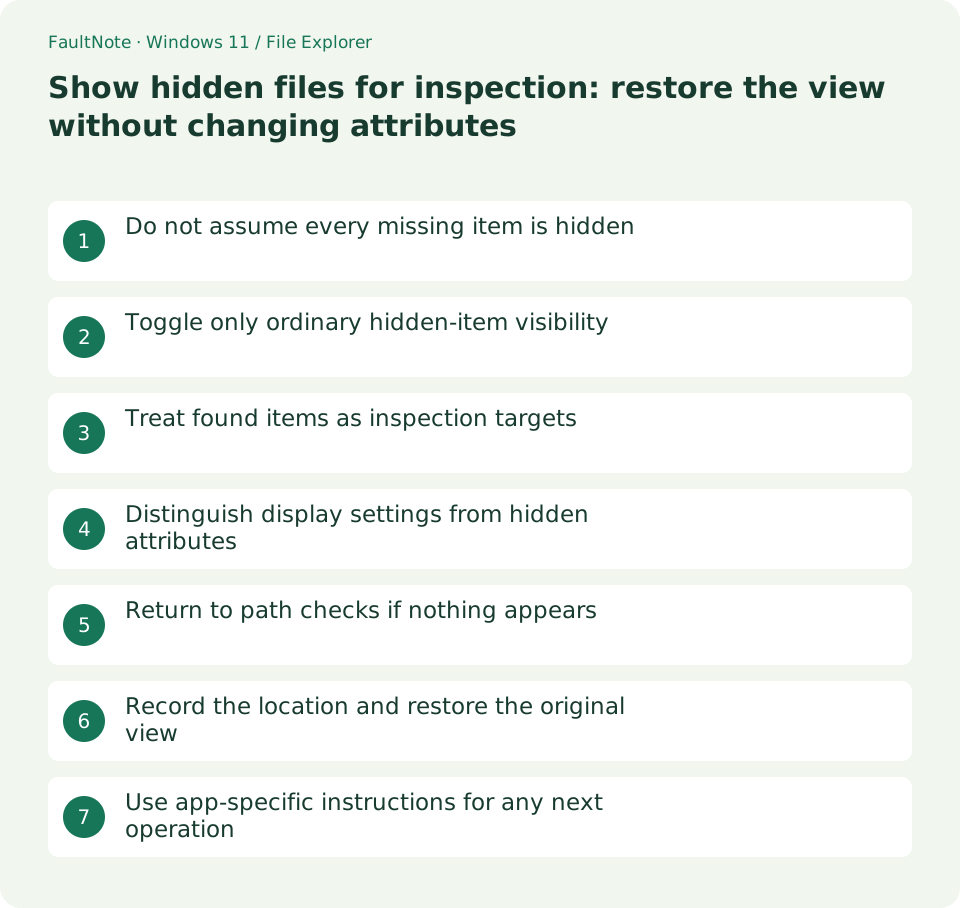
Do not assume every missing item is hidden
For an app settings folder, first open its instructed parent and confirm the user and actual path. Another user location, disconnected storage or a deleted folder is not fixed by visibility settings. Access denied is a permission issue. Identify the missing-item stage and correct path before changing the view.
Toggle only ordinary hidden-item visibility
Use View > Show > Hidden items in Windows 11. Record whether it was already enabled. Ordinary hidden entries may appear faded; the toggle does not remove attributes or change ownership. Inspect names, types and paths without changing the separate protected-operating-system-files setting.
Treat found items as inspection targets
Match the found name to the official instruction. A small settings file differs from a folder holding all application data. Do not label a newly visible item disposable cache. Inspect folder names or Properties; opening a file may launch an application, so stop at Properties when only location is needed. Confirm any later editing with the application instructions.
Distinguish display settings from hidden attributes
Hidden items controls the viewer, separately from the item hidden attribute. Do not clear attributes or run recursive attrib commands just to inspect a path. Application-managed attributes can matter to its expected state. Finish with display-only inspection when sufficient and postpone changes without a specific target and purpose.
Return to path checks if nothing appears
If absent, review parent path, user, application version and documented location. Some folders are created only on first launch. Do not create a same-named folder and assume settings are repaired. Consult the administrator for another user or protected location. Record absence as a result; visibility cannot fix permissions or connectivity.
Record the location and restore the original view
After recording name and location, restore the prior checkbox state. Disappearance from the list does not delete the item; re-enable visibility later at the correct path if needed. Redact personal or confidential path details when sharing. Copying or publishing contents is a separate decision from confirming visibility.
Use app-specific instructions for any next operation
Verify the specified location, restored view and unchanged attributes/content. If repair requires editing, use app-specific instructions for closure and preservation first. Visibility is not repair completion. Narrow the next target using the inspection result instead of deleting mixed cache, settings and data without identification.
Limitations and requirements
- Do not change hidden attributes or ownership for viewing
- Do not delete newly visible settings or data as presumed junk
Frequently asked questions
Does a faded icon mean a damaged file?
Hidden items can appear faded. Do not infer damage or disposability from appearance; check identity, location and purpose.
Does clearing the view checkbox delete files?
It affects visibility rather than deleting contents or changing attributes. Re-enable it in the same location to inspect again.
Why is it still missing with Hidden items enabled?
Check path, creation state, permissions, connectivity or protected-item conditions. Record the error and consult administration before broader protected-display or attribute changes.
Sources and verification date
Sources checked: . These sources support the specifications, procedures or prices discussed here. Check each source for applicable conditions and current information.
Related practical guides
- Find files by name and extension in Explorer: control scope and filters
- Why file Created and Modified dates differ: compare provenance after copying
- Always show file extensions: distinguish names, types and real conversion
- Distinguish shortcuts from actual files: inspect target and working folder
- Pin work folders to Quick access: distinguish unpinning from deletion
- Windows 11: Manage Multiple Folders with File Explorer Tabs