Why file Created and Modified dates differ: compare provenance after copying
Created is not necessarily the date the work was authored, and Modified alone does not establish the latest version. Compare filesystem times with document/photo metadata, original location and content. This guide interprets evidence rather than rewriting timestamps.
Published · Updated · FaultNote editorial policy
Who this guide is for and what to prepare
- People whose date ordering changes after copying
- People comparing document and photo dates
What you need
- Keep originals unchanged and record copy locations
- Record date-field names and the content version you need
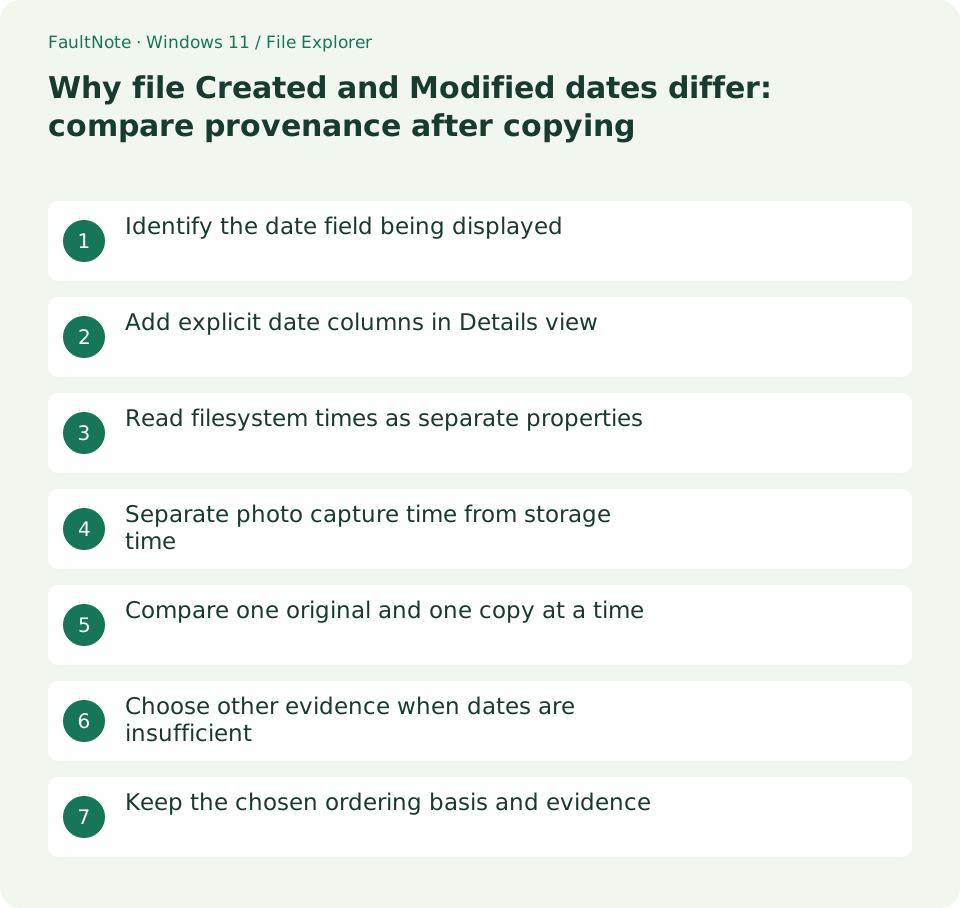
Identify the date field being displayed
An old document copied to a new SSD can show Created later than Modified. Identify whether the column is Date, Date modified or Date created. Generic Date can differ by item type, including photo metadata. Record both files, actual paths and exact field names before interpreting chronology.
Add explicit date columns in Details view
Choose View > Details and right-click a column header to add Date modified and Date created, using More when needed. Add Date taken for photos. Widen columns and compare Properties tabs. An empty metadata column does not establish corruption; the format may not contain that property.
Read filesystem times as separate properties
Microsoft documents creation, last-access and last-write times separately. Filesystem and application behavior can affect updates and precision, so no universal copy-time outcome is promised. A copied filesystem object is not identical evidence of the work creation history. Use original location and content version alongside timestamps.
Separate photo capture time from storage time
Date taken can come from camera metadata rather than the PC copy date. Screenshots, edits and conversions may omit or alter it. For capture order, inspect original-image metadata and keep empty values distinct rather than substituting Created indiscriminately. Camera clock correctness is separate; this workflow does not establish legally conclusive chronology.
Compare one original and one copy at a time
Compare one matching pair by path, size and both date fields, then open identifiable text, pages or images. Different dates alone are not a reason to delete a duplicate. Establish the intended version when contents differ. A small comparison prevents treating copy time as authoring time during mass organization.
Choose other evidence when dates are insufficient
Use application version markers, submission locations, internal change history or author records. Last access is not a complete audit of reading. Label missing provenance as unknown rather than adjusting dates to make a story fit. Explain the field and comparison conditions when different devices or clock settings may matter.
Keep the chosen ordering basis and evidence
Decide the purpose, such as locating work versions by Modified or ordering original photos by Date taken, and record the field. Verify the intended file opens, originals remain and unknown values were not invented. Reopen the folder to check useful columns; removing a column changes display, not file times. Preserve evidence instead of deleting originals by date rank.
Limitations and requirements
- Changing a displayed column does not rewrite timestamps
- Do not delete originals or distinct versions based only on dates
Frequently asked questions
Is Created later than Modified necessarily a fault?
Not necessarily. Copy and application-save behavior can separate these meanings. Compare paths, content and exact fields rather than diagnosing corruption from ordering alone.
Does an empty Date taken mean the image is damaged?
The format or creation workflow may lack capture metadata. Check image readability separately from original metadata and avoid silently substituting another date.
Is the newest Modified file always authoritative?
Exports, copies and application saves can differ. Verify location, version identity and contents; dates are one clue.
Sources and verification date
Sources checked: . These sources support the specifications, procedures or prices discussed here. Check each source for applicable conditions and current information.
Related practical guides
- Find files by name and extension in Explorer: control scope and filters
- Show hidden files for inspection: restore the view without changing attributes
- Always show file extensions: distinguish names, types and real conversion
- Distinguish shortcuts from actual files: inspect target and working folder
- Pin work folders to Quick access: distinguish unpinning from deletion
- Windows 11: Manage Multiple Folders with File Explorer Tabs