Pin work folders to Quick access: distinguish unpinning from deletion
Pinning provides a convenient entry to deep folders without copying or moving contents. Verify the original location first and remove unneeded entries by unpinning. Unavailable targets require checking the location, not deleting or moving the original.
Published · Updated · FaultNote editorial policy
Who this guide is for and what to prepare
- People opening deep work folders daily
- People organizing navigation entries while retaining originals
What you need
- Confirm the full location of each intended folder
- Record current pins and entries to retain
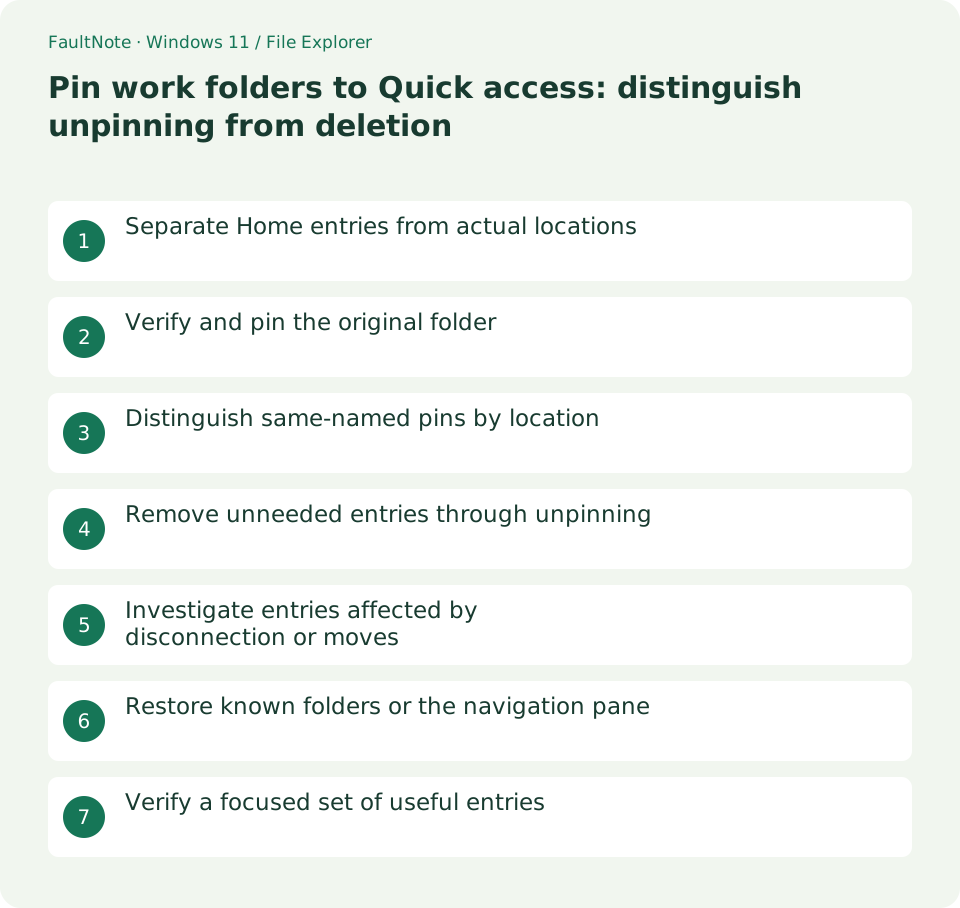
Separate Home entries from actual locations
Windows 11 can label the entry area Home or Quick access, with pins also in navigation. An entry points to an existing folder rather than new storage. Open and record the deep project path before pinning. Recent, frequent and pinned items can coexist; visibility alone does not mean you created a pin.
Verify and pin the original folder
Right-click the intended folder and choose Pin to Quick access after checking its parent path and version. Open the new navigation entry and match its address to the recorded original. Pinning does not make deletion of the original safe; subsequent operations still affect its actual contents. Verify one pin before adding more.
Distinguish same-named pins by location
Several folders called Materials can look identical in navigation. Open each and inspect its path. Reduce pins or use recognizable project structure if confusion persists. Renaming the original merely to improve a pin can affect application or shared references, so treat renaming separately and focus on matching entries to originals.
Remove unneeded entries through unpinning
Use Unpin from Quick access rather than Delete. Afterward, verify the original folder remains at its real location. It may still appear as a frequent item; that is separate from pin state and does not mean unpinning failed. Identify whether a remaining entry is a pin or recent/frequent history before further actions.
Investigate entries affected by disconnection or moves
External or network pins depend on the target availability. Check power, connectivity, required VPN and original path. After a move, verify the new actual folder, pin it and test it before unpinning the old entry. Do not substitute an unrelated same-named folder or create an empty target to conceal missing data.
Restore known folders or the navigation pane
Microsoft describes restoring known folders by opening Home, using the Up button to the known-folder view and pinning the target again. For a hidden navigation pane, use View > Show > Navigation pane. A missing entry is not proof of missing data. If layout differs by version, locate the actual folder and pin it directly.
Verify a focused set of useful entries
Verify two or three useful entries open the intended paths and unpinned originals remain. This does not copy or synchronize data, nor guarantee equivalent entries on another PC. Review recorded paths and reduce confusing pins as needed, keeping navigation organization distinct from changing stored data.
Limitations and requirements
- Do not delete originals to organize navigation
- Pinning is neither copying nor synchronization
Frequently asked questions
Does unpinning remove the folder contents?
Unpinning removes the fixed entry. Verify the original remains and read the menu label to distinguish it from deletion.
Why does it remain after unpinning?
It may be a frequent or recent item. Identify the list and pin state without deleting originals merely to clear navigation.
Why does the pin fail after moving to another drive?
Confirm the new actual path and connectivity, create and test its pin, then unpin the old one. A pin alone does not verify successful data movement.
Sources and verification date
Sources checked: . These sources support the specifications, procedures or prices discussed here. Check each source for applicable conditions and current information.
Related practical guides
- Find files by name and extension in Explorer: control scope and filters
- Why file Created and Modified dates differ: compare provenance after copying
- Always show file extensions: distinguish names, types and real conversion
- Show hidden files for inspection: restore the view without changing attributes
- Distinguish shortcuts from actual files: inspect target and working folder
- Windows 11: Use Clipboard History to Manage Multiple Copied Items